Initial Configuration
A step-by-step roadmap for setting up fellos from scratch. Follow this order for the smoothest experience.
When you first access the fellos admin panel, you'll be starting with a clean slate. This page outlines the recommended order for configuration — each step builds on the previous one, so following this sequence avoids backtracking and rework.
Entering the Admin Panel
Getting into the admin panel is a two-step process: turn on admin mode from your avatar menu, then click the red shield icon that appears in the navigation bar.
- Log in to fellos with your site admin account.
- Click your avatar in the top-right corner of the navigation bar.
- Click Admin Mode in the dropdown to toggle it on. A red shield icon will appear in the navbar (next to your avatar).
- Click the red shield to open the Admin Panel.
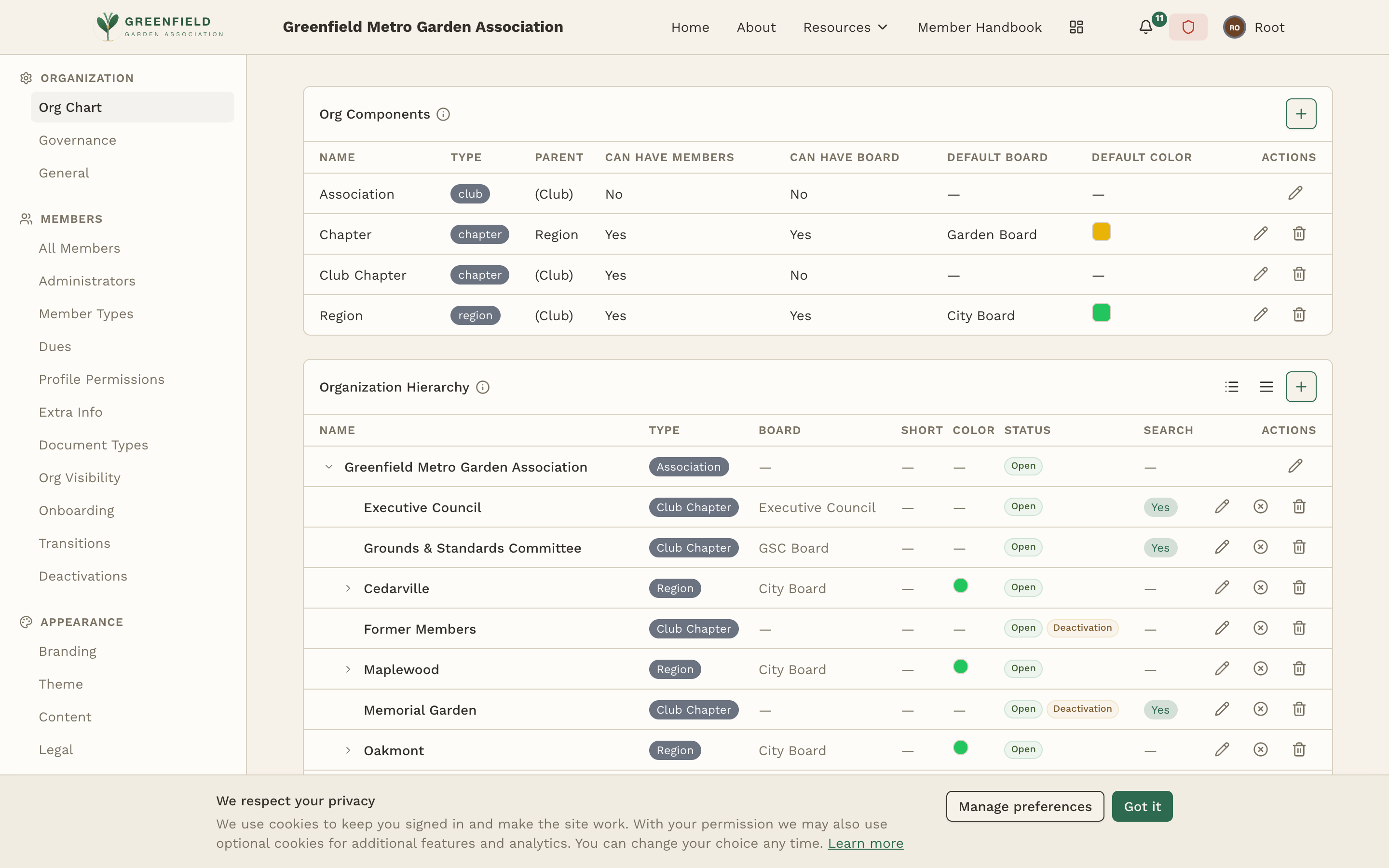
Once inside the admin panel, you'll see the admin sidebar on the left with sections for Organization, Members, Appearance, Communication, Integrations, and System. The main content area displays the settings for whichever section you've selected.
You can leave the admin panel at any time by clicking your organization name (top-left), the Dashboard icon in the navbar, or the Home link — admin mode stays on, so the red shield remains in the navbar and you can hop back in with one click.
When you've finished your admin work, click your avatar and toggle Admin Mode off. This drops your elevated privileges so you don't accidentally take admin-only actions while browsing the site as a regular member. Admin mode also auto-expires after 7 days of inactivity.
Step-by-Step Details
Step 1: Branding & Theme
Start here so your site immediately feels like your organization, not a generic platform. Upload your logo, set your organization name, and customize the theme colors. This takes 5-10 minutes and makes a huge psychological difference — everything you configure after this looks like it belongs to your club.
See: Branding & Logo and Theme Customization
Step 2: General Settings
Set the platform-wide terminology fellos uses for your organization: the Organization Type (what you call your top-level group — Club, Association, Lodge, etc.) and the Display Name Label (what the member display-name field is called — "Road Name", "Garden Name", and so on). Your full name and short name are set separately on the Branding page.
See: General Settings
Step 3: Organization Structure
Define your hierarchy levels and create your organizations. This is the skeleton that everything else hangs on — member types, governance roles, and workflows all reference the org structure. Set up your levels (Club → Region → Chapter, for example), then create the actual organizations at each level.
Step 4: Governance & Roles
Define the officer roles for each level of your hierarchy. Who's the president? Secretary? Treasurer? These roles determine who can approve workflows, manage members, and perform other administrative tasks within their organization.
See: Governance
Step 5: Member Types & Permissions
Create your member types and set permissions for each one. Define what each type of member can see and do — feed access, directory visibility, event creation, etc. Also set up custom profile fields and attachment types if needed.
See: Member Types and Profile Permissions
Step 6: Workflows
Configure onboarding flows (how new members join), transitions (how members change types), and deactivation processes (how members leave). Each workflow can have approval chains, notifications, and custom fields.
See: Onboarding, Transitions, and Deactivations
Step 7: Communication
Set up discussion groups, configure feed settings, and define event categories. Create the communication channels your organization needs — general discussion, officer-only groups, event planning, etc.
See: Discussion Groups, Feed Settings, and Events
Step 8: Integrations
Configure push notifications (for real-time alerts on mobile) and set up OAuth providers (for social login options like Google or Facebook). Email is built in — every fellos plan includes outbound delivery for invitations, password resets, and notifications, with no provider setup or API keys to manage.
See: Push Notifications and OAuth Providers
Step 9: Commerce (Optional)
If your organization will sell items or ticketed events, set up Stripe first, then turn on the Store. USPS live shipping rates are built in — no per-site setup required. Once Stripe and the Store are on, designate a Comptroller — usually by setting the Comptroller flag on a Treasurer role in Governance — and hand them the Comptroller Guide.
Step 10: Invite Your First Members
With everything configured, you're ready to invite members. Start with a small group — your officers and a few trusted members — to verify everything works as expected. Then expand to your full membership.
Importing a Roster
To invite many members at once, go to Admin → MEMBERS → All Members, open the Roster menu and choose Import members, then upload a CSV or Excel file. Download CSV template gives you a file with the right columns, and you see a preview of every row before any invitation is created. Imported members count toward your plan like any other member.
Before inviting members, test the entire experience yourself. Create a test member account, go through the onboarding flow, check that notifications arrive, and verify that permissions work correctly. It's much easier to fix issues before 200 members are on the platform.
Navigating the Admin Panel
The admin panel is organized into logical sections in the sidebar. Above the first section label is a Documentation link, which opens this Site Admin Guide. Then, in order:
- ORGANIZATION — Org Chart, Governance, General.
- MEMBERS — All Members, Administrators, Member Types, Secondary Members, Dues, Profile Permissions, Extra Info, Document Types, Org Visibility, Onboarding, Transitions, Deactivations, Elections.
- APPEARANCE — Branding, Theme, Content, Legal, Contact, Cookies, Social Links.
- COMMUNICATION — Feed, Groups, Group Summaries, Messaging, Events, Documents, Notifications, Support Tickets.
- INTEGRATIONS — Email, Email Bounces, Push Notifications, OAuth, Payments, Store. (USPS live shipping rates are built in.)
- SYSTEM — Security, Custom Domains, Storage, Audit Log.
A few of those names don't match what the page is about once you open it, so they're worth knowing in advance: Document Types sets up the document slots on member profiles (membership applications and the like), not the shared document library — that's Documents under COMMUNICATION. Extra Info is where custom profile fields live. And Support Tickets is a read-only view of tickets your members have opened; platform support handles the replies.
Click any item in the sidebar to navigate to its configuration page. Changes are saved when you click the Save or Save Changes button on each page — there's no global save.