Documents
Shared files organized into folders with permission controls.
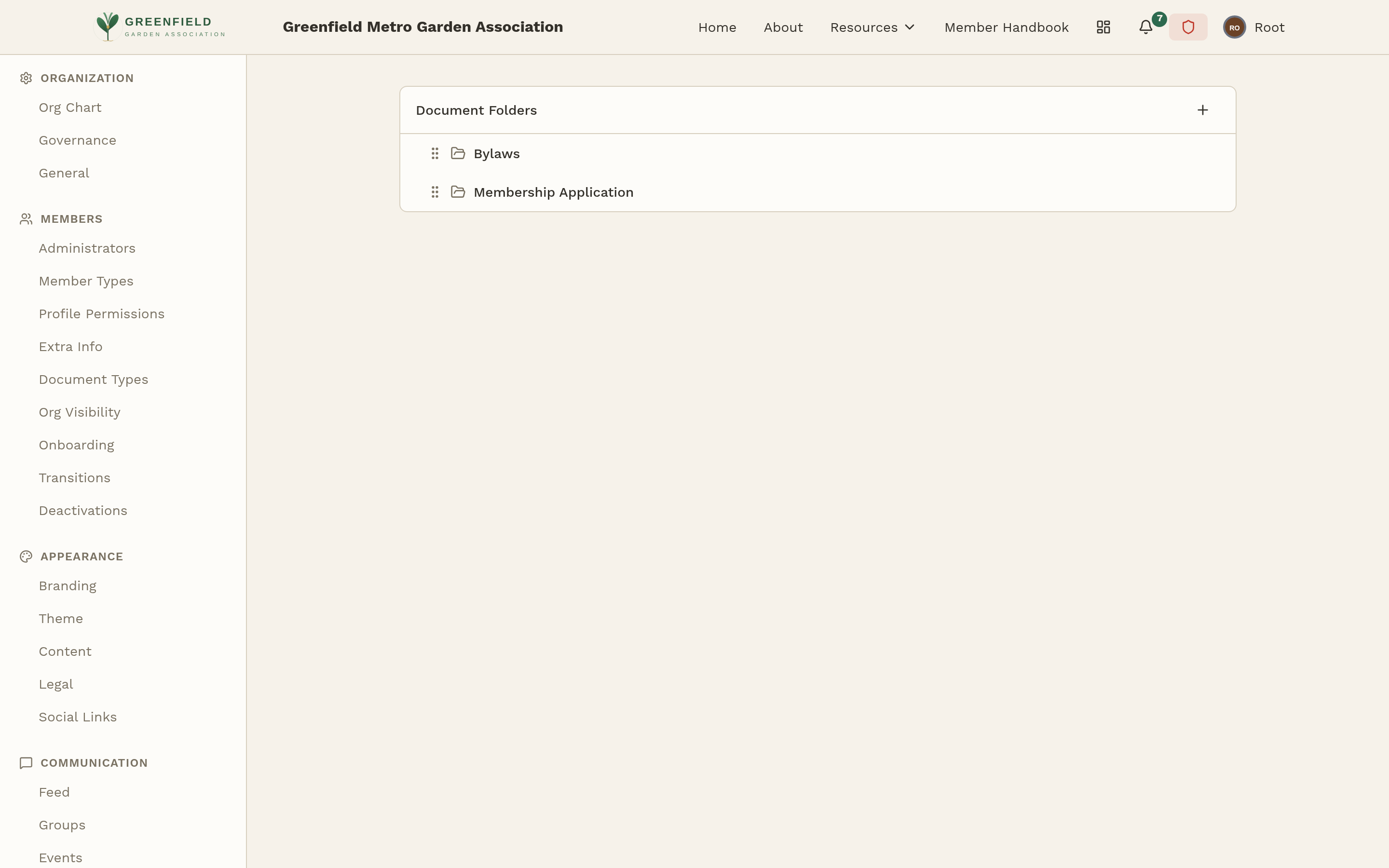
Your members can browse a shared Documents section from the sidebar. You control what's in it and who sees what from the admin panel.
Creating Folders
- Go to Admin → COMMUNICATION → Documents. The page header is "Document Folders".
- Click the New Folder button.
- Give the folder a name and optional description.
- Set who can view and who can upload (see Permissions below).
- Save. The folder is visible immediately to members who have access.
Folders can contain other folders. Nest as deep as makes sense — usually two levels is plenty.
Uploading Files
Open a folder and use the Drop files here or click to upload dropzone (up to 100 files, 100 MB each). Supported file types include:
- PDFs, Word docs, spreadsheets.
- Images (JPG, PNG).
- ZIP archives.
- Most common formats.
Files can have multiple revisions. Upload a new version of the same filename and the old one is kept in history; members see the latest by default but can access older revisions.
Permissions
Each folder has three permission dimensions:
- View
- Who can see that the folder exists. If a member doesn't have View, they don't even see the folder in the list.
- Download
- Who can download the files in this folder. Defaults to anyone who can View.
- Manage / Upload revisions
- Who can upload new files and add revisions. Usually restricted to specific officer roles.
For each dimension you can restrict by:
- Member type (e.g., only Gardeners, not Seedlings).
- Officer role (e.g., only Executive Council).
- Specific users by name.
Common Setups
- "Everyone can see, officers can upload"
- View and Download: all members. Manage: members with any officer role.
- "Board-only minutes"
- View, Download, and Manage: restricted to Executive Council role.
- "Member handbooks"
- View/Download: all members. Manage: Site Admins only.