OAuth Providers
Set up social login options so members can sign in with their existing Google, GitHub, or Apple accounts.
OAuth integration allows your members to sign in to fellos using their existing accounts from popular identity providers. Instead of creating and remembering a separate password for your fellos site, members can click "Sign in with Google" (or GitHub, or Apple) and authenticate using an account they already have.
OAuth is entirely optional. Email/password login always works regardless of whether OAuth is configured. OAuth simply provides additional sign-in convenience for your members.
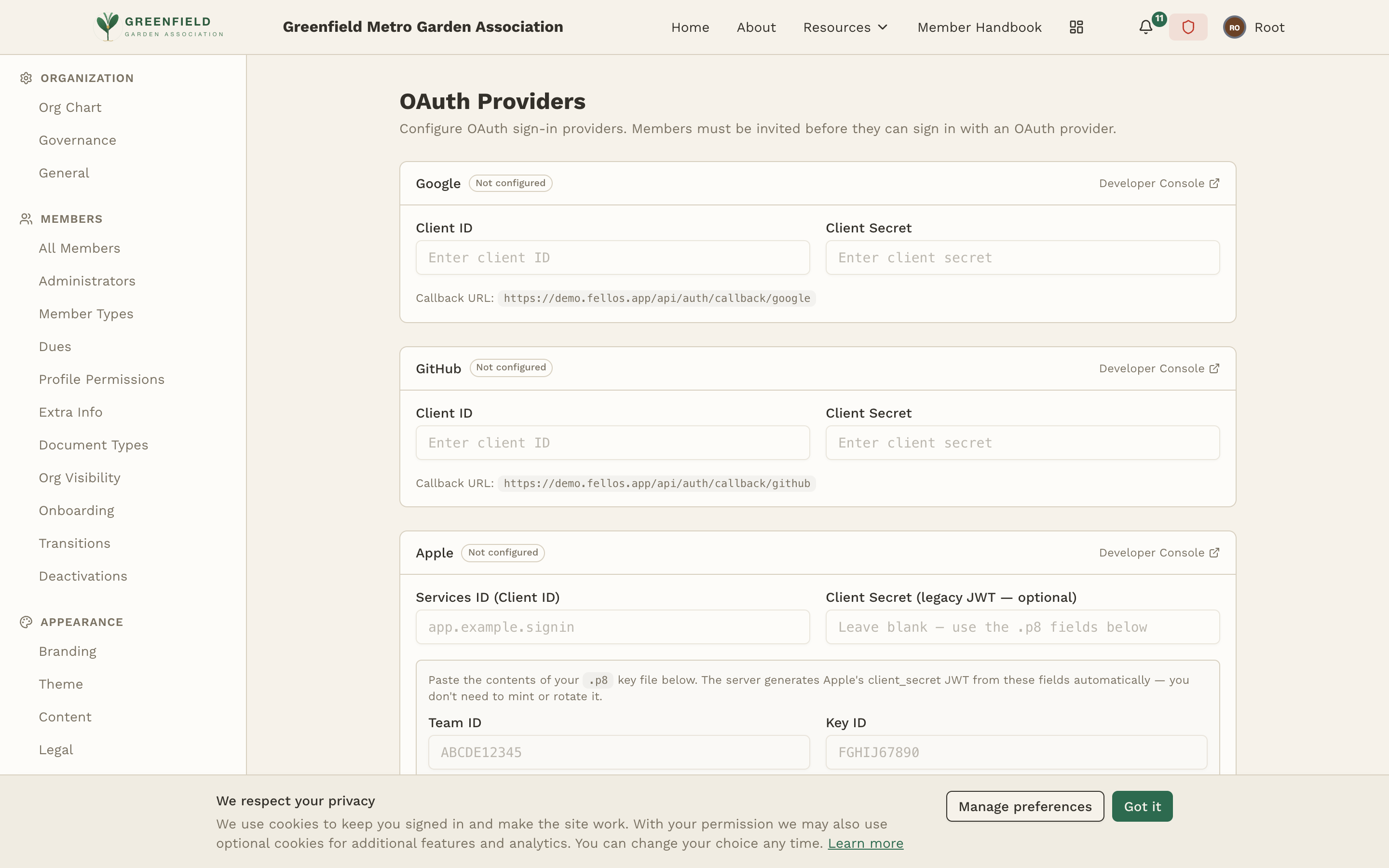
Supported Providers
fellos supports three OAuth identity providers:
The most widely used option. Most members already have a Google account, making this the easiest OAuth provider to offer. Google OAuth uses the Google Cloud Console for credential management.
GitHub
Useful for technically-oriented organizations where members likely have GitHub accounts. GitHub OAuth is configured through GitHub's Developer Settings.
Apple
Apple Sign In provides privacy-focused authentication. Members can choose to hide their email address when signing in with Apple. Configuration requires an Apple Developer account.
Configuring a Provider
Google and GitHub each require two pieces of information: a Client ID and a Client Secret. (Apple is configured differently — see below.) These are obtained from the provider's developer console. The general process is the same for Google and GitHub:
- Open the provider's developer console. Each provider on the page has a Developer Console link that takes you there.
- Create a new OAuth application or credentials.
- Set the redirect URI to the Callback URL fellos shows directly beneath that provider's fields (e.g.
https://yoursite.com/api/auth/callback/google). - Copy the Client ID and Client Secret from the provider's console.
- Paste them into the corresponding fields on the fellos OAuth Providers page. Saving a provider's credentials enables it.
Setting Up Google OAuth
- Go to the Google Cloud Console (console.cloud.google.com).
- Create a new project or select an existing one.
- Navigate to APIs & Services > Credentials.
- Click Create Credentials > OAuth client ID.
- Select Web application as the application type.
- Add your fellos site's OAuth callback URL to the Authorized redirect URIs.
- Copy the generated Client ID and Client Secret into fellos.
If your Google Cloud project is new, you may need to configure the OAuth consent screen first. Set it to "External" (unless you have a Google Workspace domain), add your organization's name and email, and submit for verification if you expect more than 100 users.
Setting Up GitHub OAuth
- Go to GitHub > Settings > Developer settings > OAuth Apps.
- Click New OAuth App.
- Enter your fellos site URL as the Homepage URL.
- Enter the OAuth callback URL as the Authorization callback URL.
- Click Register application.
- Copy the Client ID. Click Generate a new client secret and copy it.
- Paste both values into fellos.
Setting Up Apple Sign In
Apple Sign In requires an Apple Developer account ($99/year). The setup is more involved than Google or GitHub:
- Go to the Apple Developer portal (developer.apple.com).
- Navigate to Certificates, Identifiers & Profiles.
- Register a new App ID with the "Sign In with Apple" capability enabled.
- Create a Service ID linked to your App ID, and configure the web authentication settings with your fellos site domain and callback URL.
- Create a Key for Sign In with Apple and download the
.p8key file. - In fellos, fill in the Apple fields: Services ID (Client ID), your Team ID, your Key ID, and paste the contents of the
.p8file into Private Key (.p8 contents). fellos generates Apple'sclient_secretJWT from these fields automatically — you don't need to mint or rotate it. The Client Secret (legacy JWT — optional) field can be left blank.
Apple Sign In gives users the option to hide their real email address by using Apple's private relay email. When a member signs in this way, fellos receives a unique relay address instead of their real email. The member's actual email is still delivered through Apple's relay, but you won't see it directly in their profile.
How OAuth Login Works for Members
Once you've configured and enabled one or more providers, the sign-in page automatically shows the corresponding login buttons. For example, if Google is enabled, members will see a "Sign in with Google" button alongside the standard email/password form.
- A member clicks the OAuth button and is redirected to the provider's login page.
- After authenticating with the provider, they're redirected back to fellos.
- If their provider email matches an existing fellos account, they're logged in automatically.
- If no matching account exists, the login fails — OAuth doesn't create new accounts automatically. The member must first be onboarded through the normal onboarding workflow using the same email address they use with the OAuth provider.
Security Considerations
- Client Secrets are sensitive — Treat your OAuth client secrets like passwords. Don't share them or commit them to public repositories.
- HTTPS required — OAuth providers require your fellos site to use HTTPS. If your site isn't on HTTPS, OAuth won't work.
- Email matching — OAuth login matches by email address. If a member's provider email doesn't match their fellos account email, the login won't work. They'll need to update their fellos email or use password login instead.
- OAuth is additive — Enabling OAuth doesn't disable password login. Members always have the option to sign in with email and password, even if OAuth is available.