Discussion Groups Setup
Create and organize discussion groups for your members — with fine-grained access controls, sections, and moderator assignments.
Discussion groups are where your members communicate. Whether it's an announcements board, a committee workspace, or a casual hangout for a specific chapter, groups give your organization structured spaces for conversation. The Groups admin page lets you create groups, organize them into sections, define who can access them, and assign moderators.
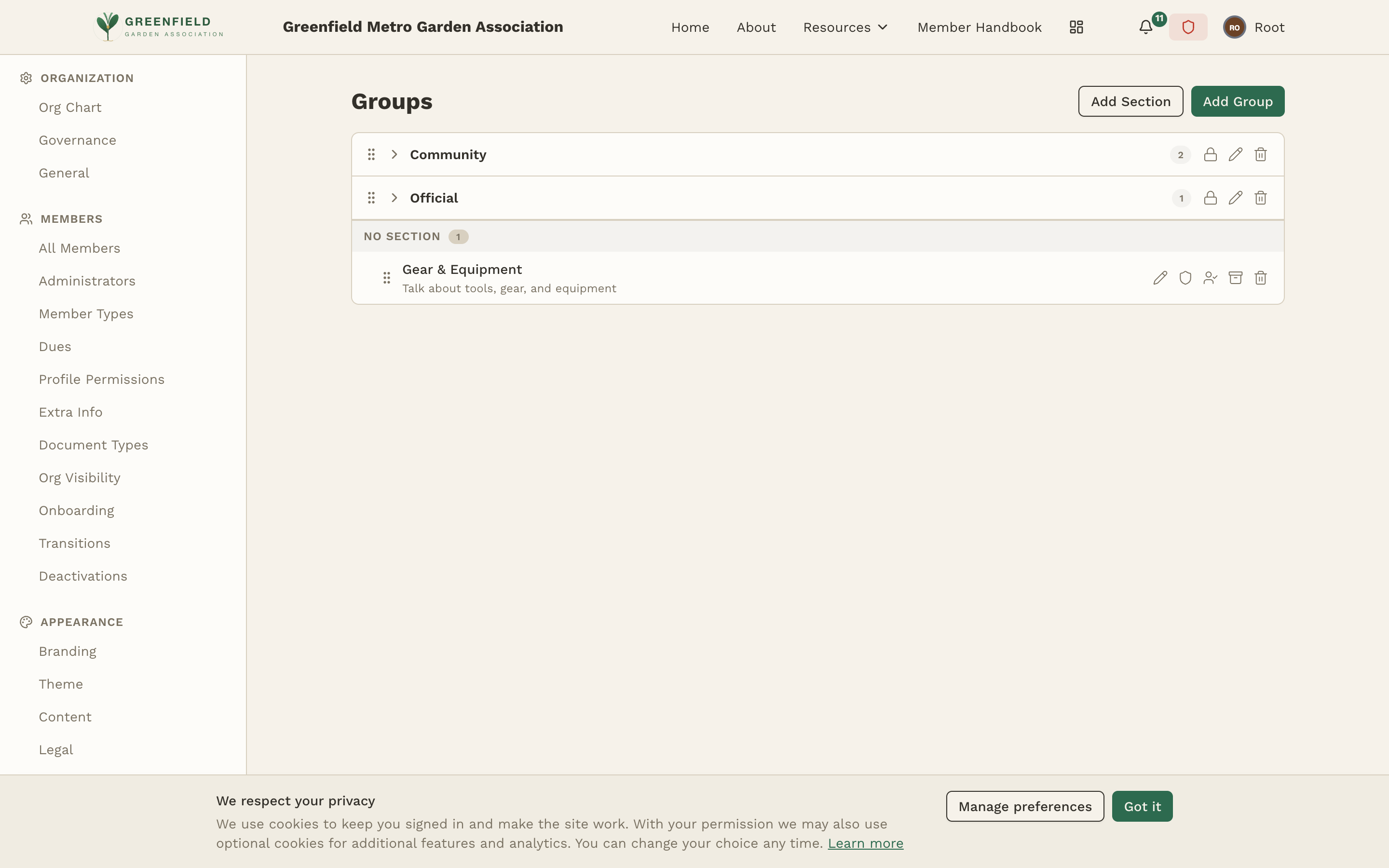
Creating a Group
To create a new discussion group, click the Add Group button at the top of the page. You'll need to provide:
- Give the group a name — something clear and descriptive like "General Discussion", "Announcements", or "Safety Committee".
- Add an optional description that explains the group's purpose. This appears in the group header and helps members understand what belongs there.
- Choose the group mode — Open or Locked. Open groups allow any member with post access to create new posts. Locked groups restrict posting to moderators only — other members can read and comment but can't start new threads.
- Optionally turn on require approval — posts in this group will need a moderator to approve them before they appear in the feed. Groups with this flag show an "APPROVAL" badge in the Groups list.
- Assign the group to a section (or leave it unsectioned — it will appear under "NO SECTION" in the list).
- Configure access rules to control who can read, comment, post, and moderate.
Open vs. Locked groups
Open groups are for general discussion where you want members to freely start conversations. Most groups should be open. Locked groups are for one-way communication — typically announcements boards where leadership posts and members can only read or comment. In a locked group, only users with Moderate access can create new posts.
Organizing with Sections
Sections are categories that organize your groups into logical groupings. Members see sections as collapsible headers in the groups sidebar, making it easy to find the right group.
To create a section, click Add Section at the top of the page and give it a name. Common sections include:
- General — For organization-wide groups like announcements, general discussion, and marketplace
- Committees — For committee-specific discussion spaces
- Chapters — For chapter-specific local groups
- Events — For event planning and coordination groups
- Officers — For leadership-only discussion groups
Drag groups between sections to reorganize them. Drag sections themselves to change their display order. The order you see on the admin page is exactly the order members will see in their sidebar.
Access Rules
Access rules are the heart of group configuration. For each group, you define who can do what. Access is controlled along two dimensions: member type and organization.
Permission levels
Each member type can be granted four levels of access per group:
- Read — Can see the group in the sidebar and read all posts and comments. Without read access, the group is completely invisible to that member type.
- Comment — Can reply to existing posts. Requires read access to be useful (you can't comment on something you can't see).
- Post — Can create new discussion threads in the group. In locked groups, this permission is ignored — only moderators can post.
- Moderate — Can pin, lock, move, and delete posts within the group. Moderators can also post in locked groups. This is a powerful permission — grant it carefully.
Organization-based access
Beyond member type, you can restrict access by organization. This is useful for chapter-specific groups. For example, you might create a group called "Oakmont Chapter Discussion" and restrict it to members of the Oakmont chapter only.
When setting organization-based access, you'll see an "Include sub-orgs" option. If checked, members of child organizations (sub-chapters, sub-regions) also get access. This is useful for regional groups that should include all chapters within a region.
For most organization-wide groups, leave the organization filter empty — this grants access to all organizations. Only use organization filtering for groups that should be limited to specific chapters, regions, or other units.
Assigning Moderators
Each group can have one or more assigned moderators. Moderators are specific members (not just member types) who have elevated permissions in the group. They can:
- Pin posts — Keep important posts at the top of the group
- Lock threads — Prevent further comments on a post
- Move posts — Transfer a post from one group to another
- Delete posts — Remove inappropriate or off-topic content
- Post in locked groups — Create new posts even when the group is locked
To assign a moderator, open the group's settings and search for the member by name. You can assign multiple moderators per group. Moderators receive notifications when posts in their groups are reported or flagged.
Ordering Groups and Sections
The display order of groups and sections matters — members see them in the exact order you configure. Drag the handle icon on the left side of any group or section to reposition it.
- Sections can be reordered relative to other sections
- Groups within a section can be reordered within that section
- Groups can be dragged from one section to another
- Unsectioned groups appear at the top, before any sections
Put your most-used groups near the top. Announcements and general discussion typically come first, with more specialized groups lower in the list.
Changes to group order, access rules, and settings take effect immediately. Members will see the updated structure the next time they load the groups sidebar. There's no need to publish or deploy — save and it's live.
Common Group Configurations
Here are some group configurations used by organizations on fellos:
Announcements board
A locked group in the General section. All member types get Read access. Only officers and admins get Moderate access (which lets them post in locked groups). Comments can be enabled or disabled depending on whether you want members to respond to announcements.
Chapter-specific groups
Create one group per chapter, each restricted to that chapter's organization. Use the Include sub-orgs option if chapters have sub-groups. Put these in a "Chapters" section so they're organized together.
Officers-only group
An open group where only members with officer governance roles have Read access. Other member types get no access at all — the group is completely invisible to them. Useful for leadership discussions that shouldn't be visible to general members.
Committee workspace
An open group for each committee. Read and Comment access for all members (so anyone can follow along), but Post access only for committee members. This lets the committee drive the conversation while keeping the broader organization informed.