Branding & Logo
Make fellos look like your organization — set your name, upload your logo, and add a favicon for browser tabs.
The Branding page is found under APPEARANCE → Branding in the admin sidebar. This is where you customize your site's visual identity. A well-branded site helps members feel at home and reinforces your organization's identity.
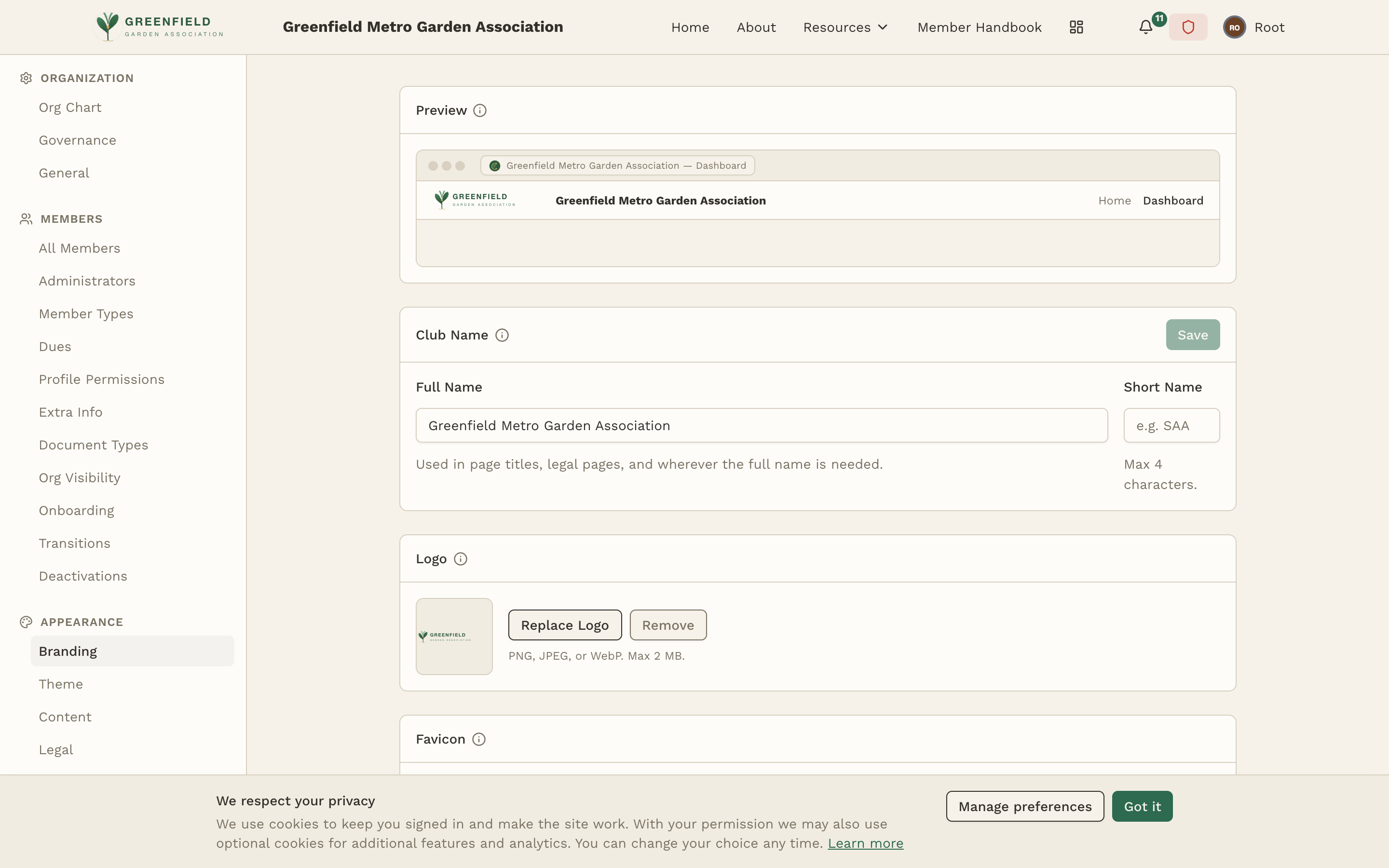
Club Name
Your organization's name is displayed throughout fellos in two forms:
Full Name
The complete name of your organization. This appears in:
- Page titles in the browser tab (e.g., "Feed — Riverside Motorcycle Club")
- The navigation bar alongside your logo
- The public homepage header
- Legal pages and the site footer
- Email notification headers
Short Name
A compact abbreviation, limited to 4 characters maximum. The short name appears in:
- Compact navigation elements on smaller screens
- Avatar fallbacks when no profile image or logo is available
- Mobile header bars where space is limited
Choose a short name that's immediately recognizable to your members. Common patterns: initials (RMC), abbreviations (BPOE), or common shorthand (VFW).
Logo
Upload your organization's logo to replace the default fellos branding in the navigation bar and on the public homepage.
Requirements
- Format: PNG, JPEG, or WebP
- Max file size: 2 MB
- Recommended dimensions: A horizontal or square logo works best. Very tall/narrow logos may not display well in the navigation bar.
Uploading a Logo
- Click the Replace Logo button next to the logo preview area.
- Select your logo file from your computer.
- The preview area updates immediately — check the navigation bar preview at the top of the page to see how it looks.
- Click Save to apply.
To remove the logo and revert to text-only branding, click the Remove button next to the logo.
For the best results, use a logo with a transparent background (PNG format). This ensures it looks clean against the dark navigation bar. If your logo has a white background, it will appear as a white rectangle in the nav bar.
Favicon
The favicon is the small icon that appears in browser tabs, bookmarks, and (on some platforms) the address bar. It helps members quickly identify your site among their open tabs.
Best Practices
- Use a square image — favicons are displayed as squares, so non-square images will be cropped or distorted.
- Keep it simple — favicons are tiny (typically 16x16 or 32x32 pixels). Detailed logos don't translate well. Consider using just your logo mark or initials.
- PNG format recommended — PNG supports transparency, which looks cleaner in browser tabs.
Uploading a Favicon
- Click the Replace Favicon button in the Favicon section.
- Select a square image file from your computer.
- The preview updates to show how the favicon will appear.
- Click Save to apply. Note: you may need to hard-refresh your browser (Ctrl+Shift+R) to see the new favicon in your browser tab.
Preview
The Preview section at the top of the Branding page shows a miniature version of your navigation bar with the current branding applied. As you make changes to the club name, short name, or logo, the preview updates in real time — before you save.
Use this to verify that your logo fits well in the nav bar, that your short name is readable, and that the overall look matches your expectations.
Changes to branding take effect site-wide immediately after saving. Members who are currently using the site will see the updated branding on their next page load — no need for them to clear their cache or log out and back in.