Social Links
Connect your organization's social media profiles so members and visitors can find you across platforms.
The Social Links page is found under APPEARANCE → Social Links in the admin sidebar. Add URLs for your organization's social media accounts, and they'll appear as icons in the site footer and on public-facing pages.
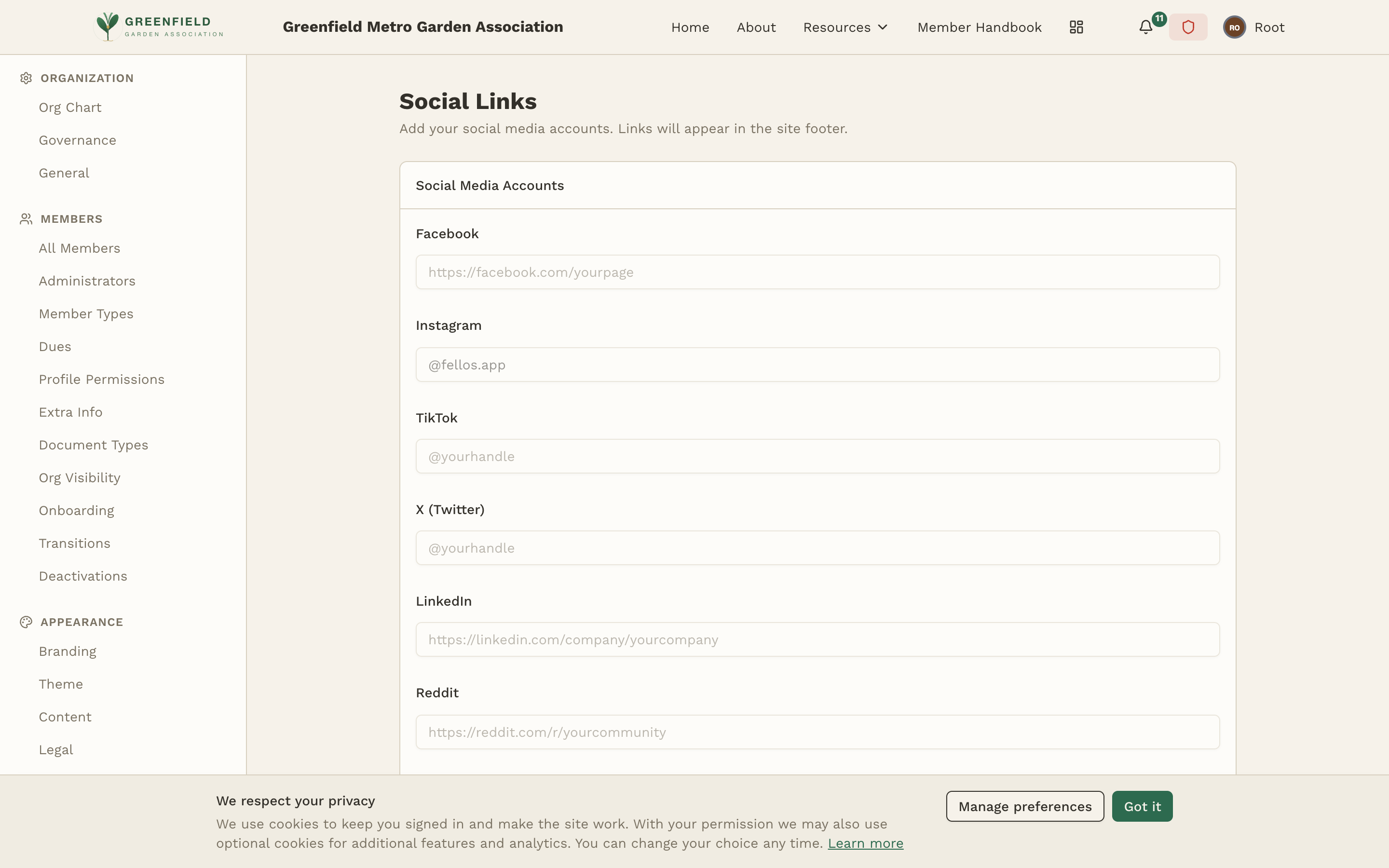
Supported Platforms
The Social Media Accounts section has fields for each supported platform:
- Facebook — full URL (e.g.
https://facebook.com/yourpage). - Instagram — handle only (e.g.
@yourhandle) — fellos prepends the URL automatically. - TikTok — handle only (e.g.
@yourhandle). - X (Twitter) — handle only (e.g.
@yourhandle). - LinkedIn — full URL (e.g.
https://linkedin.com/company/yourcompany). - Reddit — full URL (e.g.
https://reddit.com/r/yourcommunity). - YouTube — full URL (e.g.
https://youtube.com/@yourchannel).
Adding Social Links
- Navigate to APPEARANCE → Social Links in the admin sidebar.
- For each platform your organization uses, fill in the field. Use the placeholder text as a guide — handle-style fields (Instagram, TikTok, X) want just
@yourhandle, while URL-style fields (Facebook, LinkedIn, Reddit, YouTube) want the fullhttps://URL. - Leave fields blank for platforms you don't use — blank fields are simply not displayed.
- Click Save Changes to apply.
Feed Announcements
Below Social Media Accounts is a Feed Announcements section with toggles for Facebook, Instagram, TikTok, and X (Twitter). When enabled, new posts on those platforms will be automatically announced in the member feed with a link preview — your members see your social activity without leaving fellos.
Feed polling is not yet active. These toggles will take effect when automatic post detection is enabled in a future update — set them now if you want them on by default once the feature ships.
Where Social Links Appear
Once configured, your social links appear as icons in the site footer on every page (public and member-facing). Each icon links to the corresponding platform. The icons are automatically generated based on which platforms have values configured — platforms without values simply don't show an icon.
Updating or Removing Links
To update a social link, edit the field and save. To remove a link entirely, clear the field (leave it blank) and save. The icon for that platform will no longer appear in the footer.
Social links are purely informational — they open the platform in a new browser tab when clicked. fellos does not integrate with these platforms in any other way (no automatic posting, no social login via these links). For social login configuration, see OAuth Providers.