Deactivation Workflow
Configure the approval process for deactivating members — controlling who can request it and who must approve it.
Deactivation is the process of removing a member's active status from your organization. Unlike deleting a member (which fellos does not support), deactivation preserves all historical data while revoking the member's ability to log in and participate. This ensures your organization maintains complete records while properly handling departures, suspensions, or other separations.
The Deactivations admin page lets you configure the approval chain for the deactivation process — who can start it and who must sign off before it takes effect.
Configuring the Workflow
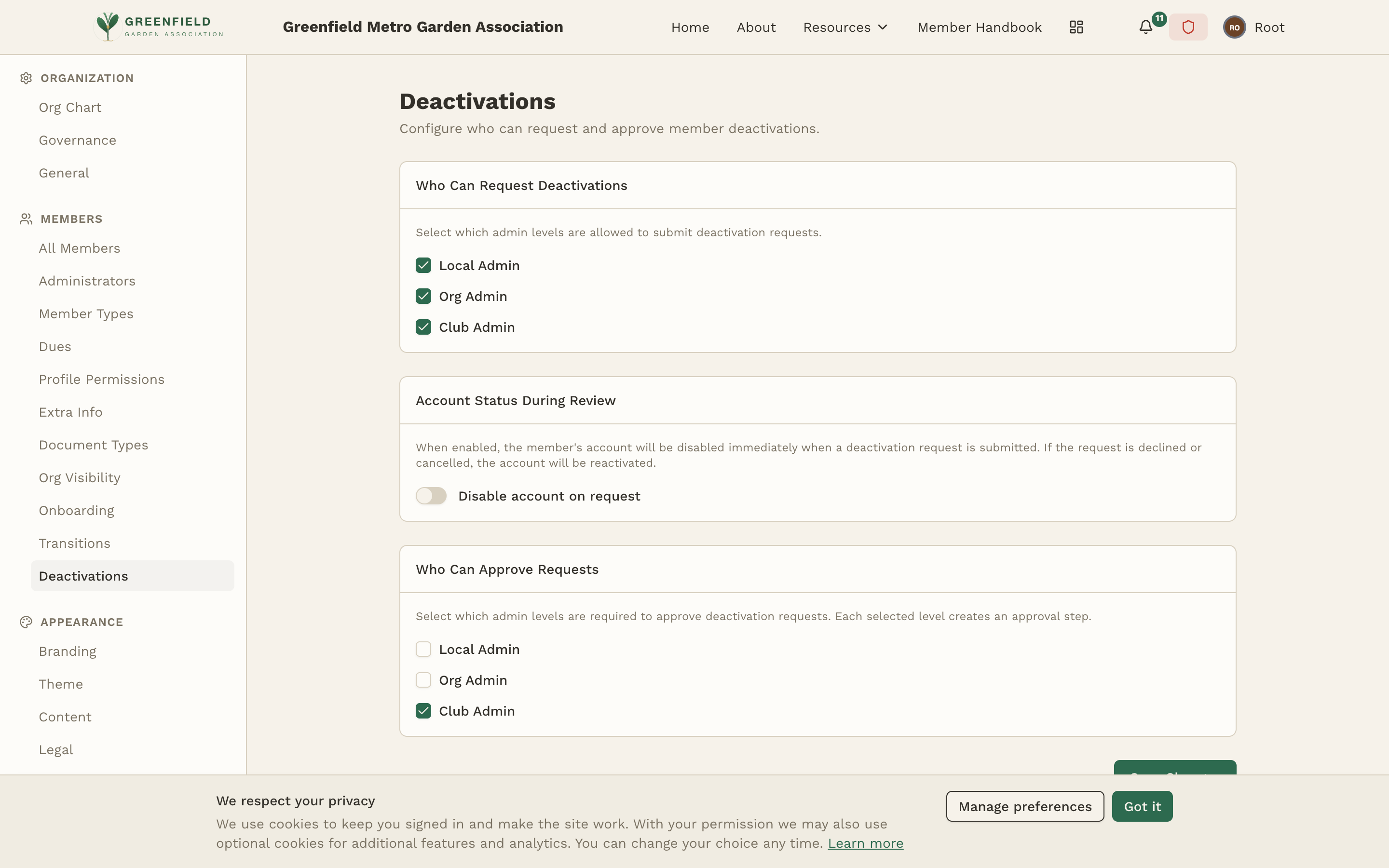
The Deactivations page has three sections: Who Can Request Deactivations, Account Status During Review, and Who Can Approve Requests. Configure each, then click Save Changes at the bottom.
Who Can Request Deactivations
Select which administrator levels can submit a deactivation request:
- Local Admin — chapter-level administrators. Can request deactivation for members in their specific chapter.
- Org Admin — mid-level administrators (regional, district). Can request deactivation for members in sub-orgs below their org. The Org flag does not include the org itself — to also cover their own org, the role needs both Org and Local flags.
- Club Admin — site-level administrators. Can request deactivation for any member in the entire club.
You can check one, two, or all three levels. Most organizations allow all three, since the approval step provides the necessary oversight.
Account Status During Review
This section has a single toggle, Disable account on request. When enabled, the member's account is suspended immediately when a deactivation request is submitted — they lose login access while the request is pending. If the request is later declined or cancelled, their account is automatically reactivated.
Leave this off if you want members to retain access while their deactivation is being reviewed (the default). Turn it on for situations where you need the access cut off the moment the request is filed — disciplinary actions, suspected misuse, etc.
Who Can Approve Requests
Select which administrator levels must approve a deactivation before it takes effect. Each selected level creates a separate approval step — selecting Local Admin and Club Admin together means a request needs both a local approval and a club-level approval before the member is deactivated.
A common configuration is to allow all admin levels to request deactivations but require only one approval step (typically Org Admin or Club Admin). This means chapter officers can initiate the process, but a higher-level admin must confirm the action before it's final.
What Happens When a Member Is Deactivated
When a deactivation is approved and processed, the following changes take effect immediately:
- The member's type is changed to a Deactivation Type. The requestor picks which one (e.g. "Voluntary Leave", "Removed", "Memorial") from the categories you've configured in the Deactivation Types table on the Member Types page. Each Deactivation Type also defines which active types it accepts as sources, the org the member's record is moved to, and whether reinstatement is allowed.
- The member's login access is revoked. They can no longer sign in to the fellos platform.
- The member is removed from active listings. They no longer appear in the member directory or organization rosters for other members.
- All historical data is preserved. Their profile, posts, event attendance, attachments, and workflow history remain in the system for record-keeping purposes.
- The deactivation is logged in the audit log with full details: who requested it, who approved it, and when it was processed.
Deactivation is not deletion. fellos intentionally preserves all member data when someone is deactivated. This is critical for organizations that need to maintain membership records for governance, historical, or legal purposes. The deactivated member's contributions to discussions and events remain visible to other members.
Deactivation Types
Before this workflow does anything useful, you need at least one Deactivation Type defined on the Member Types page. Each Deactivation Type captures the reason for offboarding and where the member's record goes — common categories include "Voluntary Leave", "Removed", "Memorial", and "Incomplete Trial".
When a deactivation request is submitted, the requestor picks the appropriate Deactivation Type from the categories whose Sources include the member's current active type.
Reinstatement
Deactivated members can potentially return to active status. There are two paths for reinstatement:
- New onboarding — If your onboarding workflow allows applications from deactivated members, they can go through the standard onboarding process again, starting fresh with a new request.
- Transition rule — If you create a transition rule with the deactivation type as the "from" type and an active type as the "to" type, administrators can use the transition workflow to reinstate the member. This approach lets you require specific documentation (like a reinstatement application) and approval from the appropriate level.
Either way, reinstating a member restores their login access and changes their type to an active one. Their historical data — including the deactivation record — remains intact.
Best Practices
- Document your reasons — Even though the deactivation form doesn't require a message by default, encourage administrators to note the reason for deactivation in the request. This creates a clear record in the audit log.
- Set appropriate approval levels — Deactivation is a significant action. Consider requiring approval from at least one level above the requestor to prevent hasty or unauthorized deactivations.
- Communicate with the member — fellos handles the technical side of deactivation, but reaching out to the member directly about their status change is a good organizational practice.
- Review periodically — Check your deactivated members list periodically. Some may be candidates for reinstatement, especially if they left due to temporary circumstances.