Organization Visibility
Per-member-type setting that controls which organizations and members each kind of member can see.
The Org Visibility page is found under MEMBERS → Org Visibility in the admin sidebar. It lets you set, separately for each member type, how much of your organization tree those members can see when browsing the directory and member lists.
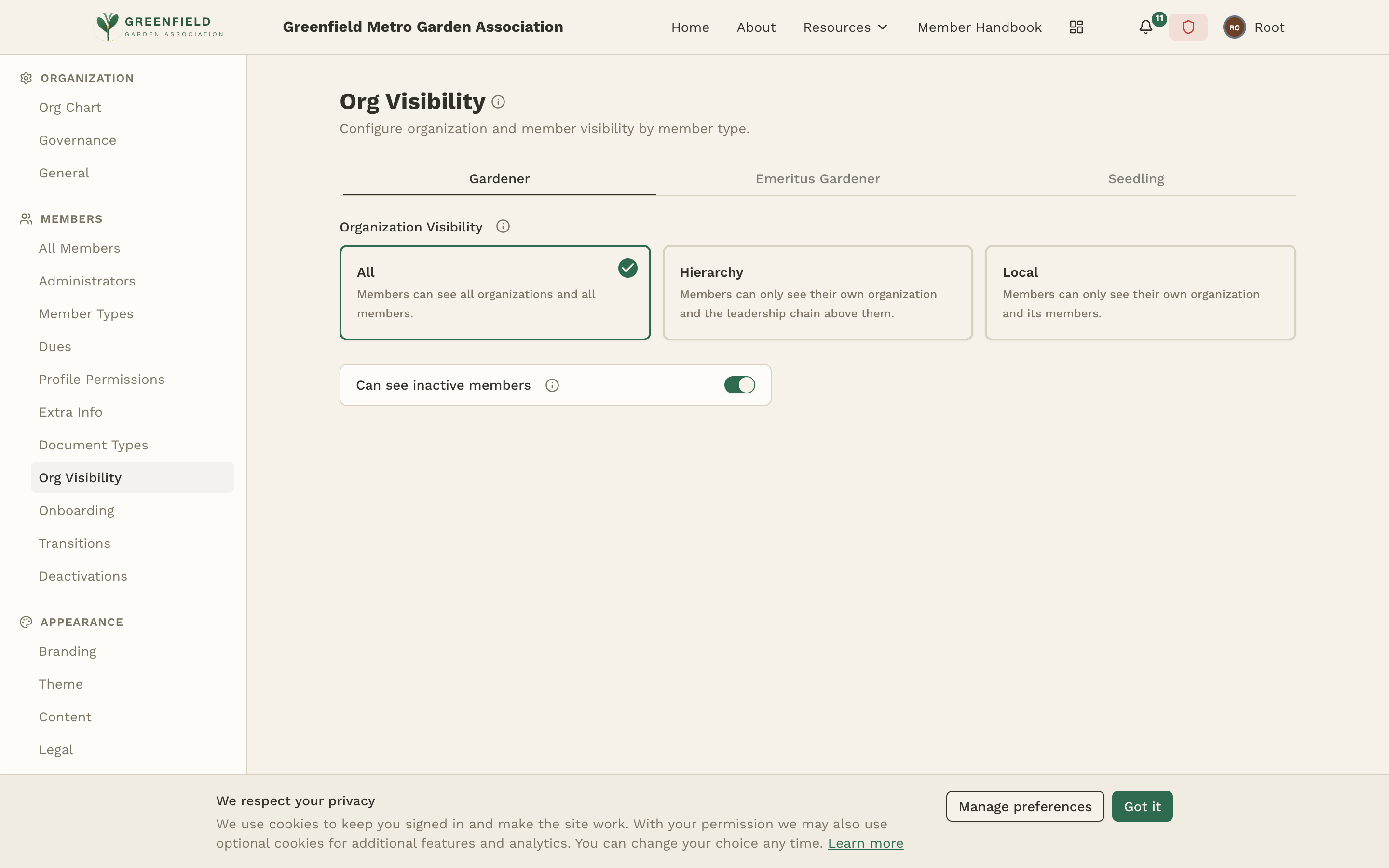
How the Page Works
The page has a row of tabs at the top — one tab per member type (e.g. "Gardener", "Emeritus Gardener", "Seedling"). Each tab has its own independent visibility setting, so you can give different member types different access.
Organization Visibility Levels
Within a tab, pick one of three visibility levels:
- All — members of this type can see every organization and every member across the entire organization tree.
- Hierarchy — members can see their own organization and the leadership chain above them (parent org, grandparent org, etc.) — but not sibling orgs in other branches.
- Local — members can see only their own organization and its members. Maximum restriction.
Can See Inactive Members
Below the visibility level is a Can see inactive members toggle. When on, members of the selected type can also browse members who hold a Deactivation Type (former members, members on leave, memorialized members, etc.). When off, deactivated members are hidden from the directory for this member type.
- Full members: set Visibility to "All" so they can find anyone, and turn "Can see inactive members" on if your org keeps a public memorial roster.
- New / probationary members: set Visibility to "Local" so they only see their sponsoring org during their trial period.
- Honorary members: set Visibility to "Hierarchy" so they see leadership but not the entire active membership.
Admins are not affected by these settings. Any member with admin access (Club, Org, or Local level) can see all organizations and members within their admin scope — regardless of what their member type's visibility setting would normally allow.