Cookies & Consent
Control the cookie banner visitors see, pick a consent mode that matches your jurisdiction, and customize the copy and category descriptions.
The cookie settings editor lives under APPEARANCE → Cookies in the admin sidebar. From here you decide whether a banner appears, how consent is captured, and what visitors read when it does. Defaults are sensible for most organizations — you only need to change something if your legal posture or branding calls for it.
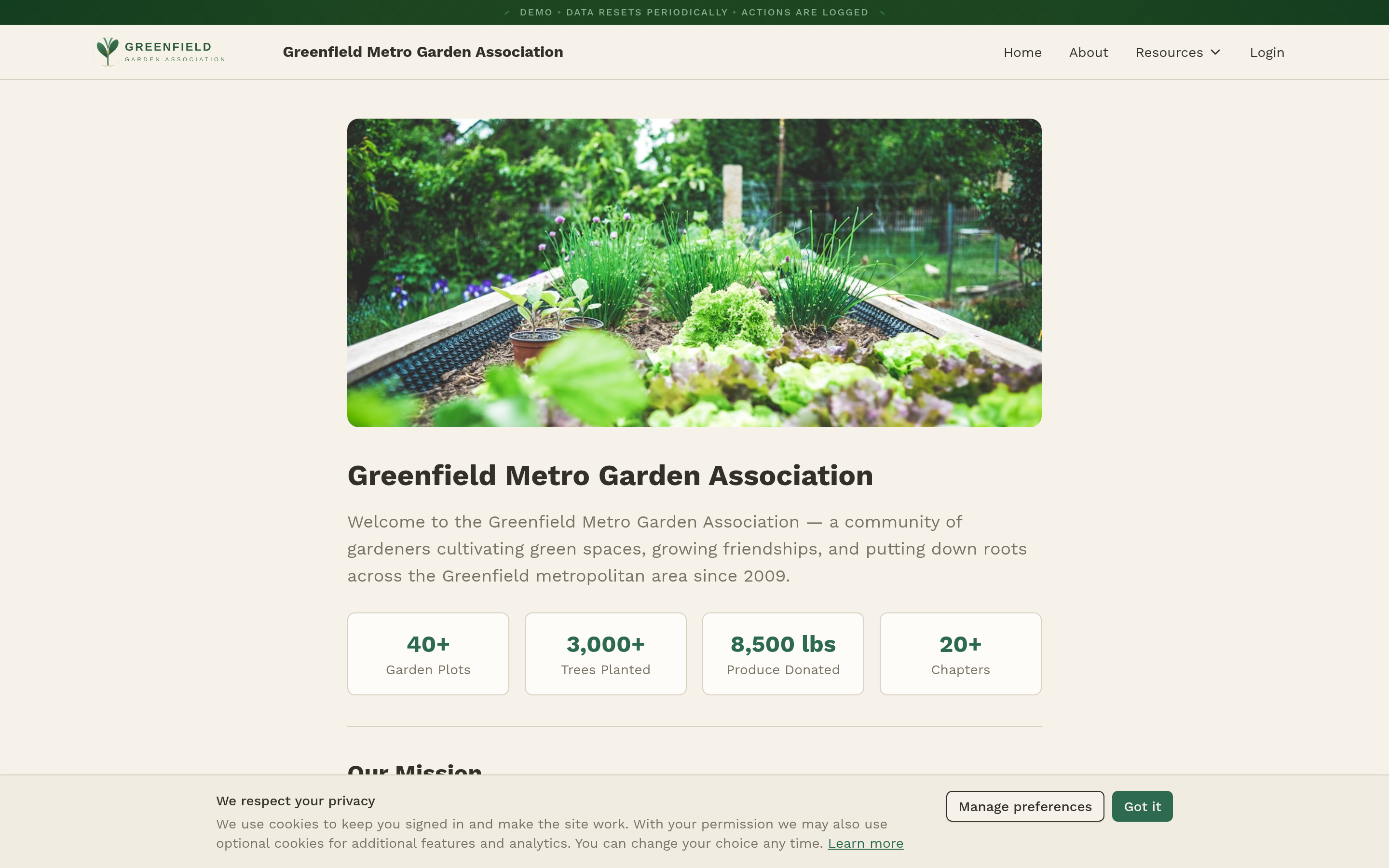
What a visitor sees on their first visit:
The Banner
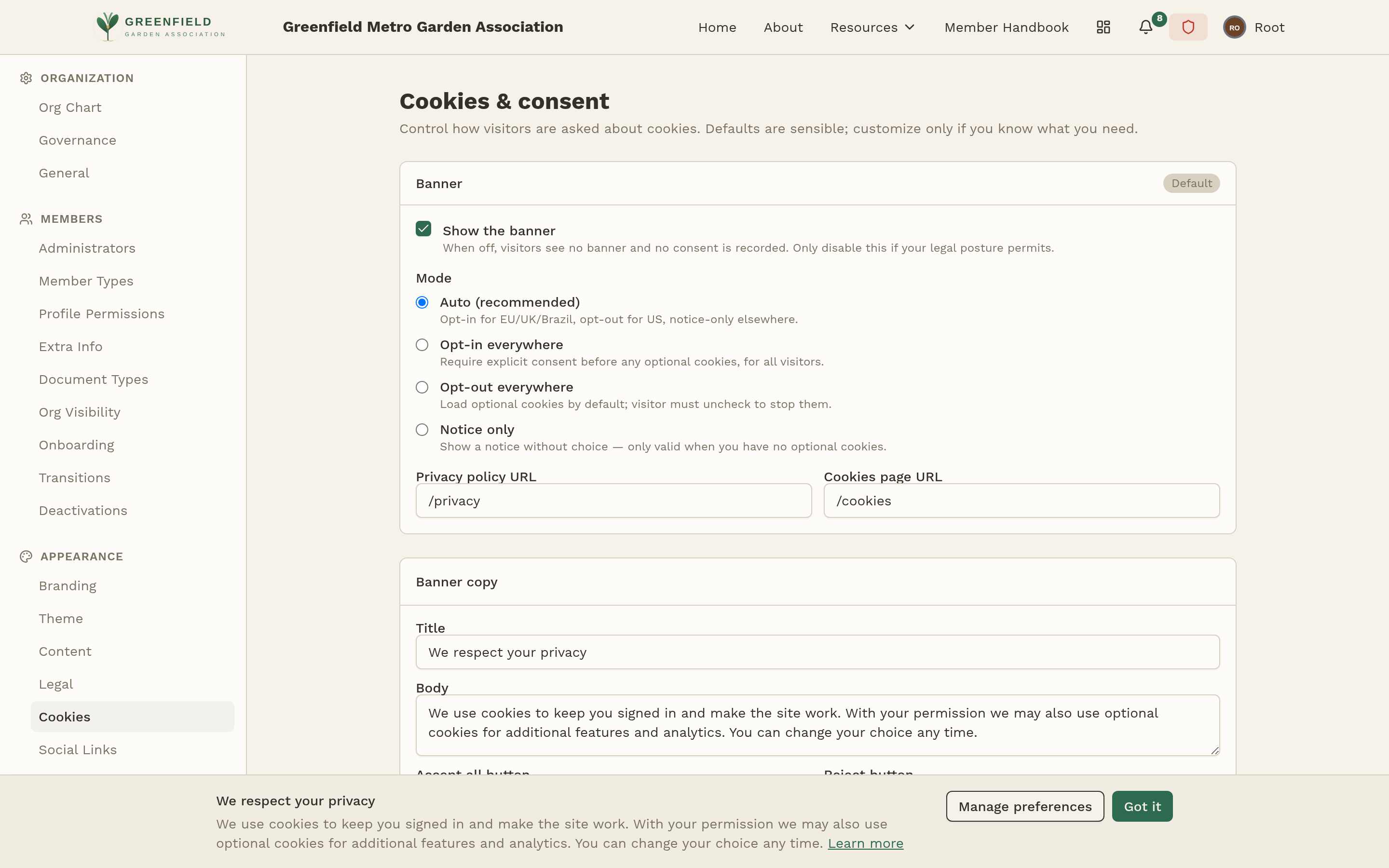
The first section controls whether the consent banner appears at all and how it behaves.
- Show the banner — a toggle that turns the banner on or off site-wide. When off, visitors see no banner and no consent is recorded. The UI warns: "Only disable this if your legal posture permits."
- Privacy policy URL — where the Learn more link in the banner points. Defaults to
/privacy(your Privacy Policy page). - Cookies page URL — where the Learn more link takes visitors for full cookie details. Defaults to
/cookies.
Turning the banner off stops fellos from recording any consent. That's only appropriate if your site genuinely uses no optional cookies and your jurisdiction doesn't require a notice. If you're unsure, leave it on in Auto mode.
Consent Mode
The Mode radio group determines how fellos asks visitors for consent. Four options, each with a short in-product description:
- Auto (recommended) — fellos picks the right approach based on the visitor's region: opt-in for EU / UK / Brazil, opt-out for the US, notice-only elsewhere. Most organizations should leave this on.
- Opt-in everywhere — requires explicit consent from every visitor before any optional cookies load. The strictest option; safest if you operate internationally and want one consistent policy.
- Opt-out everywhere — loads optional cookies by default; visitors must actively reject them. Permissive, and only appropriate where the law allows it.
- Notice only — shows a brief notice without any accept/reject choice. The UI explicitly limits this: "only valid when you have no optional cookies." If you're running analytics or any non-essential category, this mode is not for you.
Banner Copy
The Banner copy section controls every word on the banner and preferences dialog. Each field has a sensible default; edit any of them to match your voice. Which buttons actually render on the banner depends on the Mode you picked — an opt-in banner shows Accept / Reject / Manage; a notice-only banner shows just Manage preferences and a dismiss button.
- Title — the banner's headline. Default: "We respect your privacy".
- Body — the explanatory paragraph. Default: "We use cookies to keep you signed in and make the site work. With your permission we may also use optional cookies for additional features and analytics. You can change your choice any time."
- Accept all button — default: "Accept all". Shown when Mode allows visitors to accept optional cookies in one click.
- Reject button — default: "Reject optional". Shown alongside Accept in opt-in / opt-out modes.
- Manage prefs button — default: "Manage preferences". Opens the per-category dialog. Always shown.
- Save choices button — default: "Save choices". Shown inside the Manage preferences dialog after the visitor toggles individual categories.
The Learn more link at the end of the body text always appears and points at your Cookies page URL.
Consent banners work best when the copy is short, clear, and doesn't try to persuade. "Reject optional" is more honest than "Continue without optional cookies" — visitors should be able to decide in a second.
Cookie Categories
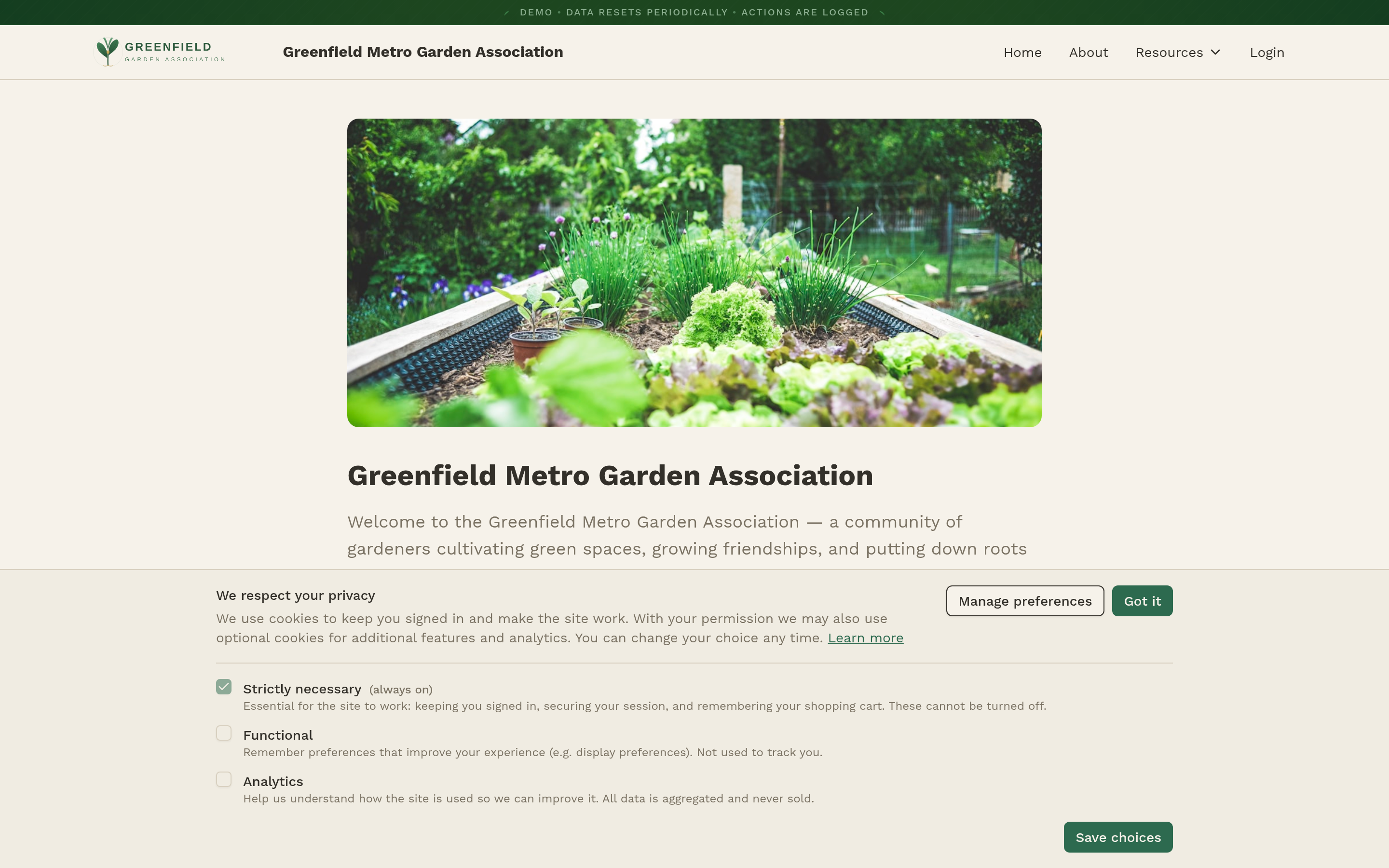
The Categories section lists the cookie groups visitors can toggle from the Manage preferences dialog. Each category has its own Title and Description — the Title is what appears as the toggle label, and the Description is the explanation underneath.
- necessary (required) — always on. Default Title: "Strictly necessary". Default Description: "Essential for the site to work: keeping you signed in, securing your session, and remembering your shopping cart. These cannot be turned off."
- functional — optional. Default Title: "Functional". Default Description: "Remember preferences that improve your experience (e.g. display preferences). Not used to track you."
- analytics — optional. Default Title: "Analytics". Default Description: "Help us understand how the site is used so we can improve it. All data is aggregated and never sold."
That text is printed below the Categories section in the UI as a reminder. Edit its Title and Description freely, but the toggle itself is not user-controllable — necessary cookies are what keep fellos functioning (session, CSRF, cart, and so on).
Saving Changes
Changes aren't live until you click Save at the bottom of the page. Saving takes effect immediately; visitors who have already dismissed the banner will not see it again unless they clear their existing choice from the Cookies page (linked in the footer as Cookies).
The banner appears on every page of your site — both for logged-out visitors and for logged-in members who haven't yet made a choice. A persistent Cookies link in the site footer lets anyone revisit their preferences at any time.