Notification Types
Control which notification types are enabled for each member type.
fellos has a notification system that alerts members about activity relevant to them — new posts in their groups, workflow updates, document approvals, and security alerts. As a site admin, you control which notification types are enabled for each member type. Disabled types never generate notifications for members of that type.
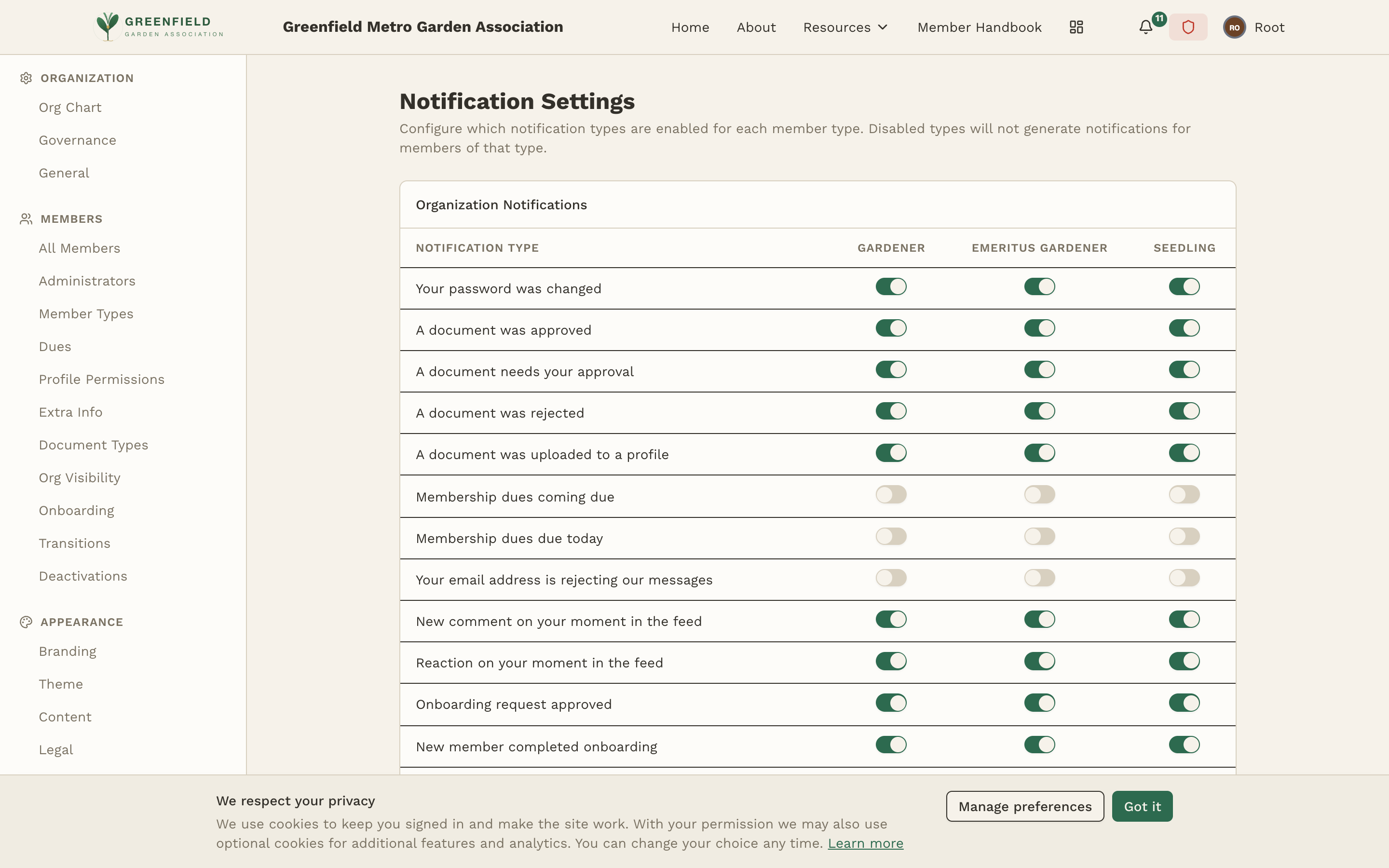
The Notification Settings admin page shows a matrix of notification types versus member types, letting you enable or disable each combination with a single click.
How Notification Configuration Works
The Notification Settings admin page shows a table (matrix) with:
- Rows — Each row is a notification type, split across two sections (Organization Notifications and Group Notifications)
- Columns — Each column is a member type from your Member Types configuration
- Checkboxes — Each cell has a checkbox. When checked, that member type can receive that notification type. When unchecked, that notification type is completely unavailable to that member type.
This gives you granular control. For example, you might enable "New Post in Group" notifications for Full Members and New Members but disable them for Seedlings, who may not yet have group access.
Notification Sections
Notification types are split across two sections of the page:
Organization Notifications
System-wide notifications about account, document, onboarding, transition, and feed activity. Examples: "Your password was changed", "A document needs your approval", "Onboarding request approved", "New comment on your moment in the feed".
Group Notifications
Notifications driven by activity inside discussion groups — new posts, comments, mentions, and reactions in groups the member belongs to.
Within each section, the table has a Notification Type column on the left and one column per member type. Each cell holds a checkbox controlling whether members of that type are eligible to receive that notification.
Member Preferences
The notification types you enable here determine which notifications members of that type are eligible to receive. Members control how those notifications reach them on their own Notifications settings page, which has a single Delivery channels section with two toggles:
- Email — Whether they receive notifications by email (governed site-wide by the admin Email setting under Admin → INTEGRATIONS → Email; email is included on every plan, no setup required).
- Push — Whether they receive native push notifications on their devices (requires push notifications to be configured).
In-app notifications are always on and can't be turned off. There are no per-notification-type toggles on the member side — the member-facing page only offers the two delivery-channel switches above.
If a notification type is disabled here for a member's type, that member simply never receives it.
Best Practices
- Start with everything enabled — It's better to enable all notification types for all member types and let members customize their preferences, rather than pre-restricting what's available.
- Disable sparingly — Only disable a notification type for a member type if that type genuinely should never receive it. For example, if Seedlings don't have group access, disable group-related notifications for them.
- Review after adding member types — When you create a new member type, remember to come back here and enable the appropriate notification types for it. New member types start with no notifications enabled.
- Consider the member journey — A New Member might not need all the notifications a Full Member gets. Match notification availability to what each member type can actually do on the platform.