Member Types
Define the categories of membership your organization uses — full members, new members, honorary, and more — and the categories you use when members leave.
The Member Types page is found under MEMBERS → Member Types in the admin sidebar. Every member in fellos is assigned exactly one member type at any time. Member types control which workflows the member can participate in, which deactivation paths apply to them, and they're the basis for visibility, profile permissions, and notification routing on other admin pages.
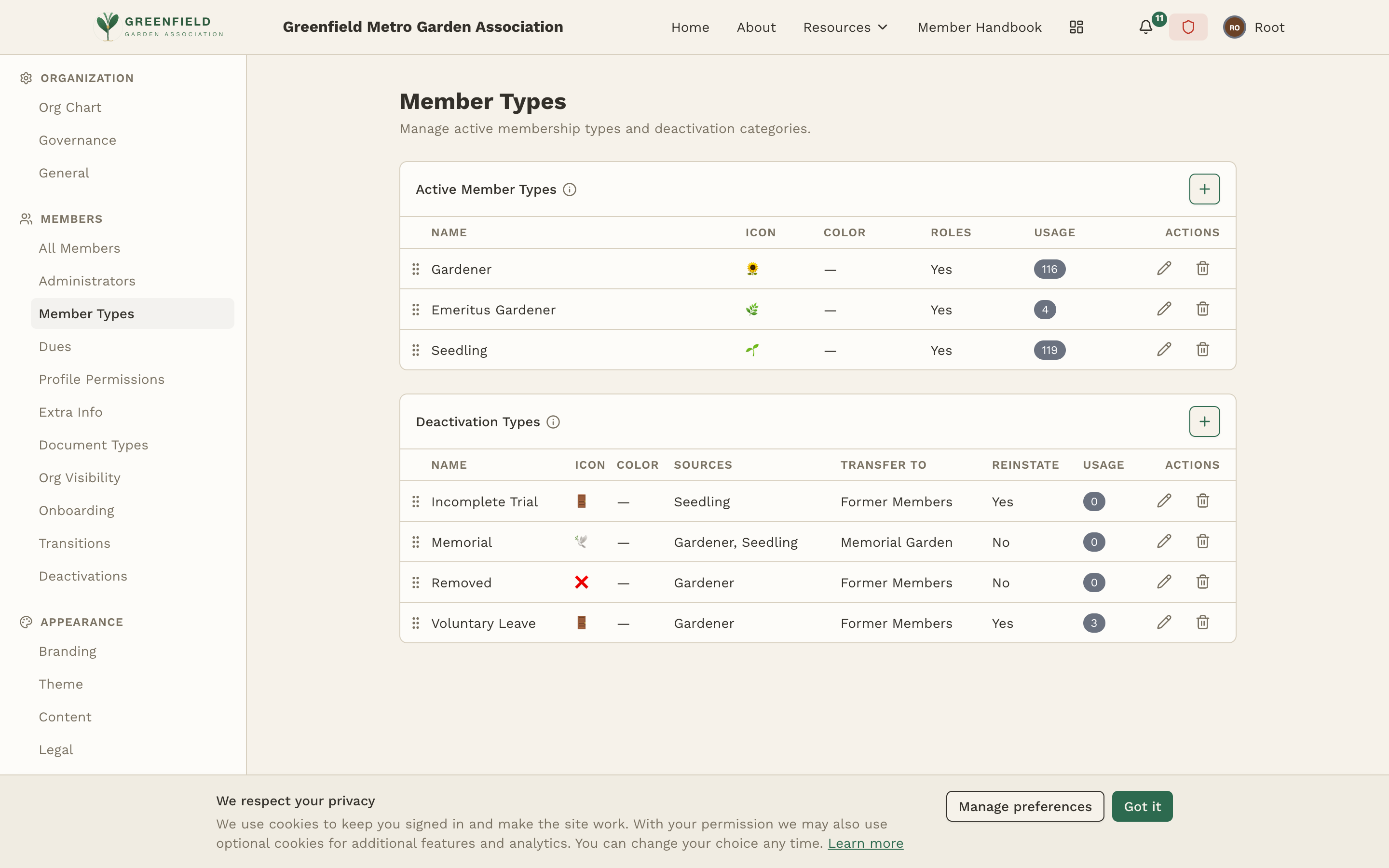
The page has two distinct tables stacked vertically: Active Member Types (the categories of currently-active membership) and Deactivation Types (the categories you use when offboarding a member). Configure them separately — they have different fields.
Active Member Types
The Active Member Types table shows every type a current member can hold. Columns:
- Name — the type's display name (e.g. "Gardener", "Seedling", "Emeritus Gardener").
- Icon — an emoji shown next to the type label across the site.
- Color — the badge color used wherever the type appears.
- Roles — Yes/No: whether members of this type can hold governance roles.
- Usage — how many members currently hold this type.
- Actions — per-row edit / delete.
Adding an Active Member Type
- Use the add control at the top of the Active Member Types table.
- Enter a name for the type (e.g. "New Member", "Gardener").
- Pick an icon (emoji) and a color for the badge.
- Toggle Roles on if members of this type should be able to hold governance roles.
- Save. The new type appears in the table immediately.
Deactivation Types
Deactivation types are categories you assign when a member leaves the organization — they capture the reason as well as where the member's record goes. The Deactivation Types table has its own schema:
- Name — e.g. "Voluntary Leave", "Removed", "Memorial", "Incomplete Trial".
- Icon and Color — used wherever the deactivation type appears.
- Sources — which active member types can be deactivated into this category. For example, "Memorial" might accept Gardener and Seedling sources.
- Transfer To — the organization the deactivated member is moved to (typically a special "Former Members" or "Memorial Garden" org).
- Reinstate — Yes/No: whether a deactivated member of this type can be reinstated to active status.
- Usage — how many members currently sit in this deactivation category.
- Actions — per-row edit / delete.
Adding a Deactivation Type
- Use the add control at the top of the Deactivation Types table.
- Enter a name (e.g. "Voluntary Leave").
- Pick an icon and color.
- In Sources, select the active member types this deactivation can be applied to.
- In Transfer To, pick the organization the member's record will be moved into.
- Toggle Reinstate on if this is a category members can come back from (e.g. Voluntary Leave) versus a permanent state (e.g. Removed, Memorial).
- Save.
Per-member-type visibility — who in the org can see members of each type — is configured separately on the Org Visibility page, and per-field profile visibility/editability is on the Profile Permissions page. Both are tab-switched by member type.