Extra Info (Custom Profile Fields)
Extend member profiles with your own fields — rider info, emergency contacts, certifications, or anything else your organization tracks.
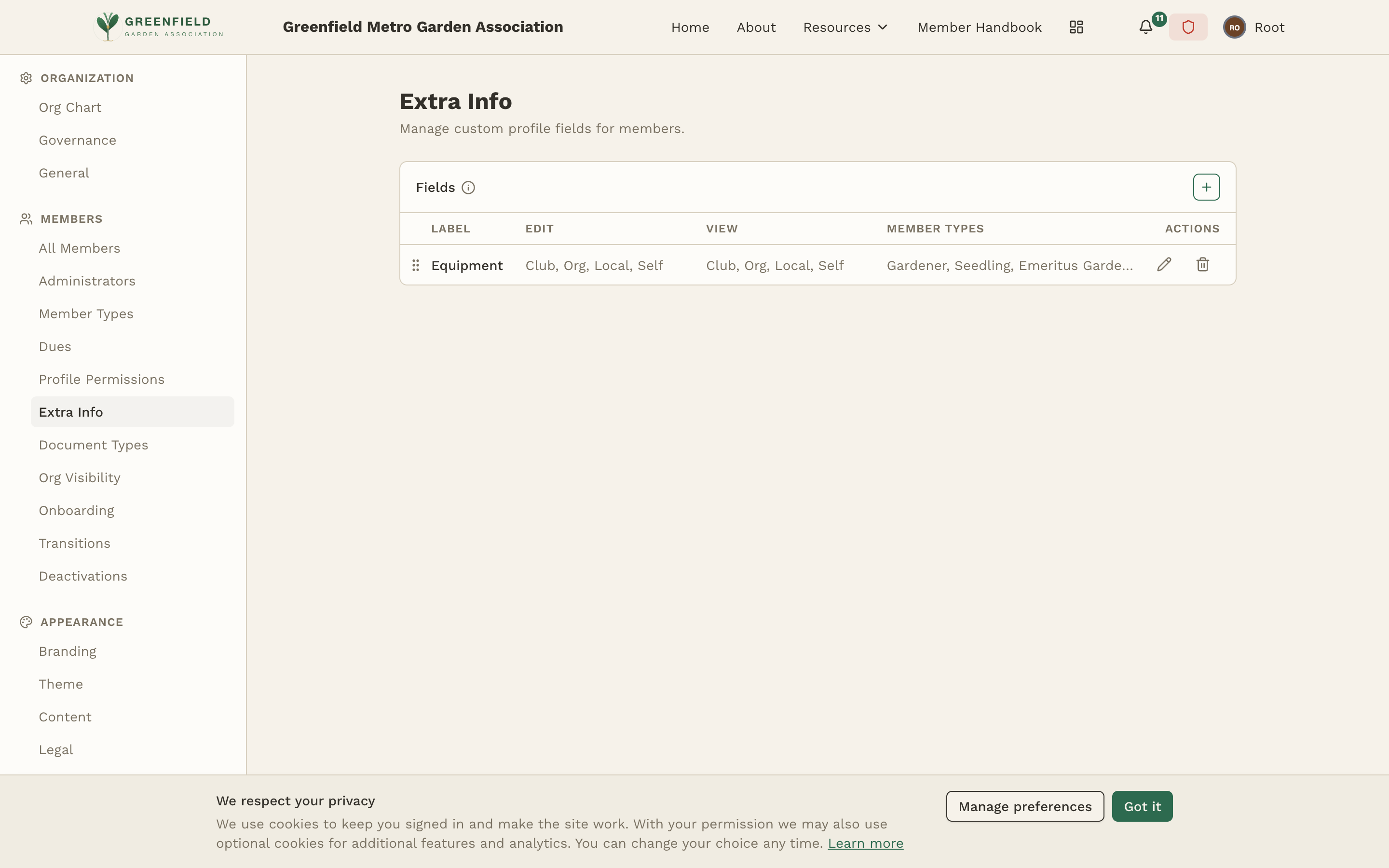
The Extra Info page is found under MEMBERS → Extra Info in the admin sidebar. While fellos includes built-in fields for common data (name, email, phone, address), most organizations need to track additional information specific to their domain. Extra Info lets you add any number of extra fields to member profiles, each with its own edit and view permissions and applicability by member type.
Field Types
When creating a custom field, you choose a field type that determines what kind of data the field stores and how it appears on the profile:
- Text — a single-line text input, suitable for short answers like a motorcycle make/model or emergency contact name
- Textarea — a multi-line text input for longer notes or descriptions
- Dropdown — a predefined list of options (e.g., certification levels, t-shirt sizes). You define the options when creating the field.
- Date — a date picker for dates like certification expiration or anniversary
- Number — a numeric input for quantities, years, or other numbers
- Checkbox — a simple yes/no toggle
Creating an Extra Info Field
- Use the add control at the top of the Fields table.
- Enter the field label (this is what members and admins see — e.g. "Equipment", "Emergency Contact").
- Choose the field type from the dropdown.
- If you chose Dropdown, add the available options.
- Set the Edit permissions — pick the levels that should be able to edit the field (Club, Org, Local, Self — multiple allowed).
- Set the View permissions — pick the levels that should be able to see the field on profiles (Club, Org, Local, Self — multiple allowed).
- Select which Member Types this field applies to (one, several, or all).
- Save.
Each row in the Fields table shows the label, the active Edit levels, the active View levels, and the member types the field applies to.
Edit and View Levels
Both Edit and View permissions use the same four levels — toggle each one independently:
- Club — Club-level administrators (anywhere in the org tree).
- Org — Org-level administrators (the org's sub-orgs; not the org itself — pair with Local on the role to also reach the org itself).
- Local — Local administrators (just the exact org where they hold the role).
- Self — the member themselves on their own profile.
You can enable multiple levels. For example, a "Motorcycle Make/Model" field might be Edit-able by Self + Local + Org, and View-able by everyone (all four levels on).
For sensitive information like emergency contacts, leave Self off the View levels (so other members can't see it) but keep Self on the Edit levels (so the member can update their own contact). Restrict the View levels to Local or Org to limit exposure.
Member Type Applicability
Not every custom field makes sense for every member type. A "Rider Certification Level" field should probably only apply to Full Members, not to New Members who haven't started riding yet. The Applies to setting lets you select which member types will see this field on their profile.
When a member's type changes (e.g., from New Member to Full Member), any fields that now apply to their new type will appear on their profile. Fields that no longer apply are hidden but their data is preserved — so if the member reverts, the old value is still there.
Custom fields appear in the "Additional Info" section of a member's profile, below the built-in fields. They are displayed in the order they were created. You can reorder them by drag-and-drop in the Custom Fields list.