Enable the Store
Turn on the store feature for your members.
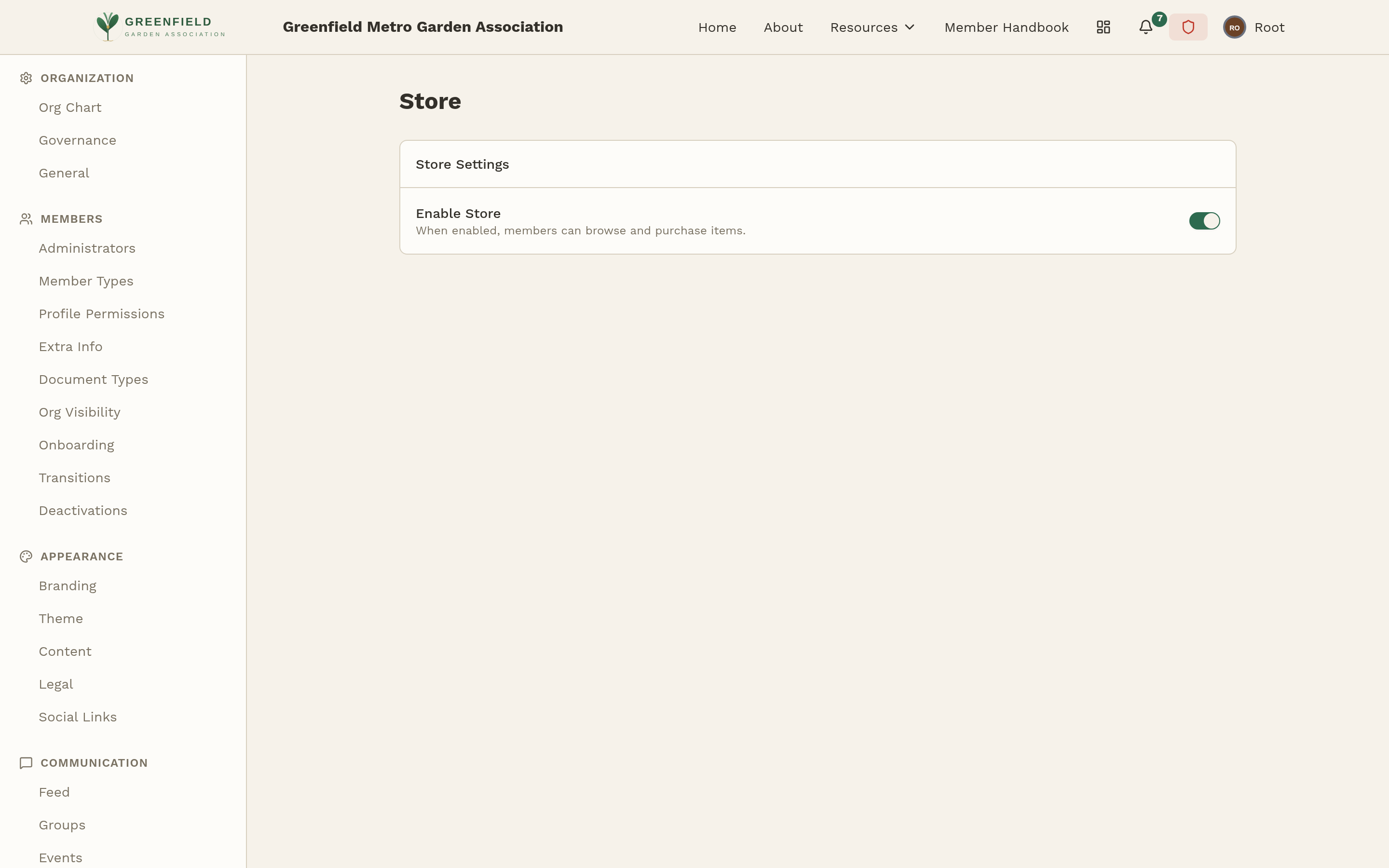
The Store admin page has one job: turn the store feature on or off for your site. Most of the actual setup — items, categories, shipping rates — is done by a Comptroller from the Store Manage screen, not here.
One Prerequisite: Stripe
You can't enable the store until your organization's Stripe account is connected. The store depends on Stripe to process payments — without it, there's no way for members to pay. See the Stripe Setup page first.
The Enable Store switch stays off and can't be turned on. Above it, the page says "Connect Stripe to enable the store" — "Members pay for store orders through Stripe." — with a Connect Stripe button that takes you to Payment Settings.
Once an account is connected, the same card tells you whether Stripe will take the money. "Stripe is connected and accepting payments." means you're ready. If Stripe hasn't enabled charges on the account yet, it says members' payments will be refused and offers Review on Payments; finish setting up the account in Stripe first (see If Stripe Isn't Ready Yet).
Turning the Store On
- In admin mode, go to Admin → INTEGRATIONS → Store.
- Under Store Settings, toggle Enable Store on. (When enabled, members can browse and purchase items.)
- The store is now live. Members will see Store in their sidebar and can click it to browse.
Who Manages What, Once It's On
- You (Site Admin) — flip the store on/off and connect Stripe. Anything system-level. (USPS live shipping rates are built in — nothing to configure.)
- Comptrollers — everything else. Items, categories, options, shipping rates, orders, financial categories, order fulfillment.
Site Admins do also get to see the Comptroller screens (you can do anything a Comptroller does), but in a normal setup you'd delegate that work to whoever handles money for the organization.
Turning the Store Off
Turning the store off hides it from members but keeps all the data — items, orders, categories — intact. Turn it back on and everything's where you left it. Use this if you're temporarily pausing the store (inventory overhaul, legal concerns) without deleting anything.