Audit Log
Every administrative action in fellos is logged — see who did what, when, and why.
The audit log is your organization's record of all administrative activity, kept for as long as your site exists. Every time an admin creates, updates, deletes, approves, or declines something in fellos — and every login — an entry is recorded: who performed the action, what kind of action it was, which entity it affected, and when it happened. While your site exists, this log cannot be edited or deleted, ensuring a tamper-proof record of all administrative decisions.
The audit log is a governance and accountability tool. Use it to track admin activities, investigate issues, resolve disputes, and maintain a comprehensive record of changes to your organization's data and configuration.
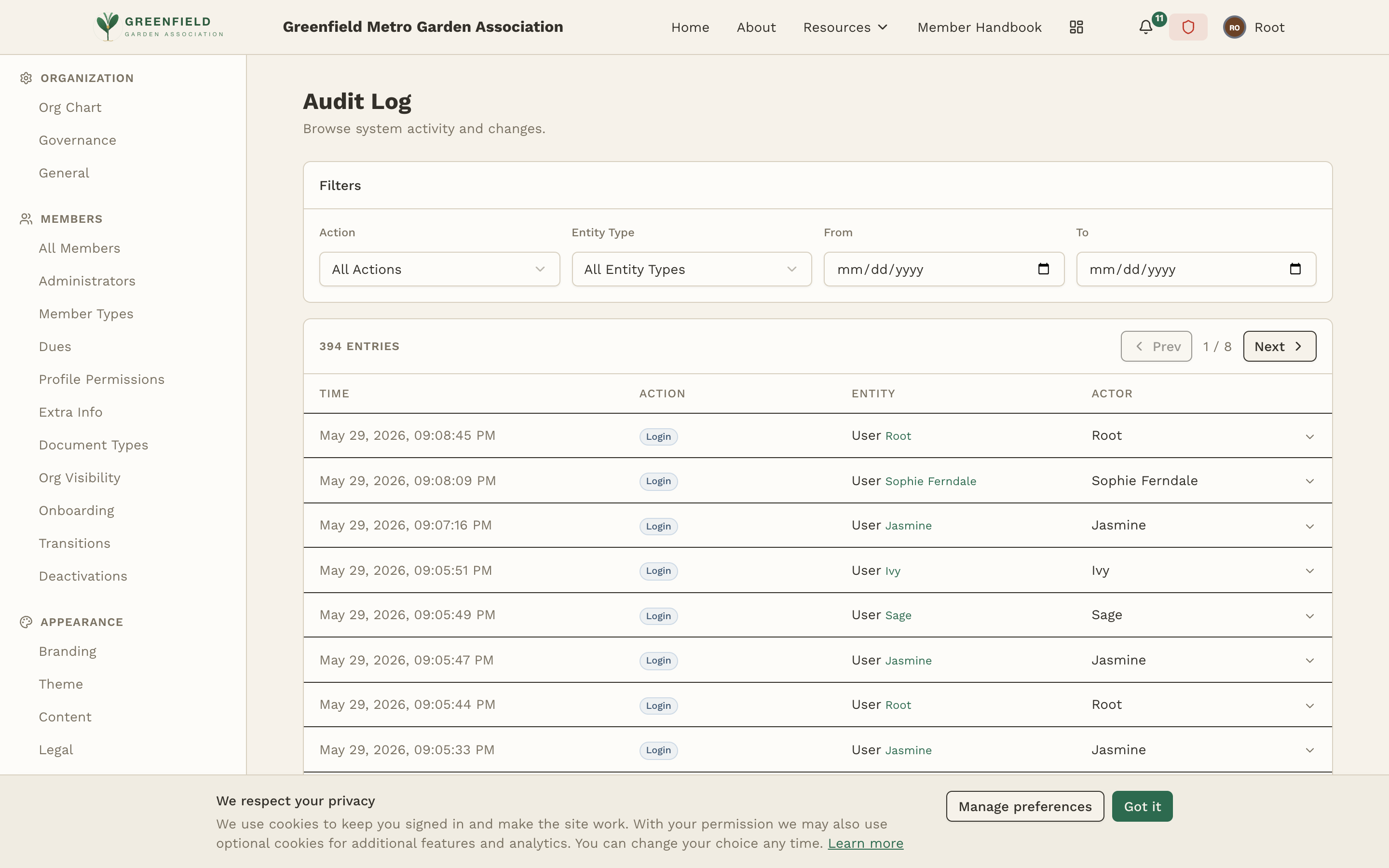
Viewing the Log
The audit log displays a chronological table of administrative actions, with the most recent entries at the top. The table has four columns:
- Time — When the action occurred, displayed with both the date and precise time (e.g. "Apr 20, 2026, 04:19:00 PM").
- Action — What was done (e.g. Login, create, update, delete, approve, decline).
- Entity — What was affected. The cell shows the entity type and a human-readable identifier (e.g. "UserLaurel" for a user record).
- Actor — The person who performed the action. System actions are attributed to "System".
Filtering the Log
Above the table is a Filters section with four controls:
Action
Dropdown labeled "All Actions". Pick a specific action verb (Login, Create, Update, Delete, etc.) to show only that action type.
Entity Type
Dropdown labeled "All Entity Types". Pick a specific entity type to show only actions affecting that kind of object — for example, selecting "User" shows only actions related to user accounts.
From / To (Date Range)
Two date pickers labeled From and To. Set a date range to view actions within a specific period — useful for investigating what happened during a particular week or month, or for generating activity reports for governance meetings.
Combine filters. For example, set Action = "Update" + Entity Type = "User" + a date range to see all user record updates during a specific window.
Understanding Log Entries
Each row tells you what happened by combining the Action verb with the Entity it affected. Read the two columns together:
- Action names the operation — for example Login, Store_order_ship, or Store_order_update. Member-management and configuration changes use their own action names (create, update, approve, decline, and so on).
- Entity shows the entity type joined to a short identifier — for example UserIvy for a user record, or Ordere2579444 for a store order.
To dig into the specifics of a particular change, use the filters to narrow to the relevant Action and Entity Type, then cross-reference the timestamp and Actor against the affected record itself.
Pagination
The audit log shows the total number of entries (e.g. "391 ENTRIES") above the table and uses page-based pagination. Use the Prev and Next buttons to step between pages; the page indicator (e.g. "1 / 8") shows your position, and a "Showing 1–50 of 391" line sits below the table. Each page shows up to 50 entries.
The audit log is append-only — for as long as your site exists, entries cannot be edited, deleted, or tampered with by anyone, including site admins. This ensures the log serves as a reliable, trustworthy record of all administrative activity. If an action was taken, it's in the log.
Common Use Cases
Investigating an issue
If a member reports that their profile was changed unexpectedly, filter the audit log by entity type "User" and narrow to the relevant date range. Scan the Actor column for entries that touch the affected member's record.
Governance reporting
Before a board meeting, set the date range to cover the period since the last meeting. This gives leadership a complete overview of all administrative actions taken — member changes, organizational updates, configuration modifications.
Auditing workflow decisions
Use the Action filter to isolate onboarding approvals, transition decisions, and deactivations. Each entry shows who made the decision and when, creating a clear paper trail for membership changes.
Configuration change tracking
Pick the relevant entity type from the Entity Type dropdown to see when and by whom a given kind of record was changed — for example branding, theme, or integration settings, and other platform-wide modifications.