Organization Structure
Define the building blocks of your hierarchy — org component types at the top, then actual organizations arranged in a tree below.
The Organization Structure page is found under ORGANIZATION → Org Chart in the admin sidebar. This is where you define the abstract types that make up your hierarchy (like "Region" or "Chapter") and then create actual organizations of those types, nesting them into a tree that reflects your real-world structure.
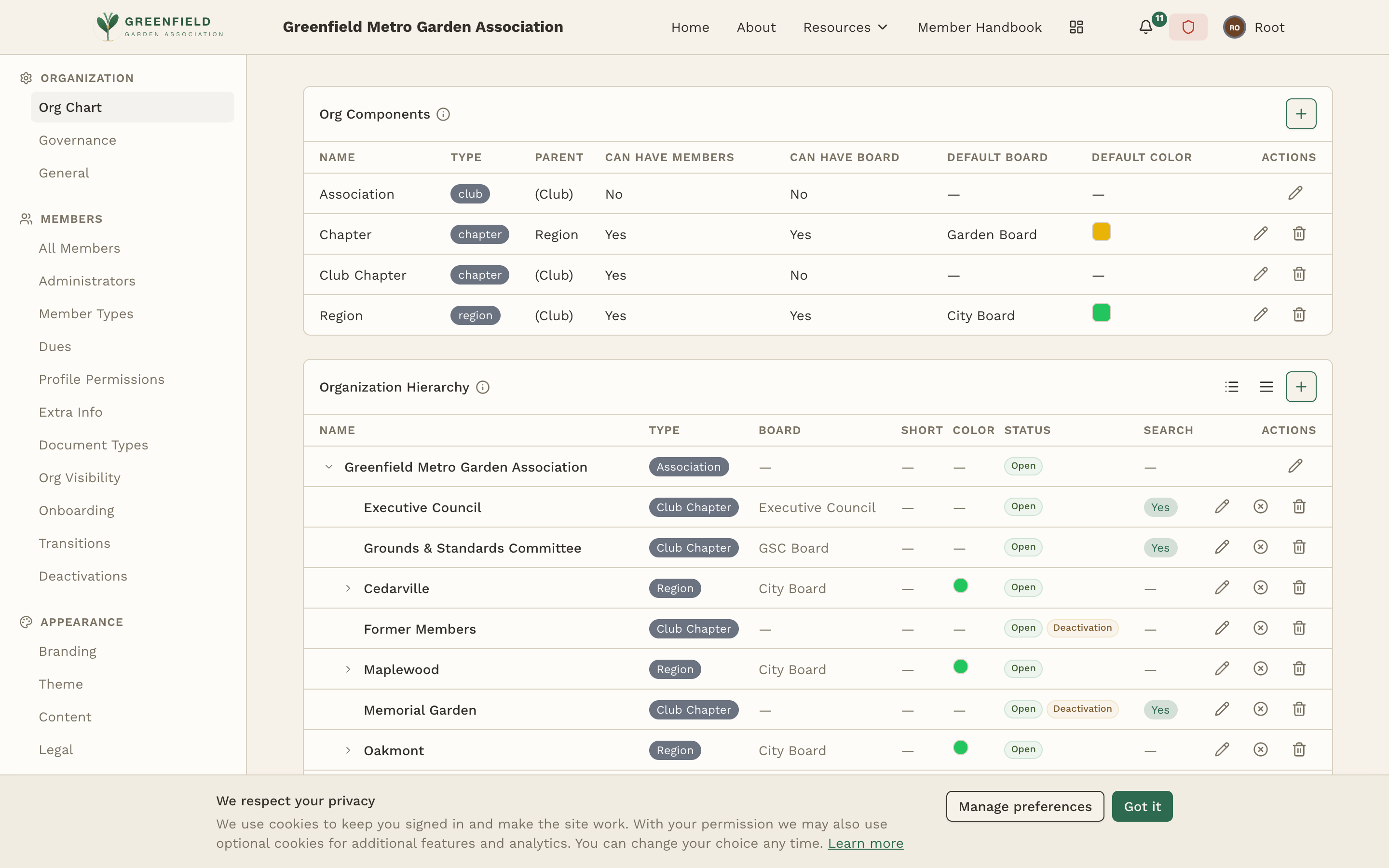
Org Components
Org components are the abstract building blocks of your hierarchy. Think of them as templates — you define a "Chapter" component once, then create many chapters from it. Each component defines what capabilities organizations of that type have.
Component Properties
The Org Components table shows the properties for every component type:
- Name: Your label for this kind of organization — what members will actually see (e.g. "Association", "Region", "Chapter", "Club Chapter").
- Type: The structural category fellos uses to position this component in the tree. The built-in types are
club(top-level),region(intermediate grouping), andchapter(typically the leaf where members live). You can have multiple components of the same type — for example, both "Chapter" and "Club Chapter" with typechapter. - Parent: Which component contains organizations of this type. Top-level types are parented to (Club).
- Can Have Members: Whether organizations of this type can have members assigned directly.
- Can Have Board: Whether organizations of this type can have a governing board.
- Default Board: Which board template is auto-assigned when you create a new organization of this type (e.g. "Garden Board" for Chapter, "City Board" for Region).
- Default Color: The accent color used for organizations of this type throughout the interface.
Adding a Component
- Click the Add button in the Org Components section.
- Enter a name for the component type.
- Choose the structural type (Club, Region, or Chapter).
- Select which component type serves as the parent (top-level components are parented to Club).
- Toggle Can Have Members and Can Have Board as needed.
- Optionally pick a Default Board and Default Color.
- Save to create the component.
Plan your component hierarchy before creating organizations. Changing the parent of a component type after organizations have been created can require reorganizing your tree. Start with a simple hierarchy and expand later if needed.
Organization Hierarchy
Once your components are defined, the Organization Hierarchy section lets you build the actual tree of organizations. Each organization is an instance of one of your component types, placed within the hierarchy according to its parent rules.
Reading the Hierarchy Table
The Organization Hierarchy table shows every organization in the tree with the following columns:
- Name: The organization's display name. Click to expand/collapse children.
- Type: Which org component this organization is an instance of.
- Board: Which board template is assigned to this organization (or "—" if it has no board).
- Short: A short code or abbreviation for the org (used in compact UI elements).
- Color: Per-org accent color override.
- Status: "Open" (active) or marked as a Deactivation org for offboarded members.
- Search: Whether this org appears in member-facing search.
- Actions: Per-row edit / delete actions.
Adding an Organization
- Click Add in the Organization Hierarchy section.
- Choose the component type for the new organization.
- Enter a name (e.g., "Portland Chapter").
- Select the parent organization from the tree.
- Optionally set a short code, override the default board or color, and toggle search visibility.
- Save to add it to the hierarchy.
The organization hierarchy determines member visibility, admin permissions, and content scope throughout fellos. Members belong to leaf organizations, and admins at higher levels inherit visibility into all organizations below them in the tree.