Events Setup
Configure event categories, access controls, and moderator assignments to organize your organization's calendar.
Events in fellos are organized by categories. Each category represents a type of event — meetings, social gatherings, fundraisers, rides, or anything else your organization does. Categories let you control who can see, RSVP to, create, and manage events of each type, ensuring the right members have the right level of access.
The Events admin page is where you create categories, define access rules, and assign moderators. The actual events themselves are created by members with the appropriate permissions — this page just sets up the structure.
Creating Event Categories
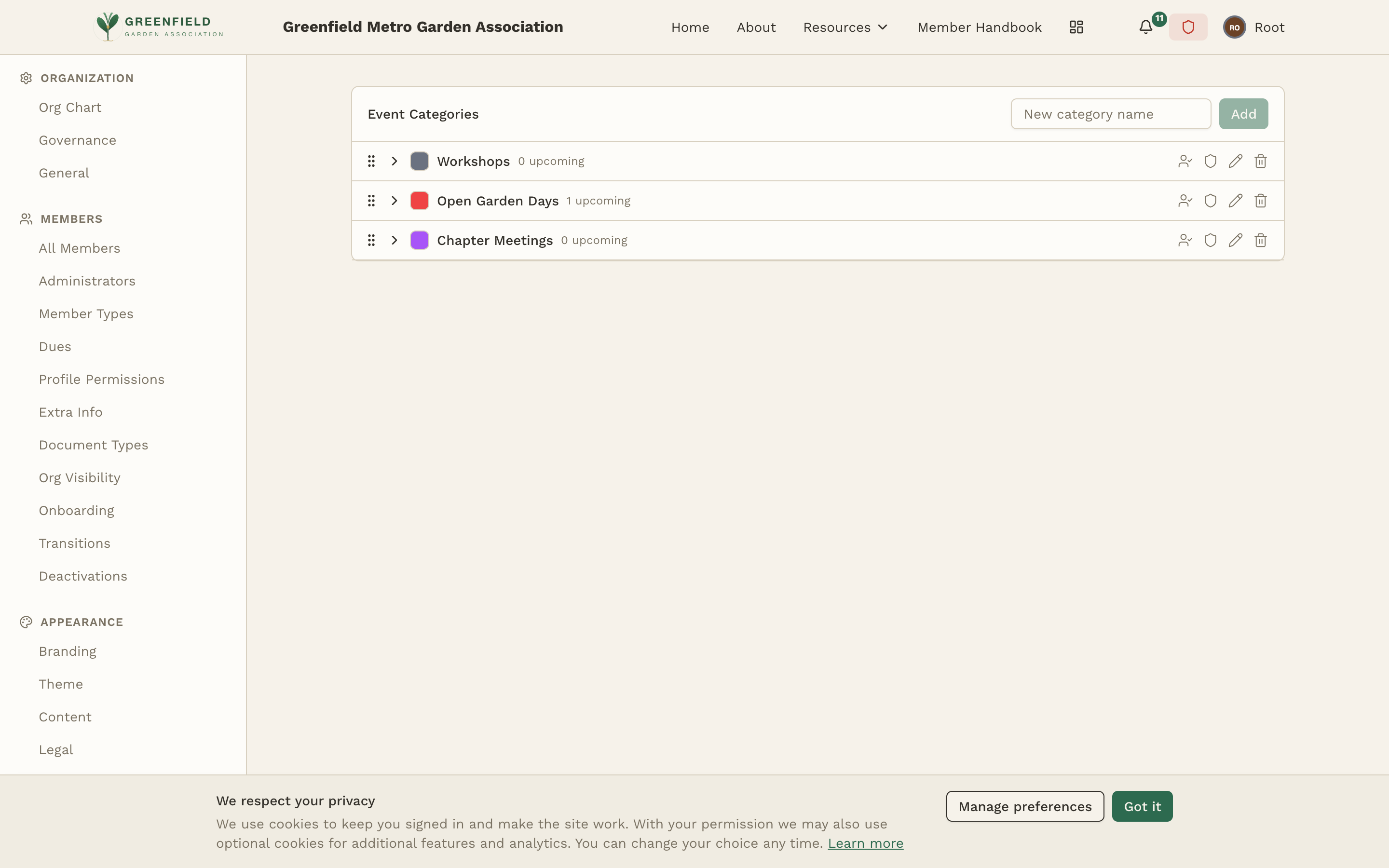
The Events admin page shows an Event Categories list. Each row is one category and shows how many upcoming events it currently holds (e.g. "Workshops — 3 upcoming").
- Type the new category's name into the "New category name" field at the top of the list.
- Click the Add button. The category appears in the list immediately.
- Click the new category to open its detail view, where you can configure access rules and assign moderators (see below).
Categories are reorderable by drag-and-drop in the list — the order shown here is the order members see when filtering the event calendar by category.
Access Rules
Each event category has its own access rules, controlling what members can do with events in that category. The permission levels are:
View
Members with View access can see events in this category on the calendar and event list. Without View access, events in this category are completely invisible to that member type. This is the foundation — all other permissions require View access to be useful.
RSVP
Members with RSVP access can mark their attendance with the single I'm Going button on events in this category. This is useful for tracking attendance and planning logistics. Some organizations may want New Members to view events but not RSVP until they're Full Members.
Create
Members with Create access can create new events in this category. This determines who can add events to your organization's calendar. For tightly controlled calendars, limit Create access to officers or specific member types. For more open organizations, allow all Full Members to create events.
Moderate
Members with Moderate access can edit, cancel, or delete any event in this category — not just events they created. Moderators can also manage RSVPs and event settings. This is an administrative permission and should be granted sparingly.
Like discussion groups, event access rules work per member type AND per organization, with an "Include sub-orgs" option. This means you can create chapter-specific event categories that only members of that chapter can see and interact with.
Event Moderators
Each category can have assigned moderators — specific members who have elevated permissions for events in that category. Moderators can:
- Edit or cancel any event in the category, regardless of who created it
- Delete events that are no longer relevant
- Manage RSVP lists and attendance tracking
- Featured or highlight important events
To assign moderators, search for members by name in the moderators field. You can assign multiple moderators per category. Choose members who are actively involved in planning that type of event — for example, your social committee chair as moderator of the "Social Events" category.
Example Category Configurations
Here are some common event category setups:
Meetings
View and RSVP open to all active member types. Create access limited to officers and committee chairs. This ensures meetings are visible to everyone but only leadership can schedule them.
Social Events
View, RSVP, and Create open to all Full Members. New Members can View and RSVP but not Create. This encourages Full Members to organize social gatherings while letting newer members participate.
Rides (for motorcycle clubs)
View open to all. RSVP and Create open to Full Members only. New Members can see the ride calendar but need to be Full Members to join or organize rides.
Fundraisers
View open to all. RSVP open to Full Members. Create limited to officers and fundraising committee members. Moderate access for the fundraising committee chair.
When a member creates an event, they automatically become the event's creator and can edit or cancel it. The Moderate permission grants this ability for all events in the category, not just the ones the moderator created.
Display Order
Categories appear in the Events section in the same order they appear in the admin list. Drag-and-drop a category to a new position to change where it shows up for members. Put your most common event types first — usually "Meetings" or "Workshops" — and less frequent categories later. Changes take effect immediately.
Related Documentation
This page only covers admin-level configuration of event categories. For the rest of the events story, see:
- Creating and running events — see the Member Guide. Members with the appropriate permissions create events and manage RSVPs there.
- Selling tickets to paid events — see the Comptroller Guide. Once Stripe is connected (see Stripe Setup), a Comptroller can enable ticketing on any event and process the sales.