Store & Tickets
Shopping for merch, workshop passes, and organization extras.
If your organization has the store turned on, you can buy things like apparel, books, workshop passes, or accessories — all from within fellos. This page covers how to browse, check out, and track your orders. For paid event tickets, see the Events page.
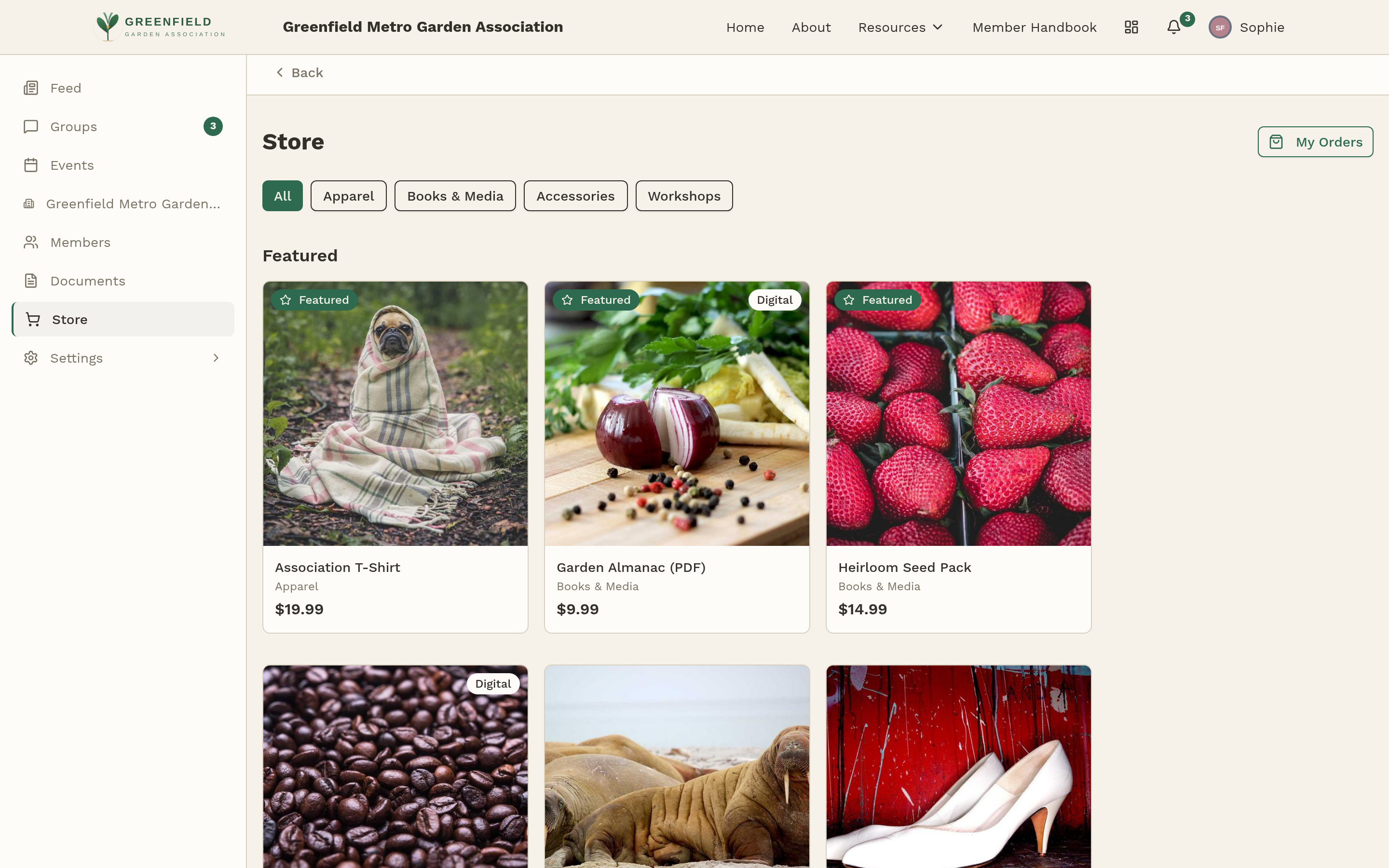
Browsing the Store
Click Store in the sidebar. You'll see:
- A Featured row at the top with highlighted items.
- Category chips across the top — tap one to filter.
- Item cards below with name, category, and price.
- A My Orders link in the top right to see your purchase history.
Click any item to see full details — photos, description, price, options, and any custom questions.
Item Details
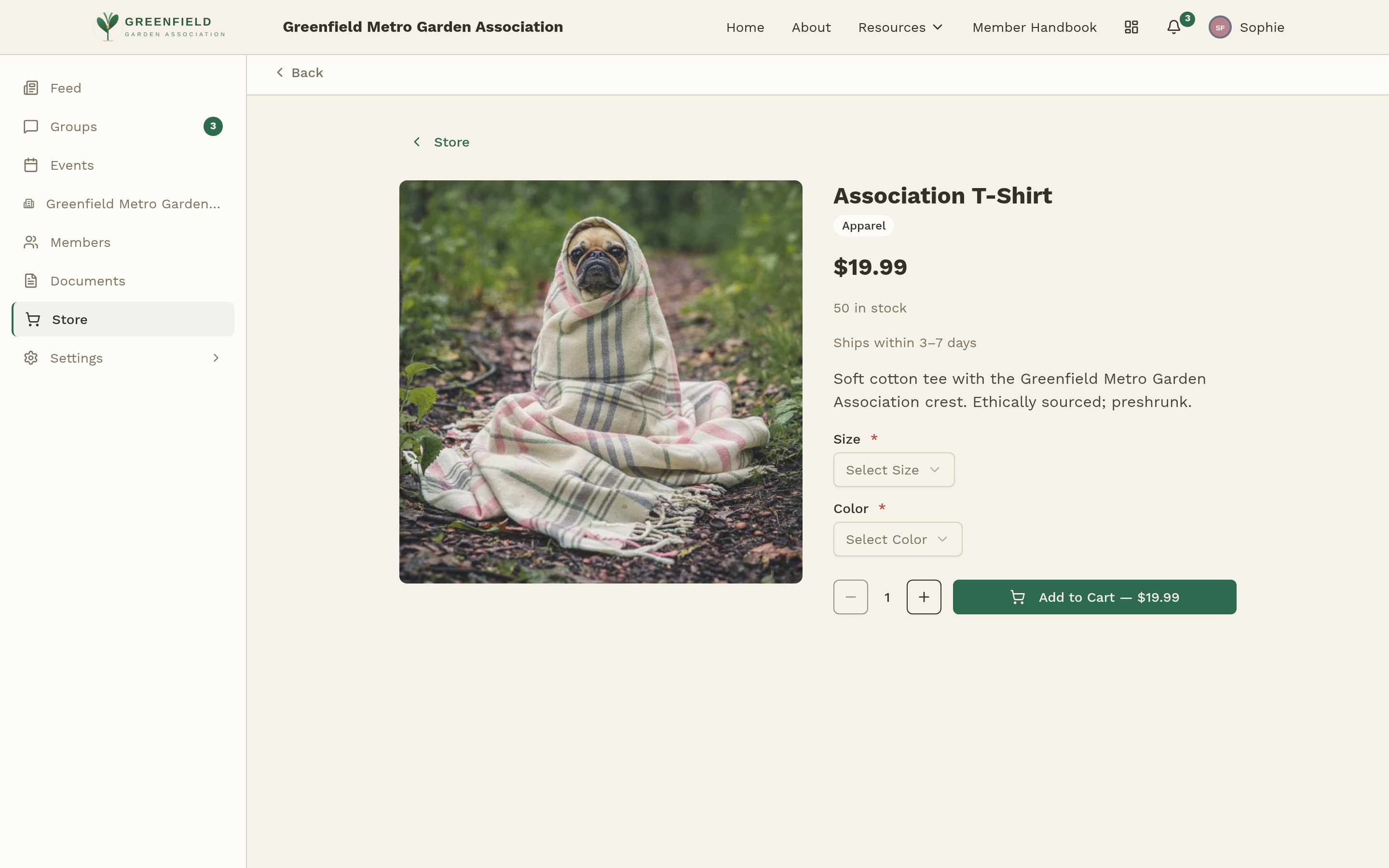
On the item page:
- Pick options (like size or color) if the item has any.
- Answer any questions — for example, "What name should we engrave?"
- Adjust the quantity.
- Click Add to Cart.
You can keep shopping or go straight to checkout — the cart icon at the top shows what you've got.
Cart & Checkout
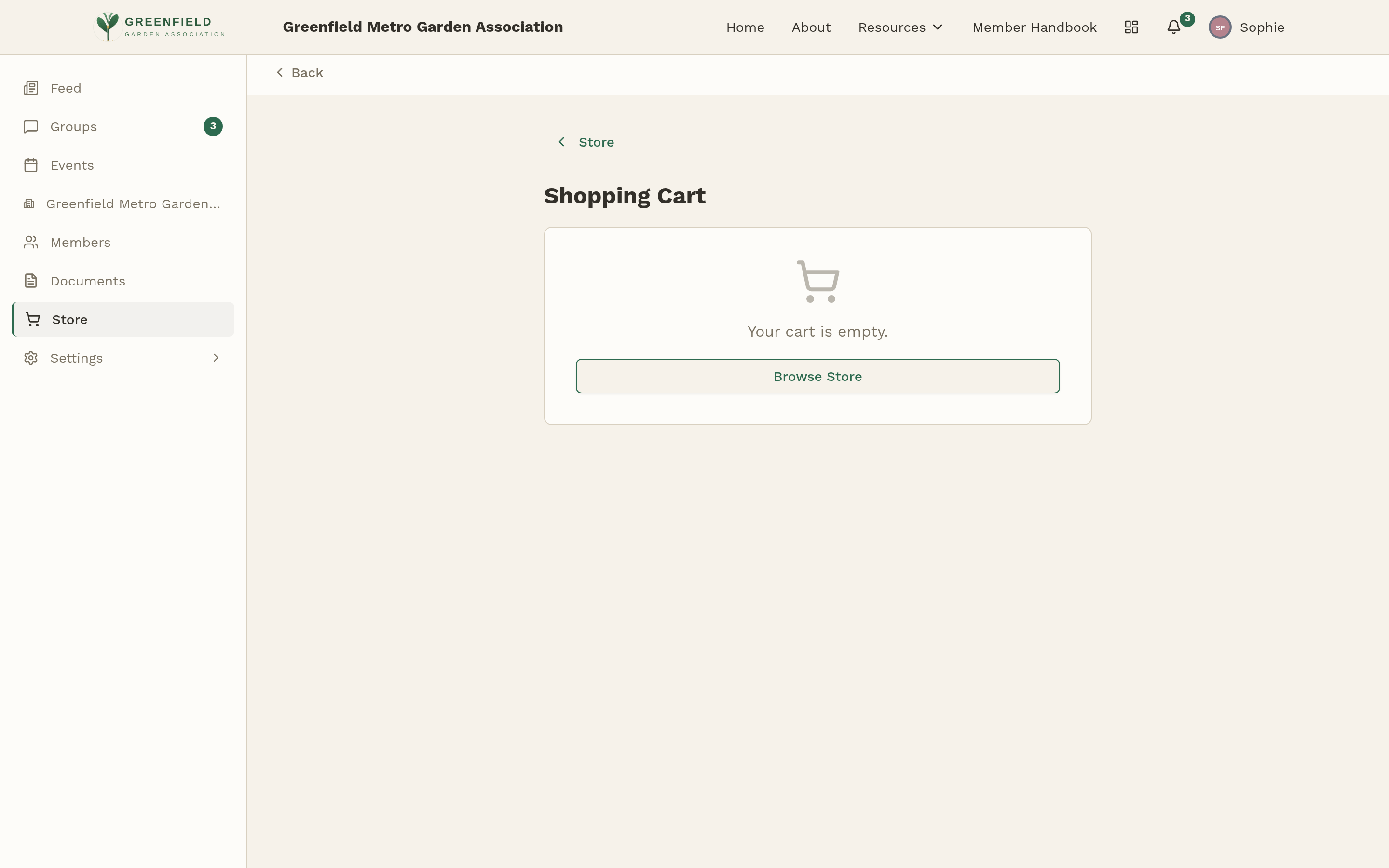
Your cart shows every item, plus a shipping selector if anything in the cart is physical. You can:
- Adjust quantities.
- Remove items.
- Pick a shipping method — prices and delivery estimates are listed.
- If you have items with different lead times, choose whether to ship them together when everything's ready or split them into multiple shipments.
When you're ready, click Check out. You'll be sent to a secure Stripe page to enter your card details. After paying, you're brought back to a confirmation page.
fellos never sees your full credit card number. Stripe handles that part.
Tracking Your Orders
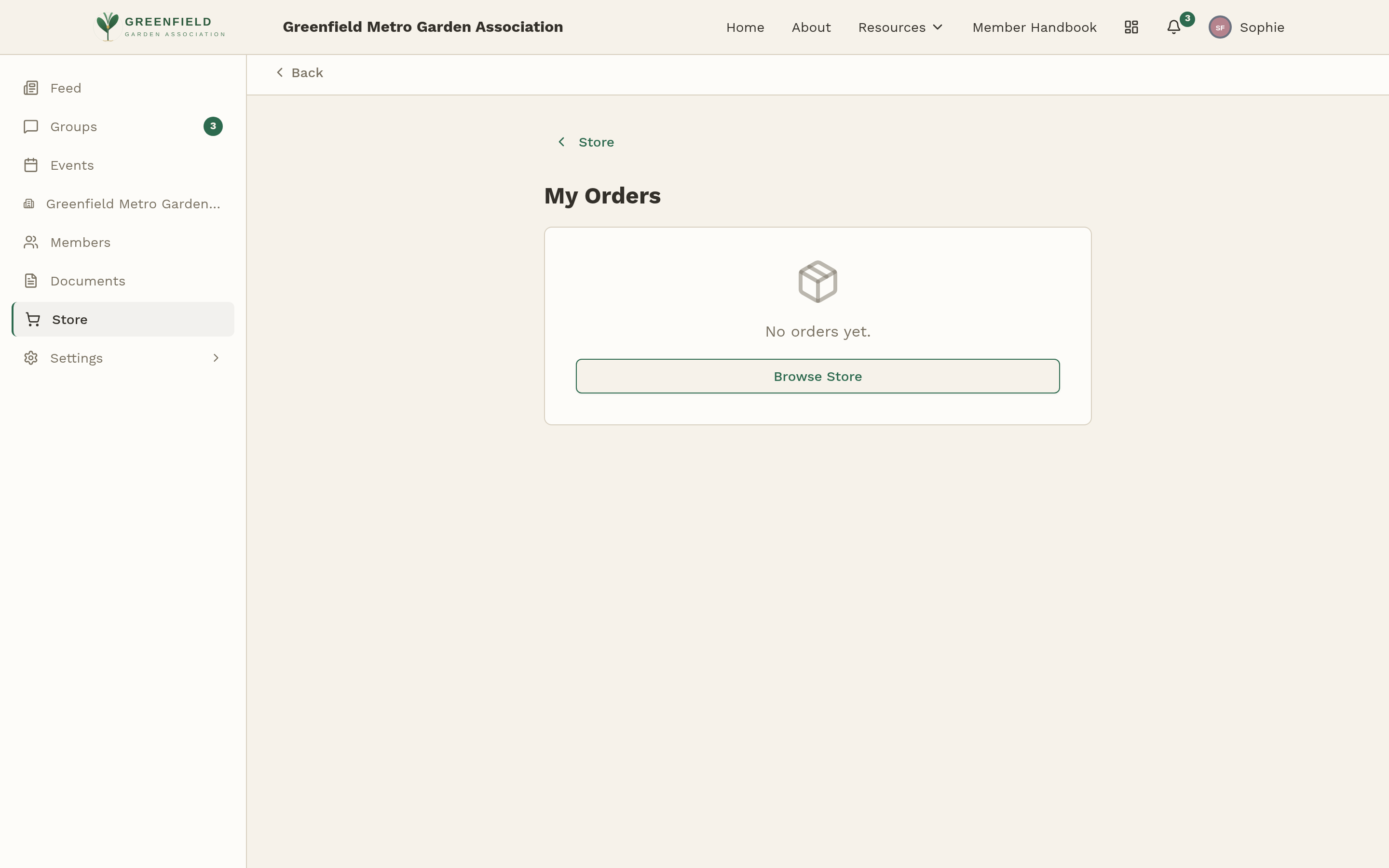
Click My Orders in the store to see every purchase you've ever made. Each order shows:
- Order number and date.
- Status (Pending, Processing, Shipped, Delivered).
- Number of items and total price.
Click any order to see the detail page with a status timeline, tracking number (once your order ships), shipping address, itemized breakdown, and any backorder notes.
Paid Event Tickets
Paid event tickets go through the same Stripe checkout the Store uses — but you buy them from the event's detail page, not from the Store. Click an event, click Buy ticket, and pay. See the Paid Events & Tickets section of the Events page for the full flow, including guest counts, buying for another member, and the ticket QR code you'll show at check-in.
Tickets don't appear in the Store's My Orders list — they live on the event itself. Your ticket QR is always reachable from the event's confirmation page via the View ticket link.
If Something Goes Wrong
- Checkout doesn't work — this is usually a store configuration issue on the organization's end. Reach out to your organization's admin or Comptroller.
- I need a refund — contact your organization's Comptroller. Refunds are handled by the organization, not by fellos.
- My order is stuck — check the order detail page for any backorder note. If it's been more than a few days past the promised delivery, message your Comptroller.