Documents
Your organization's shared files, organized into folders.
The Documents section is where your organization keeps shared files — bylaws, meeting minutes, forms, handbooks, and so on. Click Documents in the left sidebar to open it.
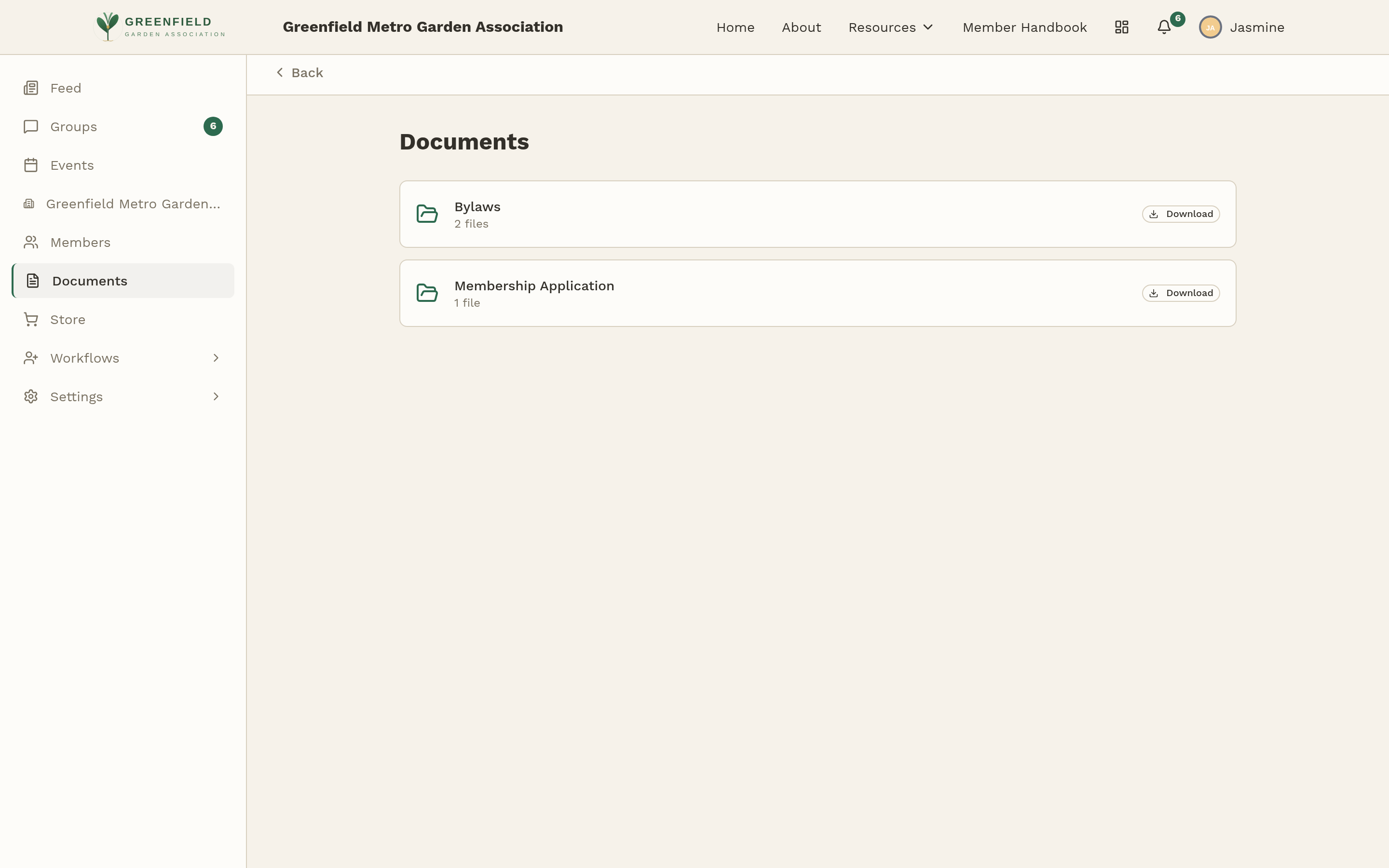
How It's Organized
The top level of Documents is a list of folders (e.g., "Bylaws," "Membership Application"). Each row shows the folder name, a file count (e.g., "2 files"), and a Download shortcut that grabs the current file in one click.
Click a folder name to open it. Inside you'll see:
- A breadcrumb at the top: Documents › Folder.
- A Files list of the documents in that folder.
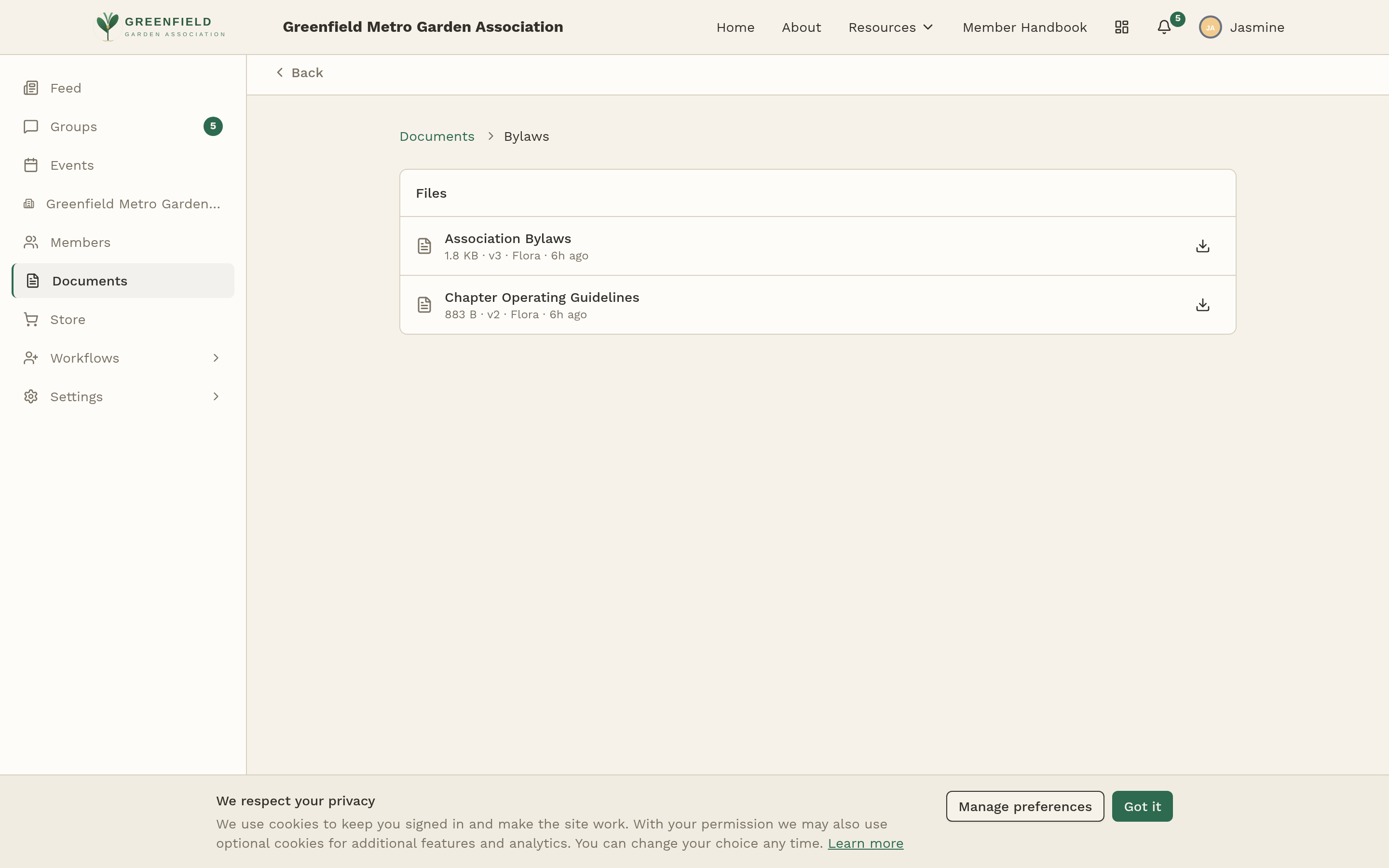
Folders can also contain sub-folders — if your admin has nested them, you'll see the sub-folder rows in the same list as the files. Click any sub-folder to drill in; use the breadcrumb to come back up.
What each file row shows
Every document in a folder has a single row with its name and a metadata line underneath. The metadata line looks like this:
1.8 KB · v3 · Flora · 6h ago
- Size — how big the file is.
- Version (v3, v2, etc.) — which revision you're looking at. Files get a new version every time a curator uploads a replacement.
- Uploaded by — the member who posted this version.
- When — how long ago the current version went up.
On the right side of the row there's a Download button that always pulls the current version.
Revision History
Every document in fellos carries its full revision history — v1, v2, v3, and so on. When your admin has turned revision access on for a folder, file rows in that folder also show a history icon (clock with a rewind arrow) next to the Download button.
Click the history icon to open the Revisions dialog. It lists every version from newest to oldest. Each entry shows the version label, the uploader, the file size, the upload time, and the original filename, with a per-revision download button so you can pull any older version.
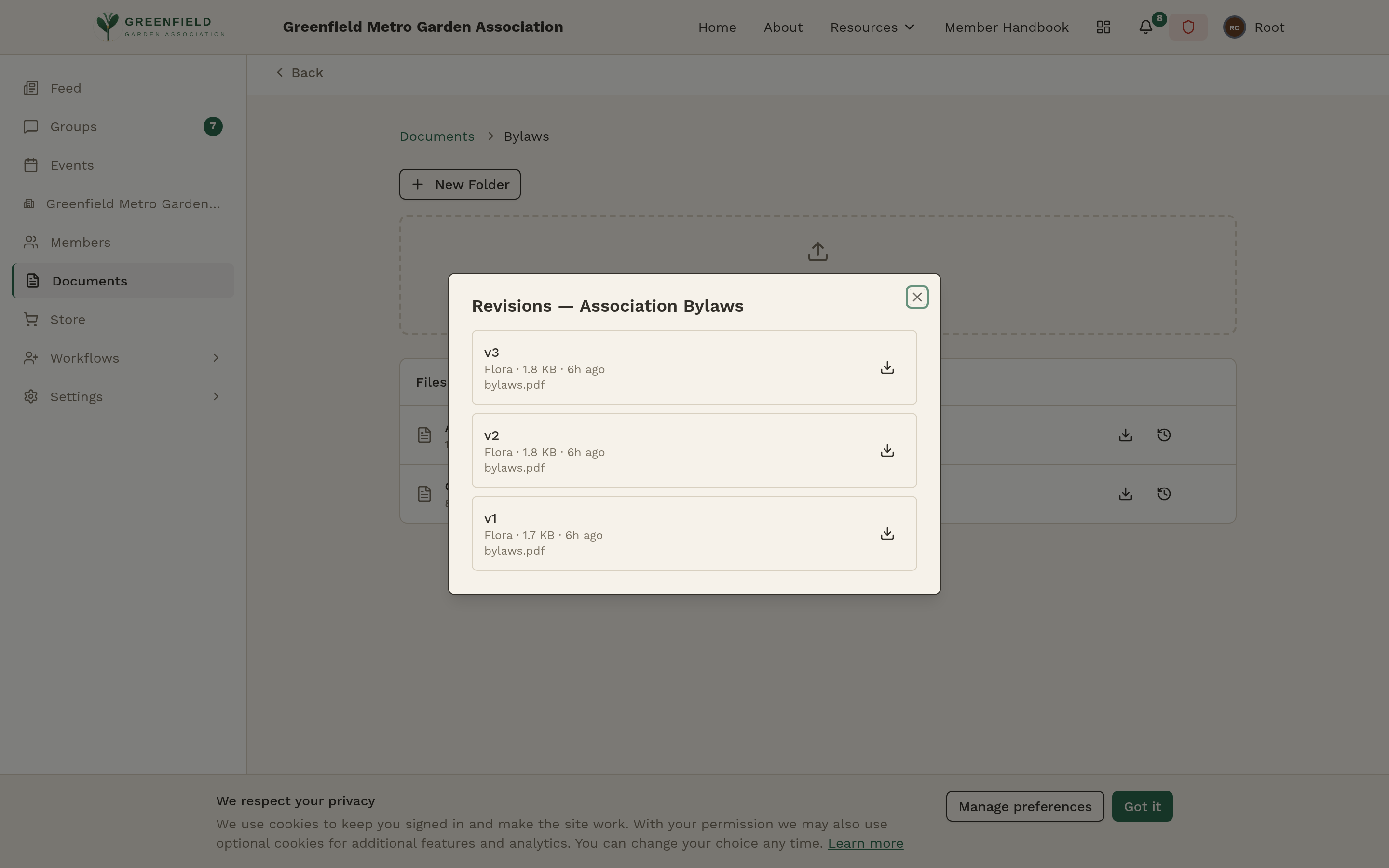
Revision history is controlled per folder by your admin. On some folders, only admins and curators can open the history dialog — regular members just see the current version's Download button. If you don't see the clock icon on a folder where you need it, ask your admin; they can turn revision access on for that folder.
Why You Might Not See Something
Folders and their contents are gated by your admin — they can restrict visibility to specific member types, and they can independently allow or deny revision history and download on each folder. If you expect to see a folder or a file and don't, ask your admin to check the folder's visibility settings.
Regular members can read and download documents; they can't upload new files or create folders from this page. Uploading a new document, posting a new revision, and creating folders all happen through the same Documents screen — but only for members with curator permissions on that folder (typically admins or assigned officers). When a curator is viewing a folder, they also see a New Folder button and a "Drop files here or click to upload" area at the top.