Profiles
View other members' profiles and manage your own.
Every member in fellos has a profile page that brings together their identity, contact info, officer positions, and several history tables. Open any member's profile by clicking their name or avatar anywhere in the app (feed cards, group posts, event attendee lists, the directory). Your own profile opens from your name in the top bar, and the Edit button on it is where you change your details.
Viewing a Profile
The profile header shows a member-type badge (e.g., 🌻 for "Gardener") next to the member's nickname in quotes — your organization's custom display-name field (a "road name" in a motorcycle club, "garden name" in a garden association, etc.). Below that, the profile is laid out in these sections:
Identity
Legal name, nickname, avatar, and current chapter. Click the chapter name to jump to the sub-org page.
Contact Information
EMAIL, PHONE, ADDRESS, and DATE OF BIRTH — each shown as a labeled row. Visibility depends on your org's privacy settings.
Member of
The chapter/sub-org the member belongs to, shown with a member-type badge (e.g., "Gardener").
Officer Positions
Any officer positions the member currently holds — role title, sub-org, and when they took the position.
Member type history
A history of the member's time in the organization — their member type by date range. Shown as a collapsible table.
Officer position history
Past officer positions held. Empty for members who have never been officers.
Organization and status history
A record of the member's organization changes and status transitions (active/inactive, leave periods, reinstatements).
Editing Your Profile
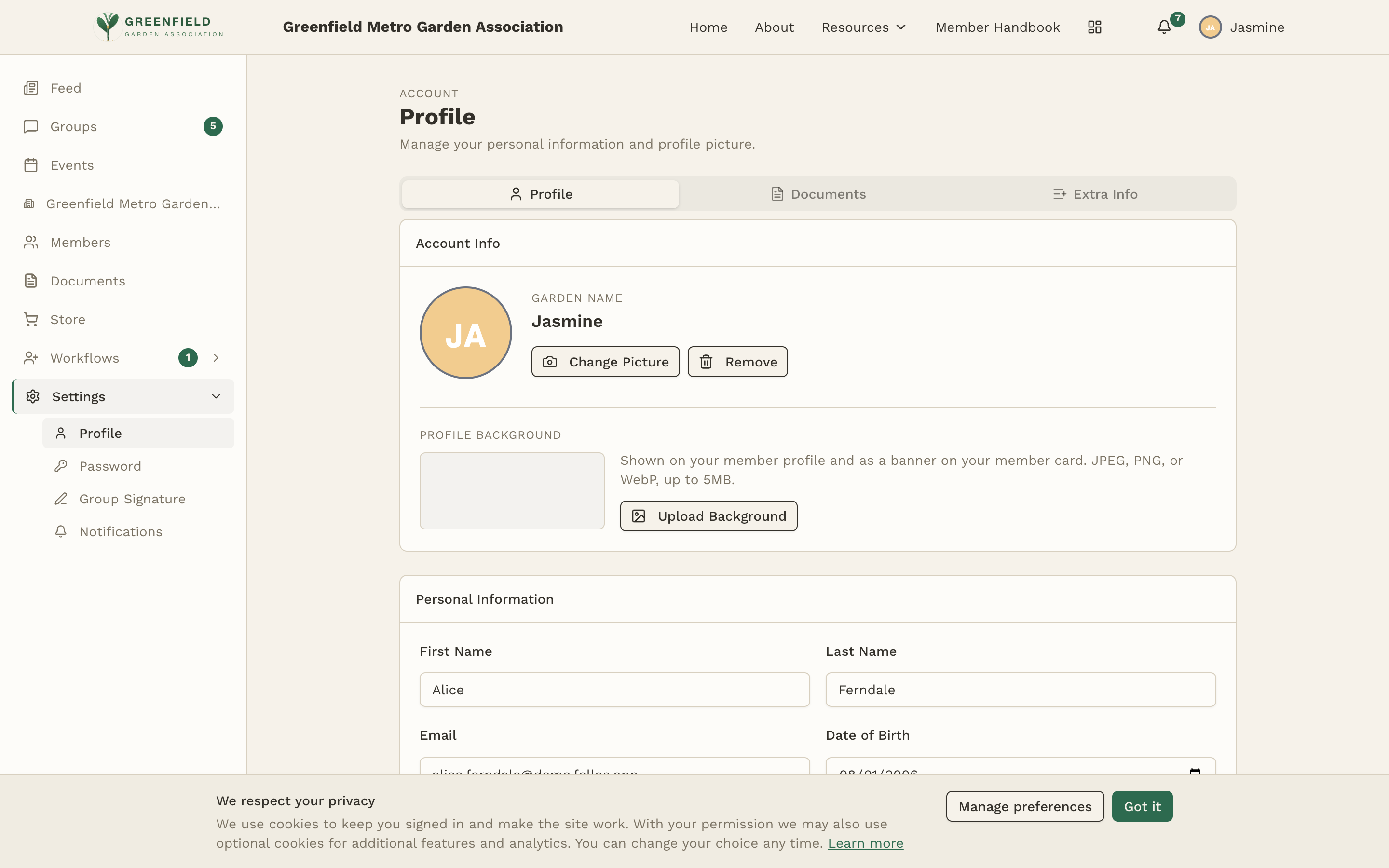
Click your name in the top bar, then Profile. That opens your own profile page — the same page everyone else sees. The Edit button on it (a pencil) is what opens your details for changing.
- Click your name in the top bar, then Profile, then Edit.
- Update any editable fields — First Name, Last Name, Email, Date of Birth, Phone Number, and the address fields (Line 1, Line 2, City, State / Province, Postal Code, Country).
- Click Save Changes at the bottom of the Personal / Contact sections.
- If your profile has an Extra Info section (custom fields like Equipment, Certifications, etc.), edit those and click Save Extra Info — it's a separate save from the main profile fields.
Some fields on your profile are read-only — member type, chapter assignment, officer positions — because only an admin can change them. The nickname / "garden name" is typically assigned by your org and is also admin-managed.
Profile Picture
Your avatar appears next to your posts in the feed and groups, in the member directory, and on your profile. To change it:
- Click your name in the top bar, then Profile, then Edit.
- In the Account Info section at the top, click Change Picture under your avatar.
- Select an image from your device.
- To go back to initials, click Remove instead.
If you haven't uploaded a photo, fellos shows your initials on a colored circle — the color stays consistent, so people can still recognize you across the app.
Extra Info Fields
Your organization's admin can define custom fields that appear on every member's profile. These "extra info" fields let your organization track information specific to your group's needs — certifications, equipment, shirt size, emergency contact, membership ID, etc.
Extra info has its own tab on the Profile page. Whether you can edit a given field is up to your admin — some are member-editable, some are admin-only.
Documents & Attachments
The Profile page also has a Documents section for any attachments your organization requires from members — signed applications, certificates, proof of eligibility, etc. Each uploaded file shows its name and the name of the document type it satisfies (e.g., "membership-application-v3.pdf — Membership Application: Uploaded").
For the full attachment workflow (uploading new documents and tracking their status through review), use Workflows → Attachments in the left sidebar — see Requests & Workflows.
Privacy & Visibility
What's visible on other members' profiles depends on your organization's privacy settings and your member type. Typically:
- Name, nickname, avatar, member type, and chapter are visible to all members.
- Contact info (email, phone, address) may be restricted to certain member types.
- Date of birth and custom fields may have further visibility restrictions.
If you're worried about what's visible, talk to your admin about the current privacy configuration.