Member Directory
Find and browse members of your organization.
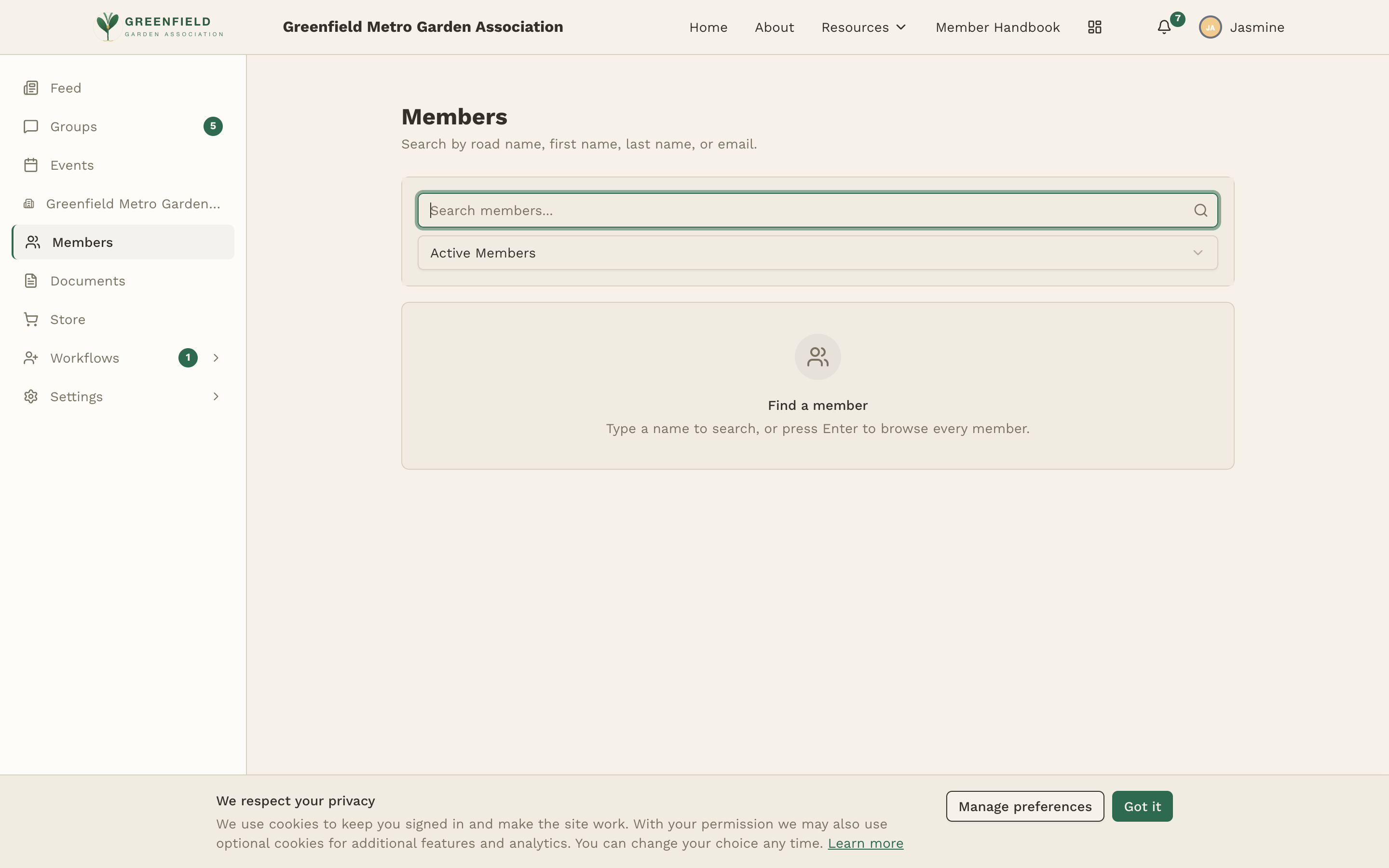
Click Members in the left sidebar to open the directory. By default you'll see an empty search view headed "Find a member" with the prompt "Type a name to search, or press Enter to browse every member." — the directory is search-first rather than a pre-loaded list.
Searching for Members
The search input at the top of the page has the placeholder "Search members..." and the hint "Search by road name, first name, last name, or email." ("Road name" is an organization-specific term — different orgs use different words, e.g., "garden name" in a garden association — that matches your org's custom nickname / display name field.)
- Click into the search box.
- Type at least 2 characters, or press Enter on an empty box to browse every member.
- Press Enter (or submit the search) to run it — results don't update live as you type.
- Clear the search box to return to the empty prompt.
Search matches first name, last name, the nickname/display name your org uses, and email. Partial matches work — e.g., "oak" will find "Patricia Oakwood".
Filtering by Status
There's a status toggle next to the search box with two options: Active Members (the default) and Inactive Members. Inactive members are those whose membership has been deactivated. Visibility of the Inactive filter depends on your organization's settings — if your admin hasn't enabled it, you'll only see Active.
Opening a Member's Profile
Click any result to open that member's profile. Profiles include the nickname / "garden name," legal name, member-type badge, chapter, contact information (where visible), officer positions, and several history tables — member types held, officer positions held, and organization and status changes. See Profiles for details.
You can also get to a member's profile from anywhere else in fellos — feed cards, group topic authors, event attendee lists. Member names and avatars are always linked.
What You Can See
What's visible on other members' profiles depends on your organization's privacy settings and your member type. In general:
- All members can see other active members' names, nicknames, avatars, member types, and chapter.
- Contact information (email, phone, address) may be hidden depending on your admin's configuration.
- Some organizations restrict directory access to certain member types.
If Members isn't visible in your sidebar, your member type probably doesn't have directory access. Contact your admin if you think this is wrong.