Finding Your Way Around
Learn how to navigate fellos — the left sidebar, the top bar, and the bottom bar on phones.
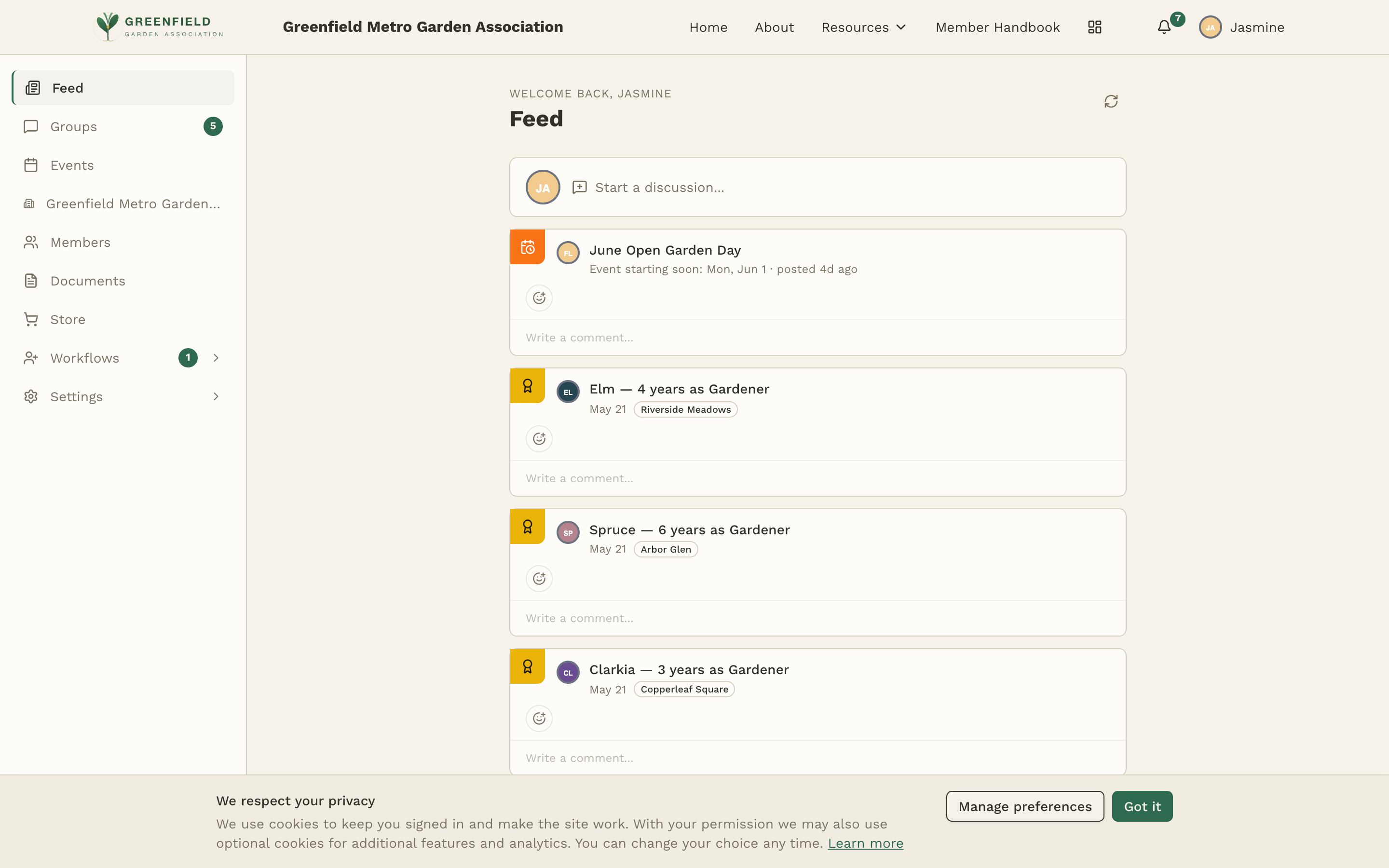
fellos has three main navigational surfaces: a left sidebar for your organization's content, a top bar with your organization's public links, the notification bell and your own name, and — on phones — a bottom bar that replaces the sidebar.
The Left Sidebar
The sidebar is your main way to move around inside fellos. Every entry is a section of your organization's own content:
- Feed — Your home screen. A single stream of posts and milestones from across your organization — it leads with recent activity but is not a strict newest-first list.
- Groups — Discussion groups. A number badge on this item tells you how many items are new.
- Messaging — Your conversations with other members; like Groups, it can carry a count. The page is headed Messages and has a New message button; you can also start one from a member's profile.
- Events — Your organization's calendar of upcoming events.
- Your organization name — This item is labeled with your org's actual name (e.g., "Greenfield Metro Garden Association"), not the literal word "Organization." It opens a structure view: the top-level org, its sub-orgs, member-type counts, and the chain of command.
- Members — A searchable directory of people in your organization.
- Documents — Shared files your admin has posted, organized into folders.
- Store — If your organization sells items, this is where you shop. (Only appears when the store is enabled.)
- Elections — Nominations, ballots and results. (Only appears when your admin has enabled elections.)
- Workflows — Not a page of its own: click it and it expands in place into Member Requests, Type Changes, Deactivations, Transfers and Attachments. It only appears if your member type has access to at least one of them.
- Dues — What you owe and what you've paid. (Only appears where dues are in use.)
Which entries you see depends on what your organization has turned on and what your member type may do, so your sidebar may be shorter than this list.
The active page is highlighted in the sidebar, so you can always see where you are.
The Top Bar
The bar along the top of the screen stays visible on every dashboard page. It contains:
- Organization logo and name — Click to return to your org's public marketing site.
- Your organization's public links — Home, About, any dropdown your admin has configured (for example "Resources"), and custom links like "Member Handbook."
- The notification bell — An icon carrying a count of what you haven't read. See Notifications.
- Dashboard — An icon that takes you back to your feed.
- Your name — The button showing your nickname, whatever your organization calls that field (a "road name" in a motorcycle club, a "garden name" in a garden association). Click it for your account pages and to log out.
Your account pages are behind your own name, not a Settings button: Profile, My Family, Password, Security, Group Signature, Notifications, Help & Support and Logout. Each one is its own page, labeled ACCOUNT above its title, and the left sidebar stays where it is while you are on them. See Your Settings.
Workflows is a sidebar section, not a top-bar button. It expands in place rather than opening an area of its own — see Requests & Workflows.
Mobile Menu
On phones and small tablets the left sidebar is hidden, and a bottom bar takes its place with five destinations and an overflow button:
- Feed, Groups (with its unread count), Chat, Org and Events.
- More — The three-dot button at the right. Tap it and the rest of your sidebar opens in a sheet: Members, Documents, Store, Workflows, and anything else your organization has enabled.
At phone width the top bar keeps the bell and the Dashboard icon and picks up a hamburger (☰). The hamburger opens your organization's public links — Home, About, any configured dropdown and custom links — along with your own name: tap that for your account pages. The dashboard sections are not in there; they are on the bottom bar.
Quick Navigation Tips
A few things that make navigating fellos faster:
🏠 Click the Logo
Click the organization name or logo in the top-left to return to your organization's public marketing site at any time.
🔔 Two Places to Look
The bell in the top bar carries your unread count. The Feed is the other surface — milestones, joins, and officer changes show up there alongside group posts.
🔍 Two Searches
The Members page has a search for people; each group has its own search that covers posts and discussions. See Searching for both.
📱 Add to Home Screen
On your phone, add fellos to your home screen for quick access. It works like a native app with no install required.
Which items you see depends on your member type. If a sidebar section or a workflow doesn't appear, your admin probably hasn't enabled it for your member type. Contact your administrator if you think something is missing.