Searching
Two searches — one for people, one for group posts.
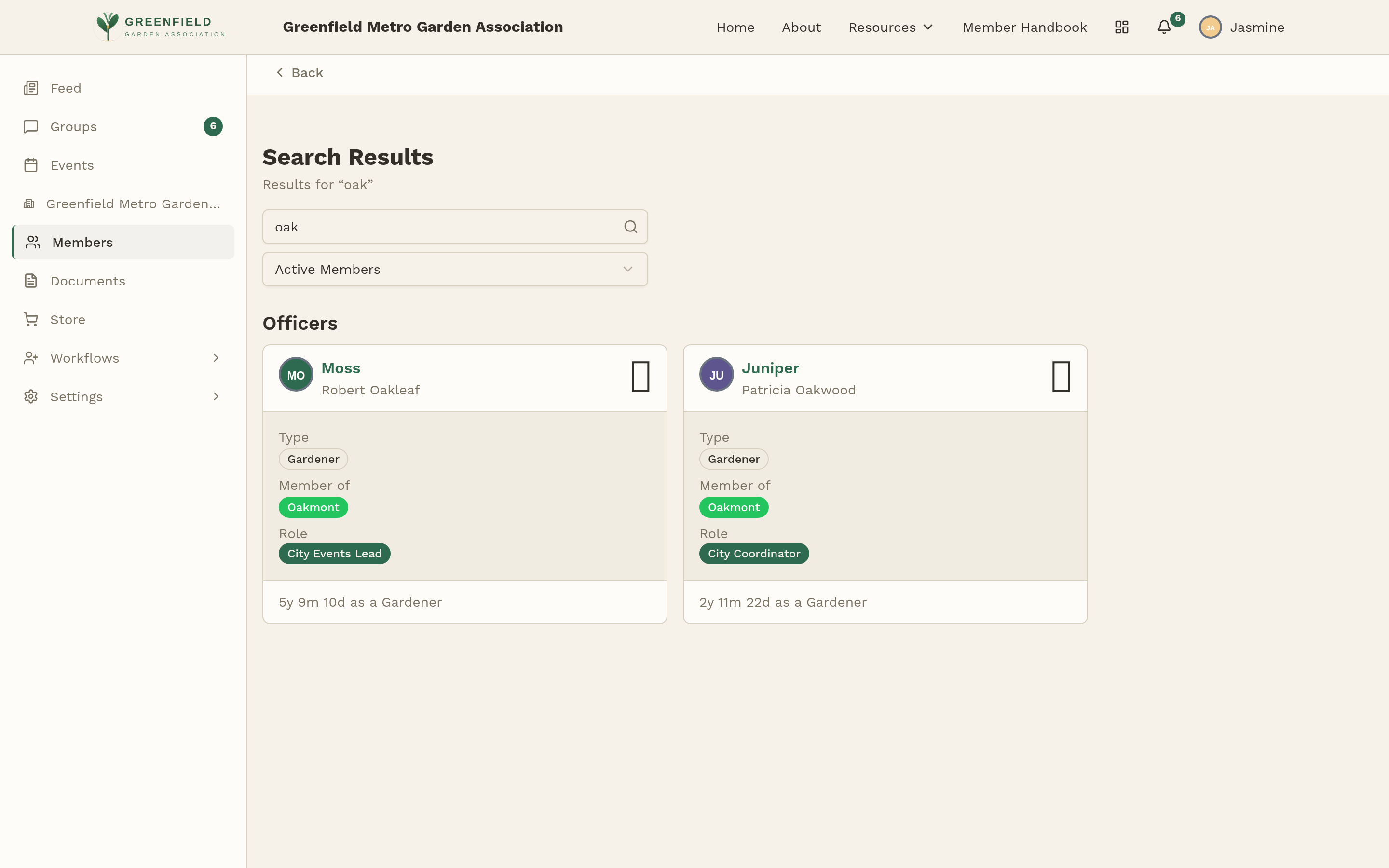
fellos has two separate search tools, each scoped to a particular kind of content. There isn't a single unified search that covers everything — if you're looking for a person, use the members search; if you're looking for a discussion topic or comment, use the group search.
Member Search
The member search is the search box on the Members directory — click Members in the sidebar to get there. After you search, the results page is titled Search Results.
- Go to Members in the sidebar.
- Type at least 2 characters into the "Search members..." box.
- Press Enter (or submit) to run the search — results don't update live as you type.
- Use the Active Members / Inactive Members toggle if you need to look up someone whose membership is no longer active.
It matches first name, last name, the nickname/display name your org uses (e.g., "road name" or "garden name"), and email. Click a result to open that member's profile.
Group Search
There's a second search scoped to discussion posts and comments. Click Groups in the sidebar, then click the magnifying-glass icon at the top of the Groups page — it's the leftmost of the three icons there, and its label is Search posts. The results page is titled Search Groups, subtitled "Search across all group posts and discussions".
The search box reads "Ask a question or search posts...". Plain words are all it needs, and the box gives no hint of any syntax — but there is some. What the search accepts:
- Plain text — e.g., "spring". Matching is not strictly literal: results are ranked by relevance, and a search can return posts that do not contain the exact word you typed.
- Scoping qualifier —
group:announcementsrestricts the search to a specific group. - Author qualifier —
author:MemberNamefilters to posts by that member. - Combine them — e.g.,
author:Flora bylaw change.
Each result shows the post title, a percentage, the group, the author, the date, a preview of the match, and — where the post has comments — a comment count. The results come back as one list ordered by that percentage, highest first. There is no sort control on the page.
Asking instead of searching
Next to the search icon at the top of the Groups page is a sparkles icon labelled Ask AI. That one takes a question in plain words and answers it, with links to the posts the answer came from, instead of handing you a list of results to read through. The two sit side by side and do different jobs — see Ask AI & Summaries.
Inside a specific group, clicking the search icon prefills group:<slug> for you — so you can search just that group's posts without typing the qualifier.
There's no global search that spans events, documents, or the store. To find an event, use the Events calendar; for documents, browse the Documents list; for store items, use the category chips on the store page.