Requests & Workflows
Structured approval processes for membership changes.
fellos uses structured workflows to handle membership changes. Instead of sending emails back and forth, requests go through an organized approval process with every action logged and every request carrying a clear status.
Click Workflows in the left sidebar. It has no page of its own — it expands in place into five entries:
- Member Requests — onboarding new members.
- Type Changes — transitions between member types.
- Deactivations — marking members inactive.
- Transfers — moving members between sub-orgs.
- Attachments — member-required uploads.
The first four open a page with two sections: a New Request button at the top, and a My Requests list underneath showing every request you've submitted in that workflow. You'll see "No requests yet." if you haven't submitted anything. Attachments is the odd one out — see below.
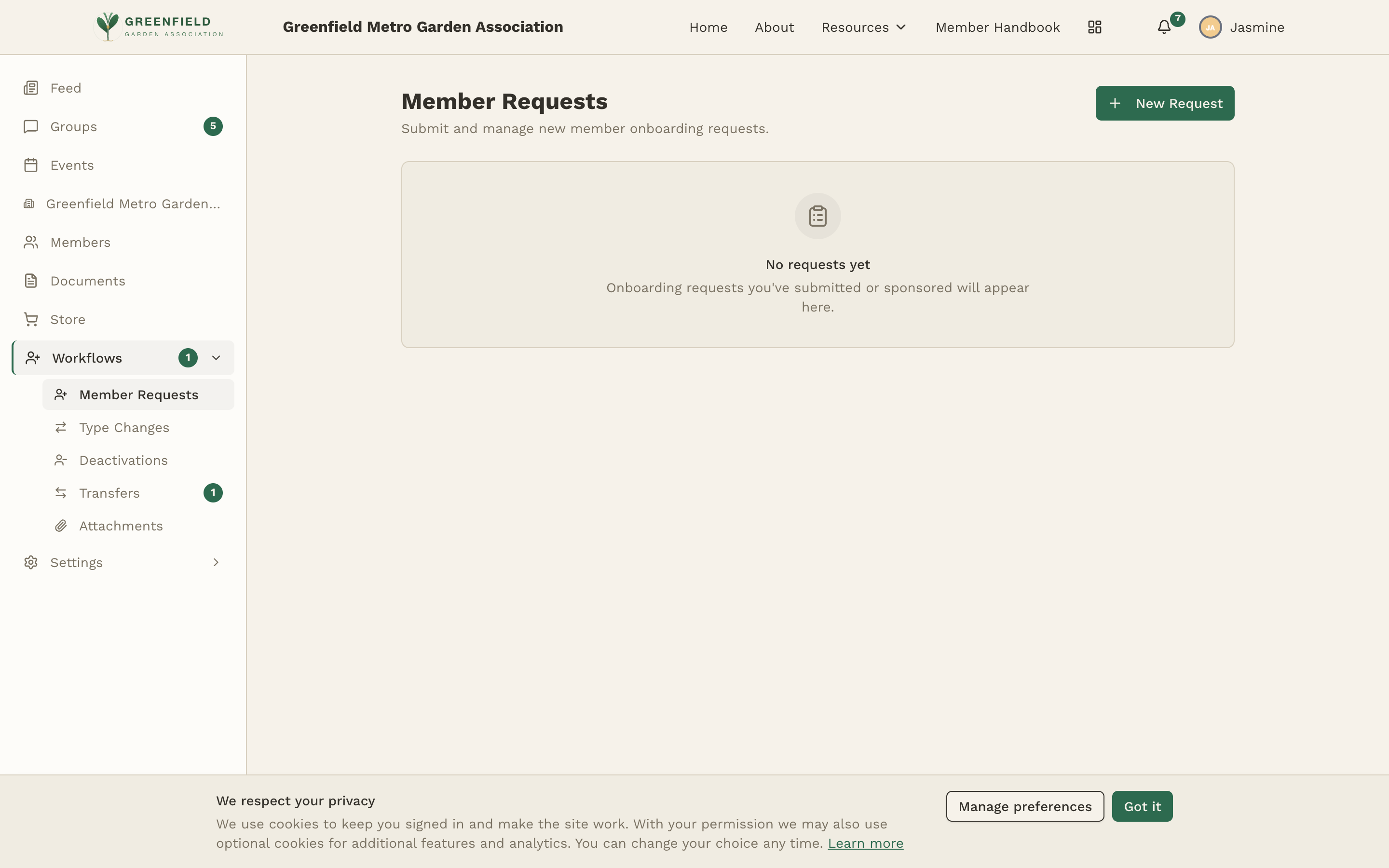
The Workflows section only appears in the sidebar if your member type has access to at least one of the five workflows. If it's missing, your admin hasn't enabled any workflow actions for your member type — which is normal for many member types.
Member Requests (Onboarding)
If your organization allows it, you can sponsor a new member through the onboarding workflow.
- In the left sidebar, click Workflows, then Member Requests.
- Click the New Request button.
- Fill in the new member's details: full name, email, chapter, and initial member type.
- Pick a sponsor (defaults to you; you can pick someone else).
- Attach any required documents — a signed application, waiver, or whatever your org requires.
- Optionally add a message with context on why you're sponsoring this person.
- Submit the request.
Once submitted, the request enters your org's approval workflow. Depending on how your admin has configured things, it may need sign-off from a chapter officer, a board, or multiple levels of review.
Add detail in the message. Reviewers appreciate context — how you know the person, how long they've been involved informally, why you think they'd be a good fit. It speeds up the approval process.
Type Changes
Submit a request to move a member (you or someone else) between member types — for example, from a probationary type to full membership, or from active to a retired status.
- In the left sidebar, click Workflows, then Type Changes.
- Click New Request and pick the target member.
- Choose the new member type. Only valid transitions (per your admin's configuration) appear.
- Attach any required documents and explain the change.
- Submit for approval.
Not every transition is available to every member. Your admin defines which transitions are valid and who can request them. For example, only officers might be able to promote a member to the next type, while any member might be able to request their own retirement.
Deactivations
A deactivation request marks a member as inactive — they lose access but their history is preserved. Deactivation is not deletion.
- In the left sidebar, click Workflows, then Deactivations.
- Click New Request and pick the member.
- Provide a reason for the deactivation — required, and shows up on the member's history.
- Submit. It runs through your org's approval process before taking effect.
Once approved, the deactivated member can't sign in and moves from Active to Inactive in the member directory.
Transfers
Transfer requests move a member from one sub-org to another within the same fellos site.
- In the left sidebar, click Workflows, then Transfers.
- Click New Request and pick the member.
- Pick the destination sub-org.
- Add a message with the reason for the transfer.
- Submit.
Transfer requests may require sign-off from both the sending and receiving sub-orgs, so they can take longer to process than single-scope workflows.
Attachments
Attachments is not shaped like the other four. It has no New Request button and no My Requests list. The page is subtitled "Review pending document approvals and upload documents for members," and it has three sections:
- Pending Approvals — documents waiting on a decision. It reads "No documents pending approval" when there are none.
- Upload for Member — a member search, to upload a document on someone's behalf.
- Member Documents — pick a document type to see the roster of who has filed it.
- In the left sidebar, click Workflows, then Attachments.
- Under Upload for Member, search for the member the document belongs to.
- Upload the file. It goes to an admin or officer for review.
Uploaded attachments also show up on the member's Profile. If an admin rejects a submission, the reason appears in the request's message thread so you know what to fix before re-submitting.
The document types on this page are the ones your admin has set up — "Membership Application," for example. Which of these three sections you can act in depends on what your admin has given your member type.
Tracking Request Status
Every request you've submitted shows up in the My Requests list on its workflow page. Click a row to open the request and see its full detail — the original information, a timeline of every action, a message thread where you can communicate with reviewers, and any attached documents.
Typical statuses:
- Pending — submitted, awaiting review.
- Approved — signed off by the required reviewers.
- Declined — rejected; check the messages for why.
- Cancelled — withdrawn by the requester.
- Completed — approved and the change has been applied.
Turn on email or push delivery on your Notifications page (your name in the top bar → Notifications) to get alerts when your requests change status. See the Notifications page for details.