Discussion Groups
Groups are where conversations happen in your organization — read, post, comment, and subscribe.
Discussion groups in fellos work like forums organized around topics, committees, chapters, or any other category your admin has created. They are the primary way members communicate asynchronously — sharing ideas, asking questions, making announcements, and having threaded conversations.
Browsing Groups
Click Groups in the left sidebar to see all the groups you have access to. Groups are split into sections labeled COMMUNITY (open discussion), OFFICIAL (announcements, business), and any other categories your admin has configured. Each section header shows the number of groups in it.
Each group card shows:
- Group name and description.
- Unread count — "N new post(s)" when there's activity since you last looked.
- Pending count — "N pending" on groups where posts need moderator approval before going live.
- Total posts — The overall count.
- Latest topic — The most recent post title, with author and time.
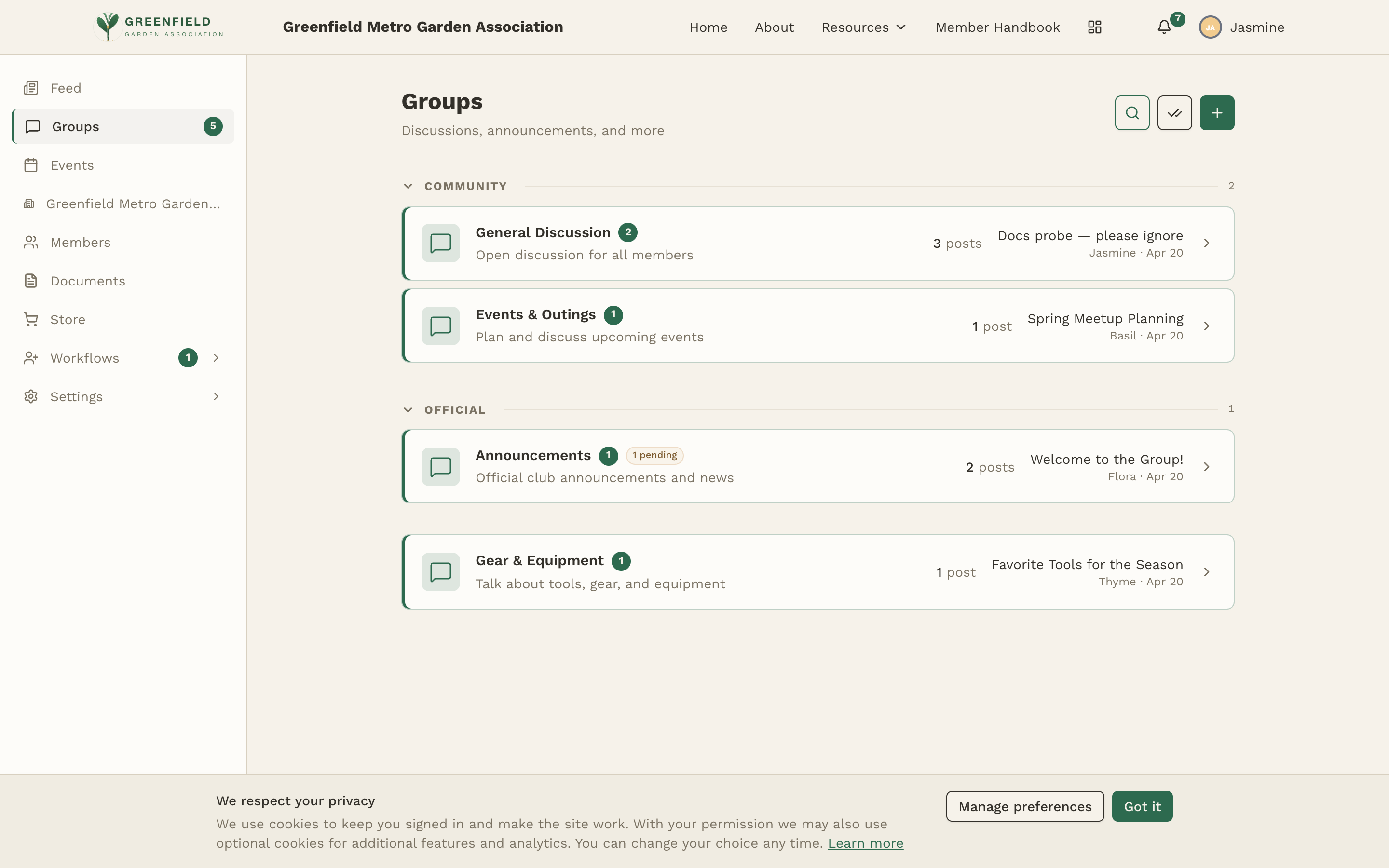
The top of the Groups page also carries three controls. They are icons with no words next to them, so they are easiest to tell apart by position and shape — left to right:
- Search posts — a magnifying glass. Opens a post-wide search (see Searching Groups).
- Ask AI — a sparkles icon. Asks a question of the whole group archive and answers it with links to the posts it drew on (see Ask AI & Summaries).
- New post — a plus sign. Opens the composer.
Those three names are what a screen reader announces for them. On screen there is no text next to the icons, and no tooltip on hover, so it is worth learning the order.
Reading Posts in a Group
Click any group to see its post list. The group page has a column layout with POST / COMMENTS / ACTIVITY headers above each row. Posts are sorted by most recent activity. Each row shows:
- Title and author, with the author's member-type badge.
- Comment count — "0 comments", "1 comment", etc.
- Most recent activity — the latest commenter and how long ago.
- Status badges — NEW (unread since your last visit), PINNED (stuck to the top by a mod), LOCKED (read-only), and PENDING (submitted but awaiting mod approval).
Each group has a Subscribe button near the header — see Subscriptions below.
Creating a Post
If your member type can post, you'll see a + new-post icon on the groups list and on each group's page. Click it to open Start a Discussion.
- Pick the Group from the dropdown. If you opened the composer from within a specific group, that group is already selected.
- Enter a Title.
- Write the Body using the rich-text editor. The toolbar supports bold, italic, underline, strikethrough, colored text, two heading levels, bullet and numbered lists, block quotes, inline code, dividers, and links.
- Click Create Post to submit. If the group requires moderator approval, your post will show a PENDING badge until a mod approves it.
- Click Cancel to back out without posting.
Things the composer does for you
Posts and comments both use the same rich-text editor. A few things happen automatically — you don't need to click a button for any of these.
@mentions
Type @ and start typing a person's name. A suggestion list appears under your cursor with members that match (by first name, last name, or nickname/display name — e.g. typing @Fl finds Flora). Use the arrow keys to pick one and press Enter (or click them). fellos inserts a styled mention chip that links to their profile, and the person you mentioned gets a notification through whatever channels they have enabled.
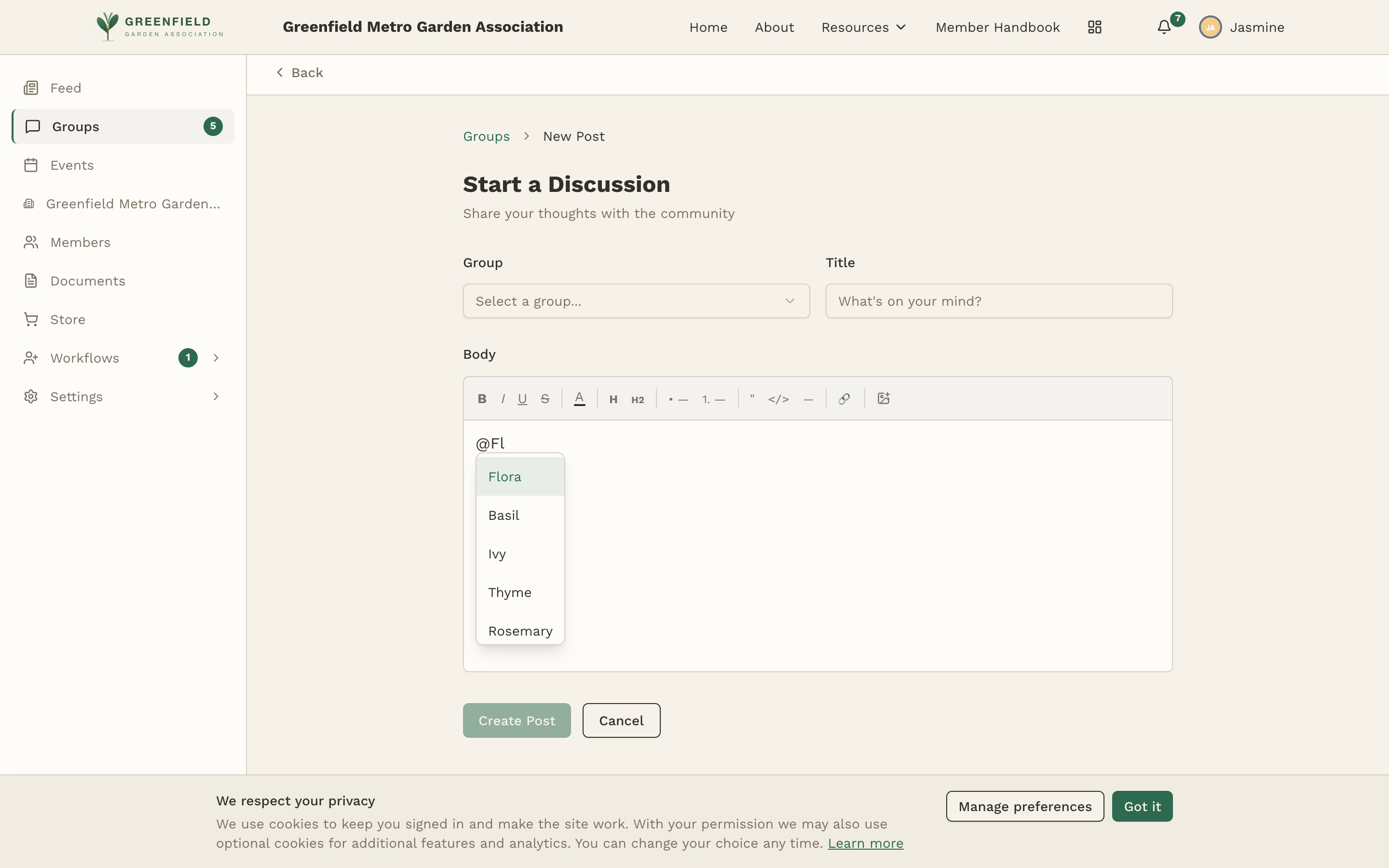
@Fl in the body opens a member picker — press Enter to insert a mention.The placeholder in the comment composer even reminds you: "Write your post... (type @ to mention someone)".
Link unfurling
Paste a URL into your post or comment — you don't need to wrap it in a link button. Once you post (or preview), fellos renders a preview card under the text with the source domain, page title, and a thumbnail image. For example, pasting a Wikipedia URL shows a card with en.wikipedia.org, the article title, and the page's featured image, right inside the discussion.
Inline images
Drop images directly into your post or comment — just paste (Cmd/Ctrl+V) an image from your clipboard or drag an image file from your desktop into the editor. fellos uploads it and renders it inline where your cursor was. There's no separate image button in the toolbar; paste and drag-and-drop are the intended ways to add images. Works for both posts and comments.
If you've set a group signature (click your name in the top bar, then Group Signature), it's automatically appended below every post you create, separated by a divider line. Great for adding your chapter, officer title, or a motto without retyping it.
Viewing & Commenting on a Post
Click any post title to open the topic page. You'll see the full post body, every comment in order, and an Add a Comment editor at the bottom.
To add a comment:
- Scroll to the Add a Comment section at the bottom of the topic.
- Type your comment using the rich-text editor — same toolbar as the post composer, same automatic features: @mentions, link unfurling, and pasted/dropped images all work in comments too.
- Click Post Comment to submit.
On your own post or comment, you'll see Edit and Delete buttons to correct typos or remove something you wrote.
If your site has thread summaries switched on, a Summarize button appears on a thread once the post and its comments together pass the word count your site has set. See Summaries of long threads for both conditions.
Reactions
Every post and every individual comment has its own Add reaction button — a small circular button sitting just below the item. It's the low-effort way to say "seen" or "agreed" without adding another comment to the thread.
- Click Add reaction under the post or comment.
- Choose from the seven reactions: 👍 👎 ❤️ 😮 😢 😂 😡
- The reaction appears as a pill under the item with a running count, like 👍 7.
Click an existing pill to add your own vote to it. Click it again to take your vote back — the count drops by one, and the pill goes away entirely once nobody is left on it.
Moderator Actions
If you're a moderator of the group (for example, the officer or lead for that scope), the topic page shows a MOD badge and extra buttons near the title:
- Pin / Unpin — Stick a topic to the top of the list, or remove that pin.
- Lock — Close the topic to new comments while keeping it readable.
- Move — Move the topic to a different group.
- Delete — Remove the topic.
Signatures
Your group signature is a rich-text block that fellos appends to every post you make in discussion groups, separated from the body by a divider line. It typically contains your name, chapter, officer title, or a short motto.
To set up or change your signature, click your name in the top bar, then Group Signature. Enter your text (up to 2,000 characters) and click Save Signature. Full details on the Settings page.
Subscriptions
Each group has a Subscribe button at the top of its page — click it to follow that group. Subscribing to a group flags you for notifications about its activity through the delivery channels you've enabled on your Notifications page (email and push, if available).
In-app activity always flows into your Feed regardless of your subscription state, as long as you have access to the group. Subscribing is specifically for the external channels — email and push — when those are configured.
Which groups you can see and whether you can post are both controlled by your member type. If you can't find a group you expect or the new-post icon is missing, your admin may not have given your type access — check with them.