Notifications

Control how and when you hear about activity in your organization.

fellos keeps you informed about what's happening in your organization through three notification channels: in-app notifications, email, and push notifications. You have fine-grained control over which notifications you receive and how they're delivered, so you can stay in the loop without being overwhelmed.

Notification Preferences Choose what notifications you receive and how they're delivered In-App Email Push Organizational New members added When someone joins your organization Member type changes Promotions, transitions, and status updates Member deactivations When a member leaves or is deactivated Officer role changes New officers, role assignments, and removals Feed announcements Important announcements posted to the feed Groups New group posts When someone posts in a group you belong to Replies to your posts When someone comments on your group post Mentions When someone mentions you in a post or comment
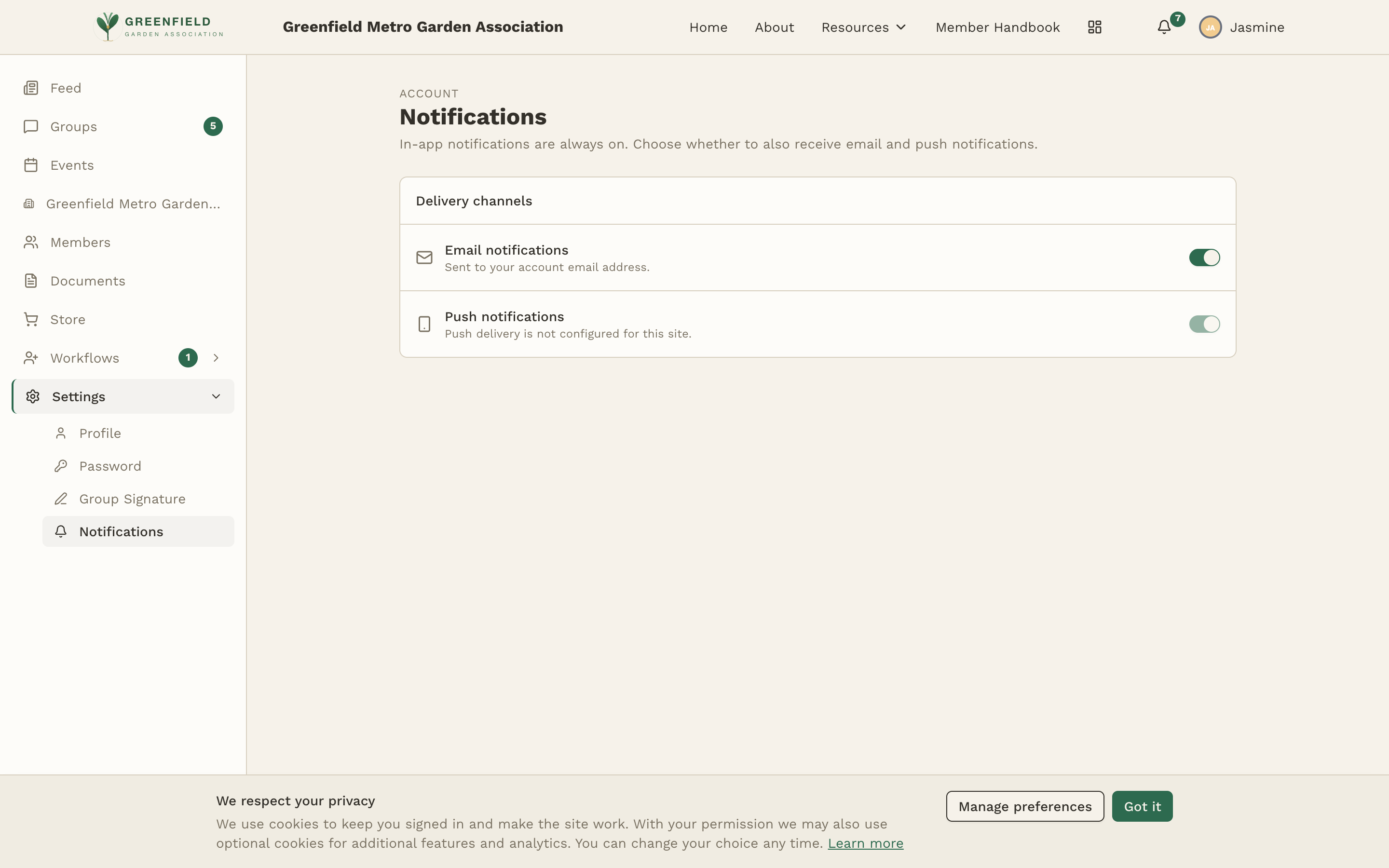
The notification preferences page — toggle each notification type on or off for each delivery channel (in-app, email, push).

In-App Notifications

In-app notifications appear inside fellos itself, through the notification bell icon in the top navigation bar. This is the most common way you'll receive updates about activity in your organization.

  1. Look for the bell icon in the top right corner of the navigation bar.
  2. A red badge with a number appears on the bell when you have unread notifications.
  3. Click the bell to open the notification dropdown, which shows your most recent notifications.
  4. Click any notification to go directly to the relevant content — the post, the profile, the workflow request, etc.
  5. Notifications are automatically marked as read when you view them.

In-app notifications are the default channel and are enabled for most notification types out of the box. They're a good baseline because they don't interrupt you — they're waiting for you whenever you next open fellos.

Tip

If your notification badge count feels overwhelming, visit your notification preferences and turn off in-app alerts for lower-priority categories. Focus on the notifications that matter most to your role in the organization.

Email Notifications

Email notifications send alerts to the email address on your fellos account. These are useful for staying informed even when you're not actively using fellos.

Email notifications are only available if your site administrator has configured email delivery. If email isn't set up for your fellos site, you won't see email toggle options in your notification preferences.

When email notifications are available, you can enable or disable them per notification type. For example, you might want email alerts for workflow approvals but not for every new group post.

Good to know

Email notifications include a summary of the event and a direct link back to fellos. They're sent in real-time — as soon as the event happens, the email is dispatched. If you're finding emails too frequent, consider disabling email for high-volume categories like group posts and keeping it on for important items like workflow status changes.

Push Notifications

Push notifications deliver real-time alerts directly to your device — phone, tablet, or computer — even when fellos isn't open in your browser. They appear as system notifications, just like alerts from native apps.

To use push notifications:

  1. Your site administrator must have push notifications enabled for your fellos site.
  2. When you first enable a push notification in your preferences, your browser will ask for permission to show notifications. Click Allow.
  3. Once permitted, push notifications will arrive in real-time whenever the enabled events occur.
Important

If you accidentally block push notification permissions in your browser, you'll need to go into your browser's site settings to re-enable them. The exact steps vary by browser — look for "Notifications" in your browser's permissions or site settings for your fellos URL.

Push notifications are best used sparingly, for truly time-sensitive information. Good candidates for push notifications include replies to your posts, mentions of your name, and workflow approvals on requests you submitted.

Managing Your Preferences

To configure your notification preferences, go to Settings → Notifications. You'll see a table with notification types organized by category, with toggle switches for each delivery channel.

Organizational Notifications

These notifications relate to membership and organizational changes:

  • New members added — When someone joins your organization through the onboarding process.
  • Member type changes — When a member is promoted, transitions, or has their type updated.
  • Member deactivations — When a member leaves or is deactivated.
  • Officer role changes — When officers are elected, appointed, or removed from roles.
  • Transfers — When a member transfers to or from your chapter/organization.
  • Feed announcements — Important announcements posted to the activity feed.

Group Notifications

These notifications relate to discussion group activity:

  • New group posts — When someone creates a new post in a group you belong to.
  • Replies to your posts — When someone comments on a post you authored.
  • Reactions — When someone reacts (like, etc.) to your post or comment.
  • Mentions — When someone mentions your name in a post or comment.
  • Moderation actions — When a post is pinned, locked, or moderated in your groups.

For each notification type, you can independently toggle the three channels:

In-App

Shows in the bell icon dropdown inside fellos. Low-interruption — you see them when you next visit.

Email

Sent to your email address. Good for staying informed when you're not in fellos. Only available if your admin has configured email.

Push

Real-time alerts on your device. Most immediate but most interruptive. Only available if your admin has enabled push.

Mandatory Notifications

Some notifications are mandatory and cannot be turned off. These are security-related or critical account notifications that you need to receive regardless of your preferences:

  • Password change confirmations — When your password is changed, you'll always receive a notification so you can take action if it wasn't you.
  • Account status changes — If your account is deactivated or reactivated, you'll always be notified.
  • Security alerts — Unusual login activity or other security-related events.

Mandatory notifications appear with their toggles locked in the "on" position — you'll see them in the preferences page, but the switches won't be interactive.

Good to know

Mandatory notifications exist to protect your account. Even if you prefer minimal notifications, these few critical alerts ensure you're always aware of important security events related to your fellos account.

Not sure where to start? Here's a recommended notification configuration that balances staying informed with avoiding notification fatigue:

  • In-app: Enable for everything. These are low-interruption and give you a complete picture when you visit fellos.
  • Email: Enable for workflow updates and mentions only. These are important, actionable items that benefit from timely delivery.
  • Push: Enable for replies to your posts and direct mentions only. These are conversational and time-sensitive — someone is directly engaging with you.

You can always adjust this as you get a feel for the volume and type of activity in your organization. Some chapters are very active with group discussions, while others primarily use fellos for organizational management. Tailor your settings to match your experience.