Your Organization
See how your organization is structured — sub-orgs, member-type counts, and the chain of command.
Click your organization's name in the left sidebar (it's labeled with the actual org name — e.g., "Greenfield Metro Garden Association" — not the literal word "Organization") to open this page. It shows your organization's structure, who holds which officer position, and how members are distributed across sub-orgs.
The page's H1 is the top-level org type for your organization — for an Association it's "Association," for a Club it's "Club," and so on. fellos supports organizations with a range of structures: chapters, regions, committees, and other sub-org types your admin has configured.
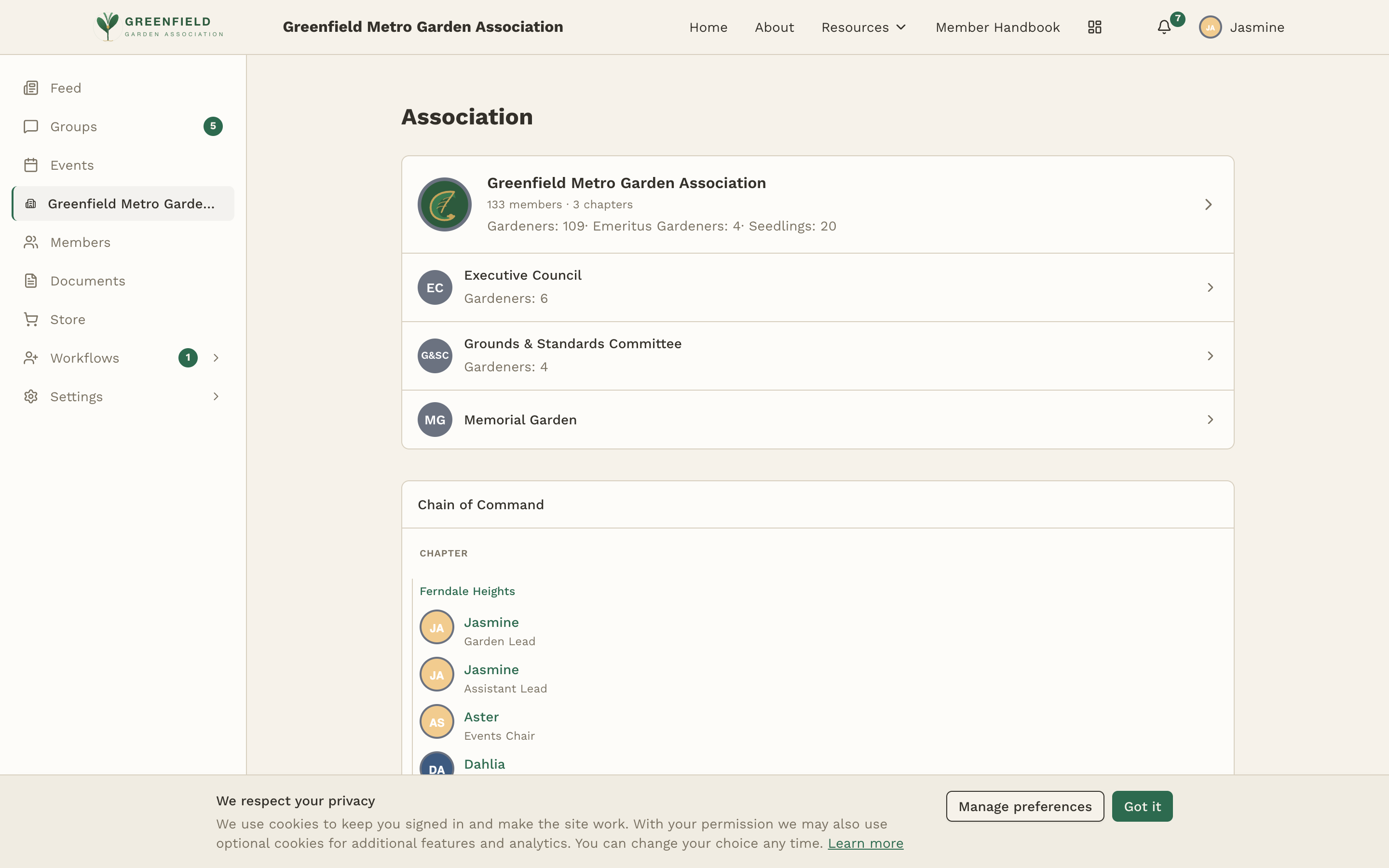
The Top-Level Card
At the top of the page is a card for the top-level org with its avatar, name, and a member-type breakdown — for example: "Gardeners: 116 · Seedlings: 20." The counts include every active member in the organization, split by the member types your admin has configured.
Sub-Organizations
Below the top-level card you'll see a vertical list of every sub-org you have access to. Each entry shows:
- A short avatar/abbreviation (e.g., "EC" for Executive Council).
- The sub-org name.
- A member-type count for that sub-org (e.g., "Gardeners: 6").
Click any entry to open the sub-org detail page — that's where you'll find its full member list and any sub-orgs nested underneath it.
Looking for a specific person rather than the org structure? The Members directory is faster for finding an individual. This page is best for understanding structure and finding officer positions.
Chain of Command
The right column (or below on mobile) is a Chain of Command table. It lists every officer position across the organization, grouped by the org-type the position belongs to — you'll see headers like CHAPTER, REGION, or CLUB CHAPTER (whatever sub-org types your admin set up).
Under each grouping, you'll see one row per position with:
- The sub-org name (e.g., "Ferndale Heights").
- The member currently holding the role.
- The role title (e.g., "Garden Lead," "Events Chair," "Association President").
Click a member's name to open their profile (contact info, officer history, membership history, etc.).
Officer assignments are managed by your organization's admin. If you spot incorrect information, let them know — regular members can't change officer records directly.
What You Can See
The sub-orgs and positions that show up on this page depend on your member type and your organization's visibility settings. If you think an officer or sub-org should be visible to you but isn't, check with your admin.