Transfers Between Orgs
How transfer requests work when a member moves from one organization to another.
Members sometimes need to move between organizations within your club — because they've relocated, they want to participate in a different chapter, or their circumstances have changed. fellos handles this through a transfer request, which runs through an approval chain before the member's org assignment changes.
Reviewing a Transfer Request
To review pending transfers:
- In the left sidebar, click Workflows to expand the Workflows section.
- Click Transfers in the list that opens beneath it.
- The page is titled Transfers, subtitled "Submit and manage member transfer requests." It has a New Request button, a Pending Approvals list (transfers awaiting your action), and a My Requests list (transfers you submitted). Click Details on any row to open its full detail view.
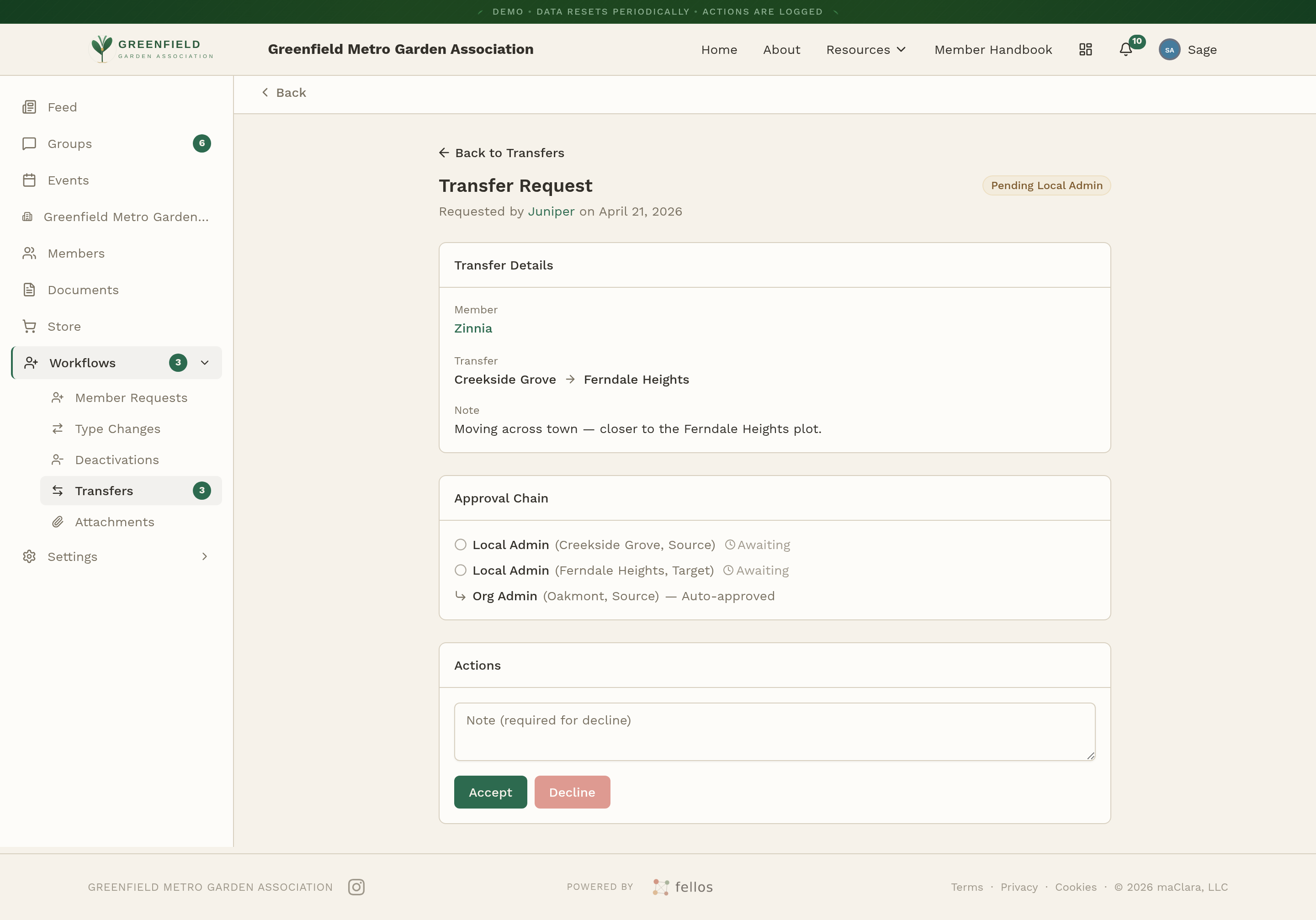
Each row in Pending Approvals shows the member, the organization they're moving from, the organization they're moving to, who requested it, and the current status (e.g. Pending Local Admin). The Approval Chain is shown inline, with a step for the source org, a step for the target org, and an Org Admin step that may read Auto-approved. Because a transfer touches two organizations, the chain typically includes approvals from the Local Admins of both the source and the target orgs.
Your site admin sets the approval chain for transfers. Some chains require approval from both the sending and receiving organizations; others only require one side. Your own step may also be Auto-approved if you submitted the request and you hold the relevant admin role.
Submitting a Transfer Request
To start a transfer yourself:
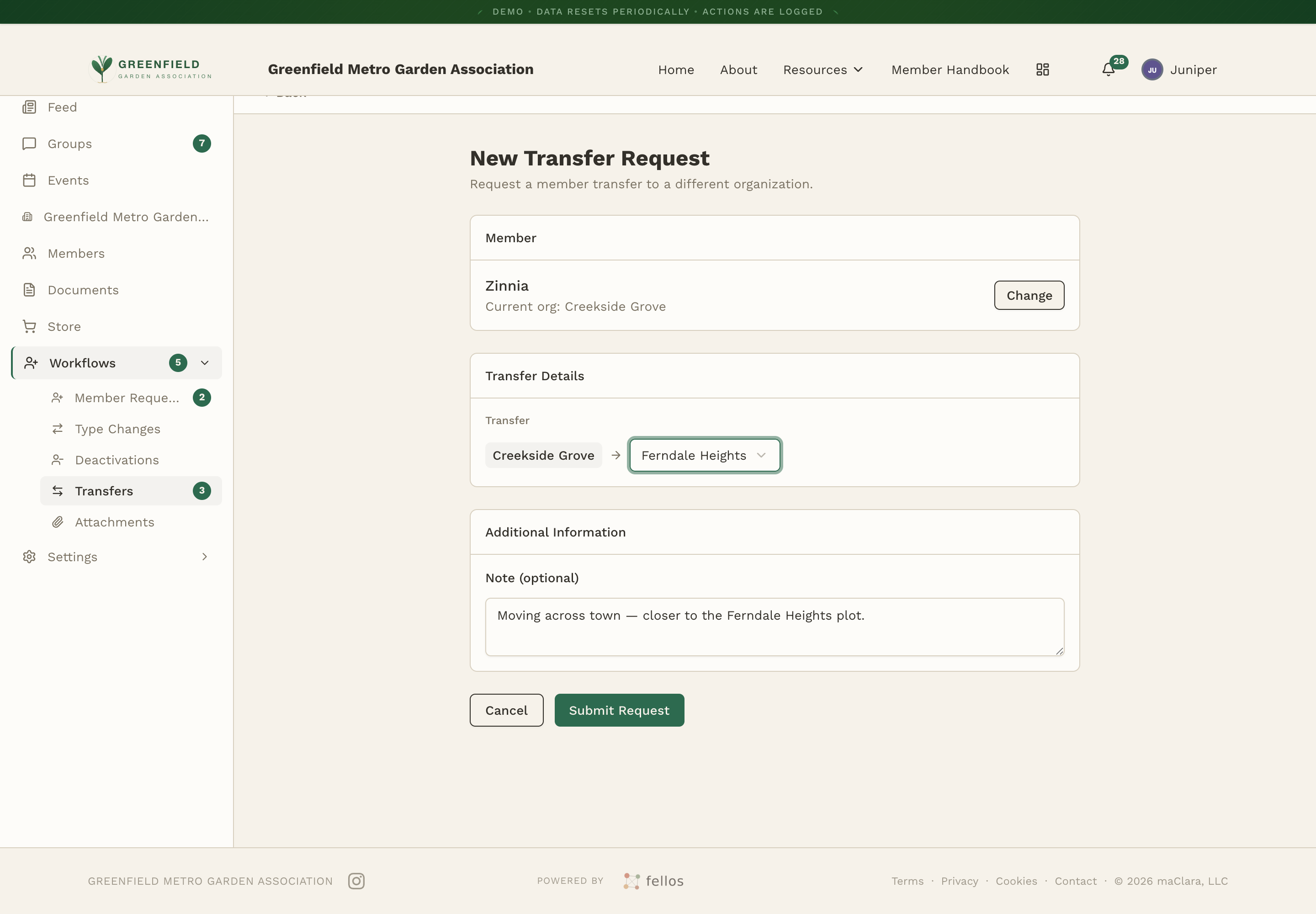
- On the Transfers page, click New Request.
- Search for the member by name on the New Transfer Request form.
- Pick the destination organization from the dropdown. The form displays the move as Source Org → Destination Org.
- Optionally add a note, then click Submit Request.
Approving a Transfer
Because a transfer involves two organizations, its status shows which step it's currently waiting on (e.g. Pending Local Admin). When the chain reaches you, each pending row in the queue carries Accept, Decline, and Details buttons. Declining reveals a Decline note field (optional) where you can record why before confirming.
What Happens After a Transfer
Once every step in the chain has accepted:
- The member's organization changes to the new one.
- They appear in the new org's directory and leave the old one's.
- Any officer roles they held at the old org are released.
- Their member type stays the same.
- Their history from the old org stays on their profile.
A member can only belong to one organization at a time. If your club needs someone to participate in more than one chapter, that's handled through the organization structure your site admin sets up — not through transfers. A transfer is a permanent move.