Your Admin Dashboard
Where admin work happens in fellos, and what the interface looks like when you have admin access.
fellos doesn't have a separate "admin panel" for Org Admins. You use the same dashboard your members do. The difference is that extra controls — like an Edit button on a member profile, or moderator actions on a group post — appear for you where they don't appear for regular members.
The one place that looks noticeably different is the Workflows section of the sidebar, which is where you'll spend most of your admin time.
The Workflows Section
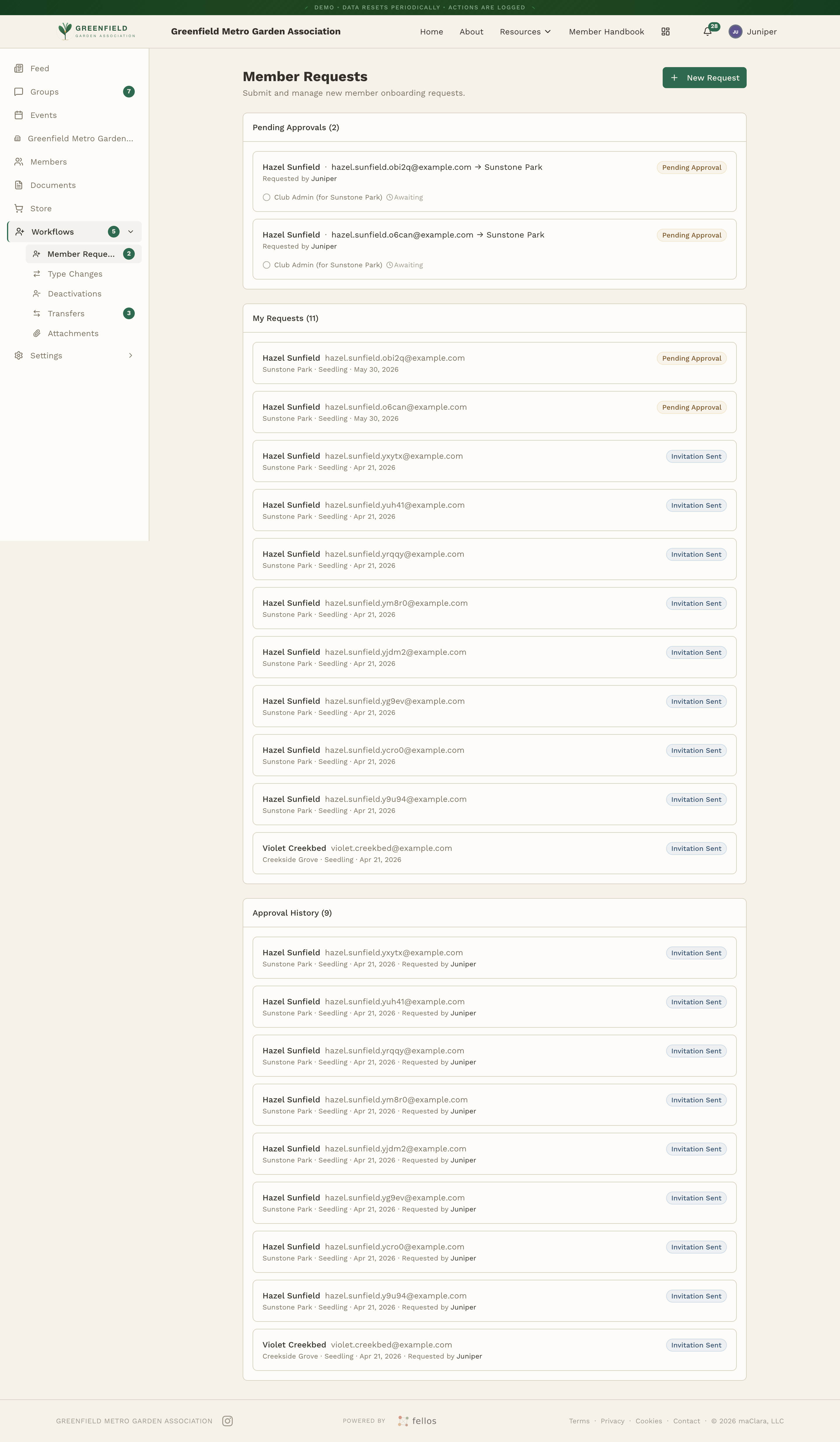
In the left sidebar, click Workflows (it carries a count badge when items await you). It expands in place into five entries:
- Member Requests — Onboarding requests for new members.
- Type Changes — Member type changes (for example, moving a member from one type to another).
- Deactivations — Requests to take a member off the active roster.
- Transfers — Members moving from one organization to another.
- Attachments — Pending document approvals for member profiles.
Each Workflows page has a New Request button and lists the requests you submitted. Member Requests, Type Changes, and Deactivations also show an Approval History of requests that have come through you. Transfers instead splits its list into Pending Approvals (awaiting your action) and My Requests.
What Changes When You Have Admin Access
Member Profiles
When you open a member within your scope, an Edit button appears near the top of the profile. This lets you update their information. Regular members don't see this button.
Groups and Events
In groups that fall in your scope, posts have an overflow menu with moderator actions like pin and lock. On event pages, you'll see an Edit button, and you can start a new event from the Events list with a New Event button.
Workflow Review
Workflow requests that involve members or organizations in your scope will show up under Approval History on each Workflows page.
Reviewing a Workflow Request
Every workflow type follows the same pattern:
- In the left sidebar, click Workflows.
- Click the entry that matches the request type: Member Requests, Type Changes, Deactivations, Transfers, or Attachments.
- Open any entry from the list (Transfers offers an inline Details button; the others open on click) to see its detail view.
- The detail view shows the request's profile/transition/deactivation details and an Approval Chain. If your approval is the next step in the chain, action buttons appear.
You only see requests that fall within your admin scope. If you're an Org Admin at a higher level, you'll see requests from organizations below yours — but not requests that belong to a completely separate part of the organization tree.
If more than one admin has scope over the same request, either one can act on the step. Once someone accepts or declines, the request moves on (or stops) for everyone else.