Shipping Rates
Set up what members pay for shipping and where you'll send things.
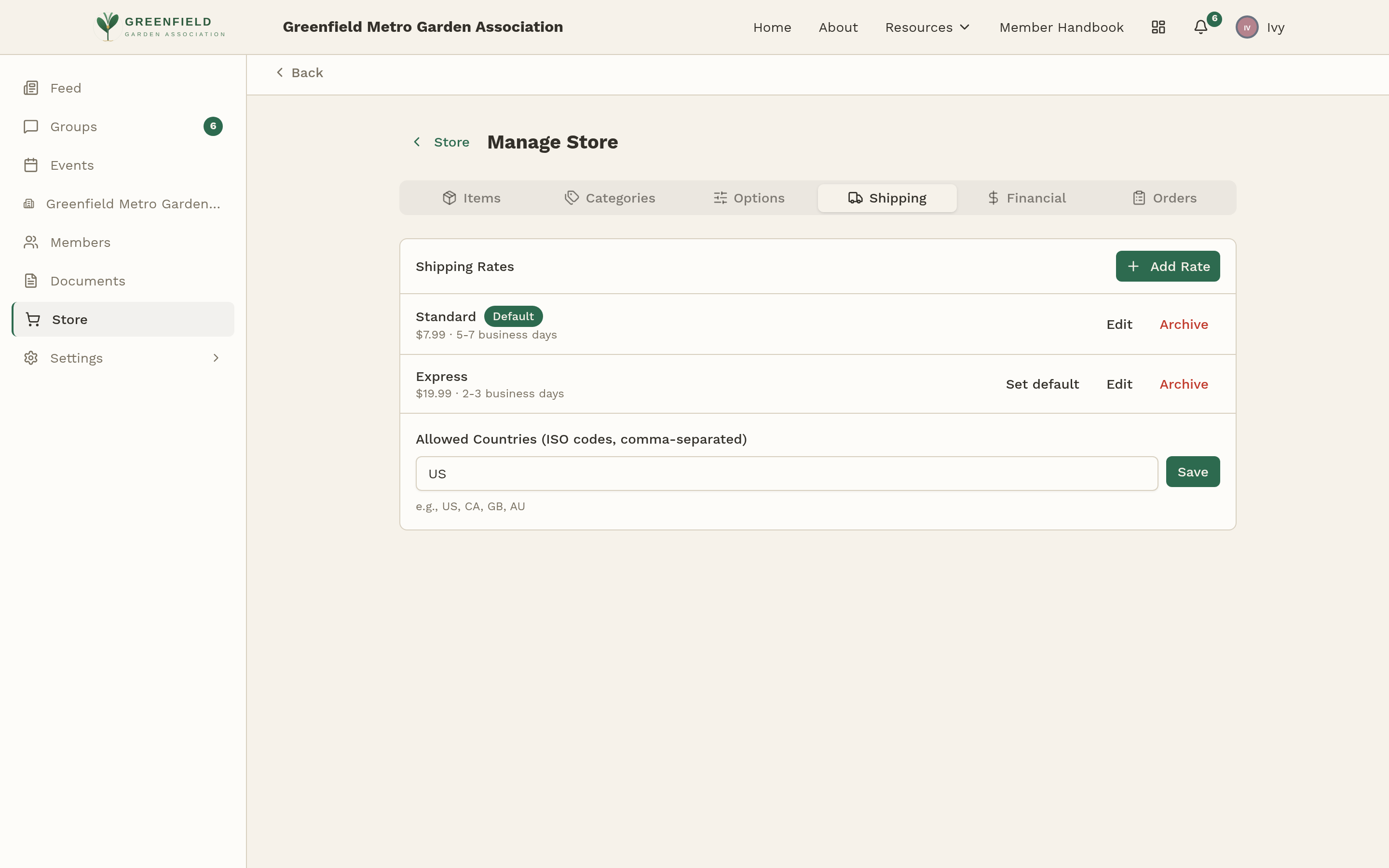
The Shipping tab is where you tell fellos what shipping methods to offer at checkout and what to charge for each. fellos can also calculate live USPS rates based on the item's weight — that's built in, with nothing to configure.
Adding a Shipping Rate
- Open Store → Manage Store → Shipping.
- Click Add Rate.
- Fill in the rate's name (what members see, like "Standard" or "Priority Mail"), its price, and the delivery estimate.
- Save. The rate shows up immediately at checkout.
Each existing rate has Edit and Archive buttons — edit to change the price or estimate, archive to retire a rate without deleting history.
The Default Rate
One of your rates carries a Default badge. Members see that one pre-selected at checkout; they can still switch to another rate if you offer more than one. To change which rate is default, click Set default in another rate's row.
Shipping Countries
By default fellos allows all countries. To ship only within a specific list (most organizations just ship domestically), fill the Allowed Countries (ISO codes, comma-separated) field at the bottom of the Shipping tab with codes like US, CA, GB, AU, and click Save. Members outside the list can't check out physical items at all.
USPS Live Rates
USPS rate options show up alongside your flat rates at checkout. They calculate live based on item weight and the buyer's ZIP code, so the member pays closer to actual cost. fellos manages the USPS connection for you — there are no credentials to enter and no tests to run.
The one thing on you: make sure each item has a weight set (in the item editor) so USPS can quote accurately.
Physical items that don't have a weight fall back to your flat rates. If USPS rates are showing $0 to members, that's usually a missing weight on one of the items in the cart.
Digital Items and Shipping
Items marked Digital in the editor skip the shipping step entirely. If a cart only contains digital items, the member never sees the shipping selector. If a cart mixes physical and digital items, shipping rates only apply to the physical ones.