Scanner & Check-in
Who gets in, who doesn't, and how many people showed up.
On event day, you use your phone or tablet as a ticket scanner. Members show their ticket's QR code — on the View ticket page, in an Apple Wallet or Google Wallet pass, or printed — you scan it, fellos verifies the ticket, and you check the party in.
Who Can Scan
The Event Scanners section on the event page spells it out: "Comptrollers and admins can always scan." In addition, you can grant per-event scanner access to any member:
- Comptrollers and Site Admins — can always scan any event. No setup needed.
- Assigned scanners — specific members you've added to this event. That access is automatic only for this event, and only for scanning — it doesn't grant any other permissions.
Assigning Scanners for an Event
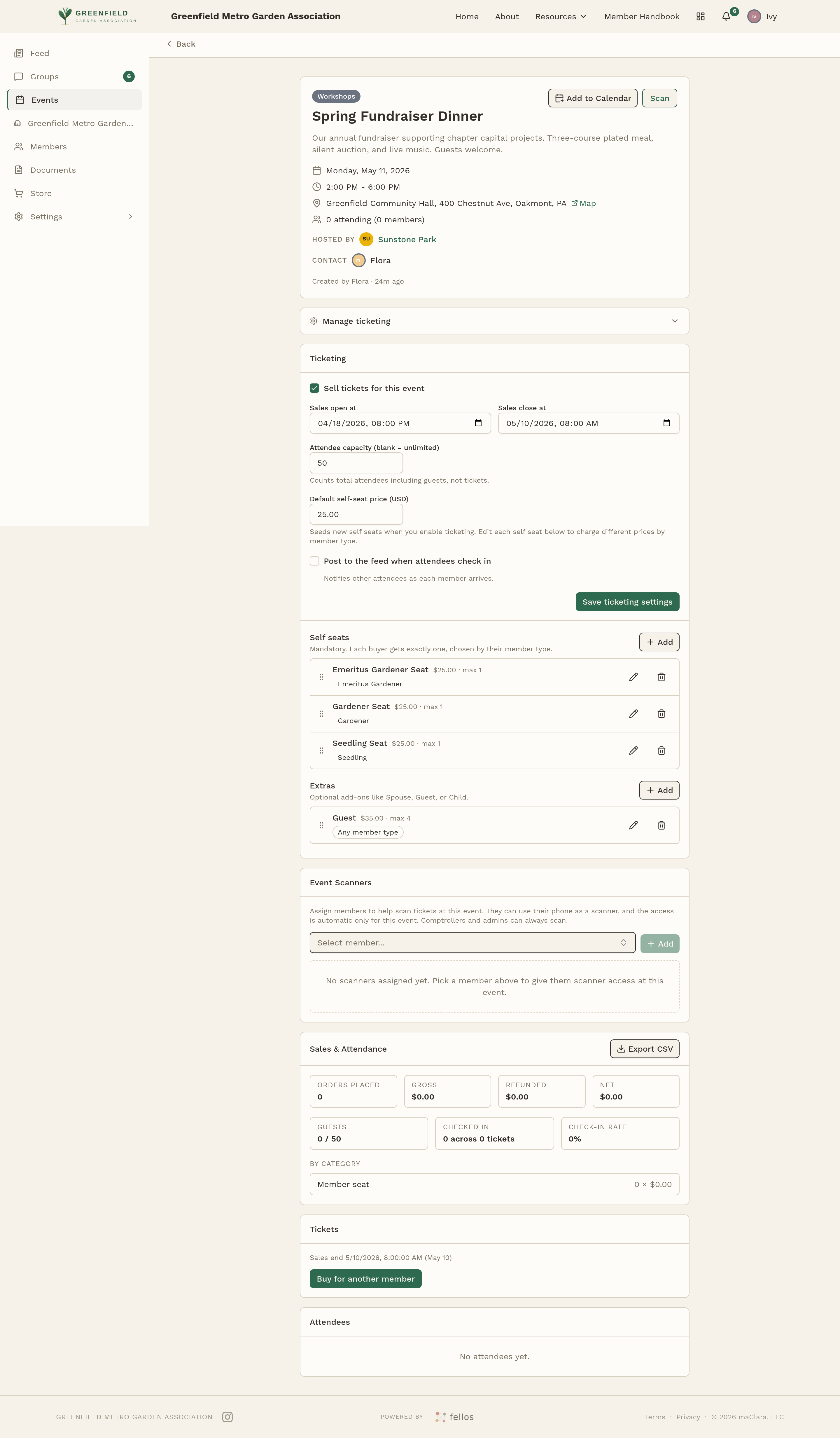
- Open Events and click into the event.
- Scroll down to the Event Scanners section (empty text reads "No scanners assigned yet. Pick a member above to give them scanner access at this event.").
- Use the Select member... dropdown to pick someone.
- Click Add.
- Repeat for each volunteer. Remove scanners later with the control next to their name.
Using the Scanner
On event day:
- Open the event page on your phone or tablet.
- Tap the Scan button on the event page. You'll need to allow camera access the first time — if the browser can't find a camera, the scanner shows "Requested device not found" and you'll need to open it on a device with a working camera.
- Point the camera at the ticket's QR code. It can be on the member's View ticket page, in their Apple Wallet or Google Wallet pass, or on a printout: each carries the ticket's check-in code.
- The scanner verifies the ticket against fellos and shows a card with the ticket holder's name, Party of N, and the seats on the ticket.
- Tap Check in 1 person (or Check in N people for a party) to let them in. The card changes to Checked in · welcome, with the time and your name, and then clears itself so you can scan the next ticket.
- If the code has been used already, the card reads Already checked in, with how long ago and who checked them in. It stays on screen until you tap OK, next.
Keep the scanner open while the door is active. The counter at the top counts people as you check them in, against the event's ticket capacity when one is set (for example, 1 / 120 checked in), or against everyone holding a ticket, guests included, when there is no capacity.
If You Lose Signal at the Door
The scanner checks each ticket against your live attendee list, so the phone needs a network connection — venue Wi-Fi or the phone's own cellular data, whichever is stronger. There's no Wi-Fi to arrange: most doors run fine on mobile data alone.
Remote venues and thick-walled halls can still leave you with no bars. If that happens, keep people moving by checking names against your attendee list on another device (a laptop, a tablet, or the event page on another phone), note arrivals by hand, and catch the scanner up once you have a signal again.
Open the event page on a laptop at the welcome table alongside the phone scanner. Doing so gives you a "plan B" — you can always check who's paid by scrolling the Attendees list even if the scanner hiccups.