Processing Orders
The day-to-day work of running the store.
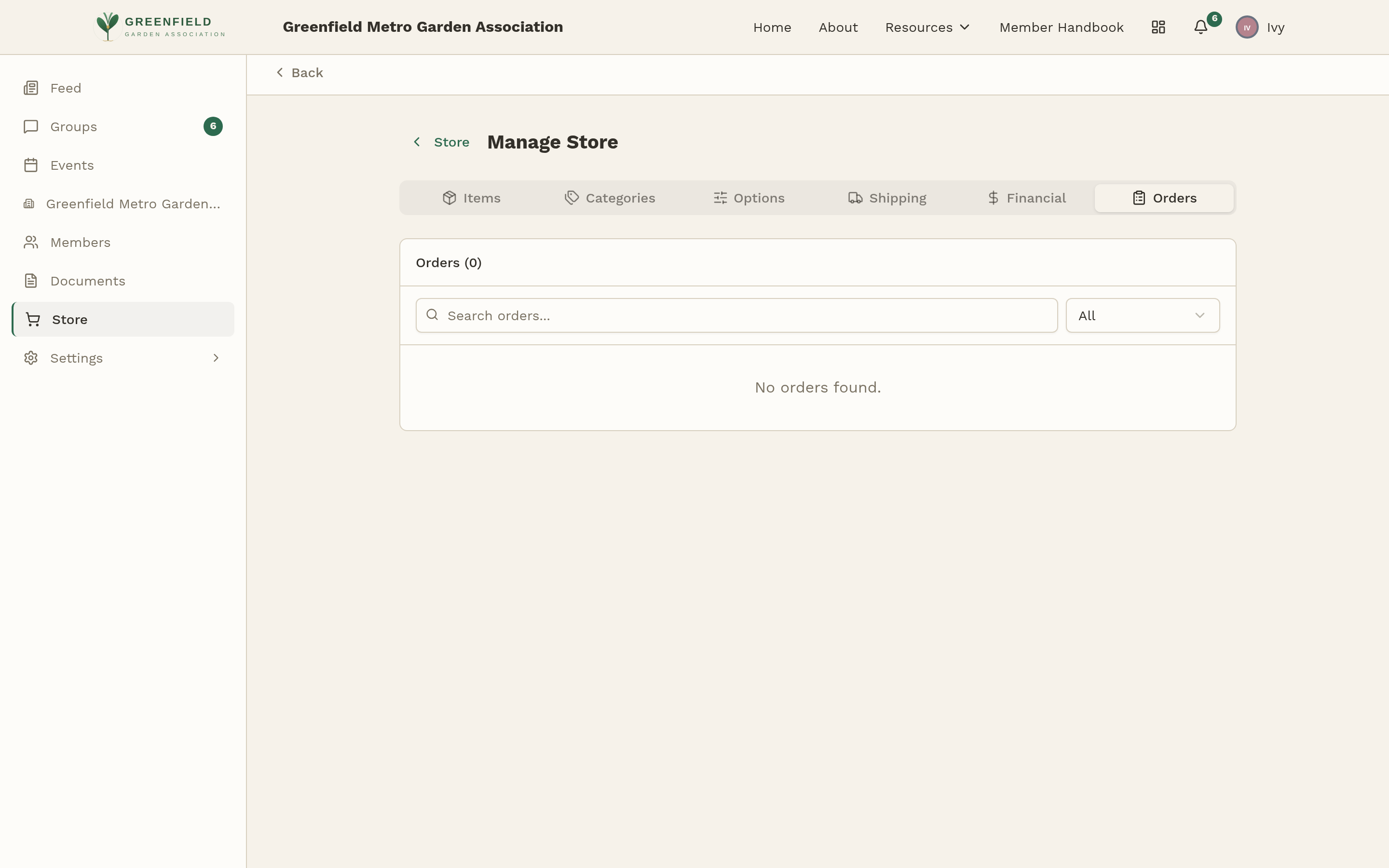
Every time a member buys something, an order lands in the Orders tab. Your job is to move each one through its stages — Pending to Processing to Shipped to Delivered — until every customer has their stuff.
Finding Orders
The Orders tab shows every order placed in the store, newest first. Each row has the order number (e.g. ORD-2026-0001), the buyer's name, the date, item count, total, and a status pill.
Above the list you'll find:
- A Search orders… box for finding an order by number or buyer name.
- A status filter dropdown (labeled All by default) — pick Pending, Processing, Backordered, Shipped, Delivered, or Completed to narrow the list.
Click any row to open that order's detail panel right there on the Orders tab — no separate screen.
The Order Lifecycle
An order moves through these statuses:
- Pending
- The member has checked out, but payment hasn't cleared yet. Most orders only sit here for a few seconds — Stripe confirms almost instantly.
- Processing
- Payment has cleared. The order is yours to fulfill. Pull the items, package them up.
- Backordered
- You're waiting on stock. You mark this when you open the order and realize you don't have enough to send right now.
- Shipped
- The package is on its way. You enter a tracking number and carrier when moving to this state.
- Delivered
- The package reached the buyer. You mark this manually once the buyer confirms (or once tracking shows delivered).
- Completed
- Used for orders that don't need shipping at all — purely digital items, for example.
Fulfilling an Order, Step by Step
Each stage shows only the buttons that make sense for where the order is. Here's the happy path:
- Open the order. It'll be in Pending right after checkout; wait a few seconds for Stripe to confirm.
- Click Mark Processing when you're ready to work on it. The status flips and new buttons appear.
- Check the line items (any selected options show inline — "Size: Medium") and the shipping address.
- Pack the order. Confirm you have stock.
- Click Ship Order. A dialog opens asking for the Tracking Number and the Carrier (the carrier field suggests USPS, UPS, FedEx, but any carrier name works).
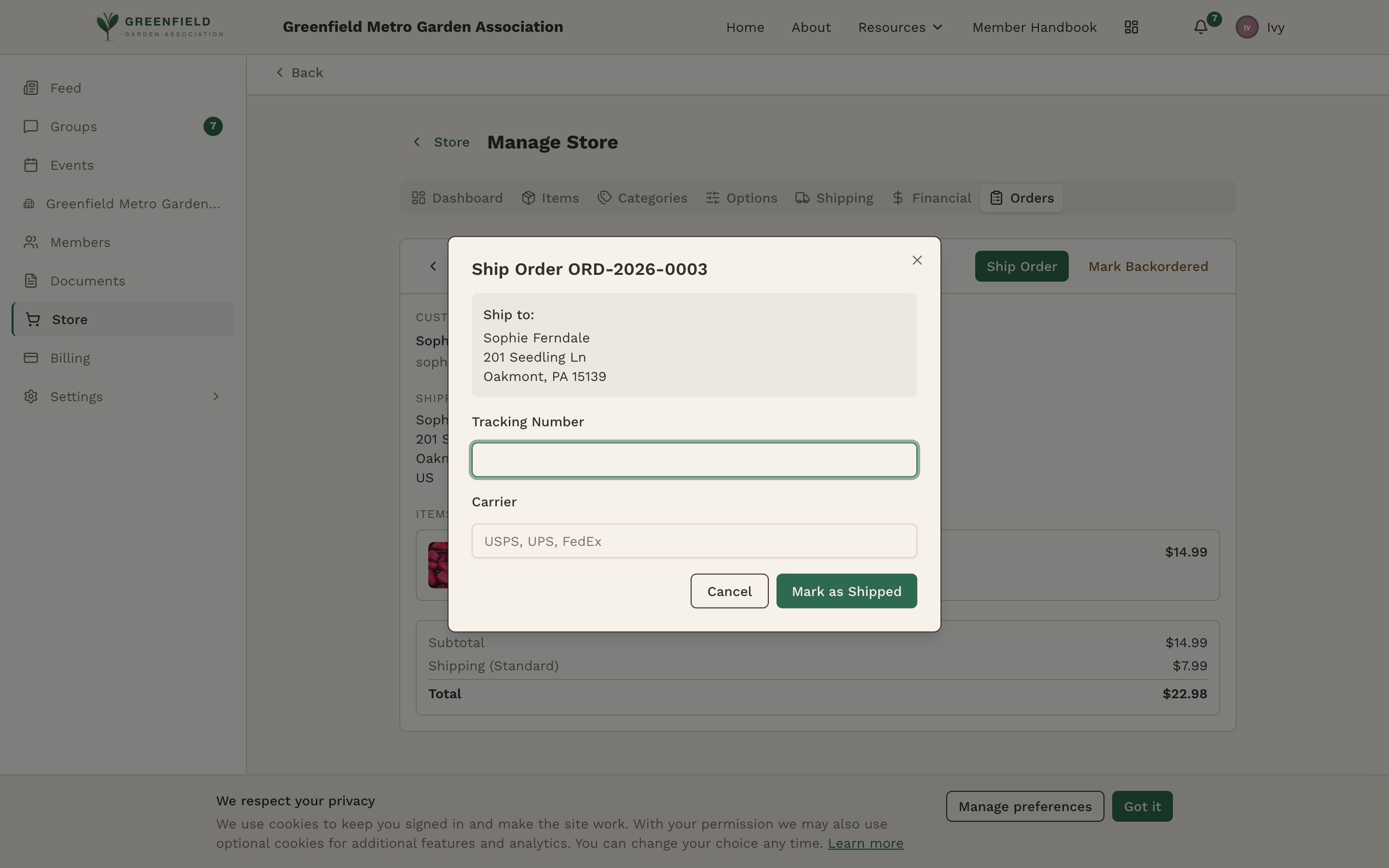
The Ship Order dialog, with the shipping address and fields for tracking info. - Click Mark as Shipped in the dialog. The status becomes Shipped and the tracking info shows under a new TRACKING section. The buyer's order page now shows the tracking too.
- When the buyer confirms it arrived (or you see it delivered in tracking), open the order and click Mark Delivered. That's it.
Handling Backorders
Sometimes you'll open an order and realize you're short on stock. Instead of cancelling:
- From the order detail panel, click Mark Backordered.
- A dialog opens with an optional Note field (up to 500 characters). Add a short explanation and rough ETA, like "restocking, ~2 weeks" — the customer sees this on their order page and in the notification they receive.
- Click Mark Backordered in the dialog. The customer is emailed and notified in-app about the delay.
- When stock arrives, come back, click Mark Processing, then Ship Order as usual.
What's on the Order Detail Panel
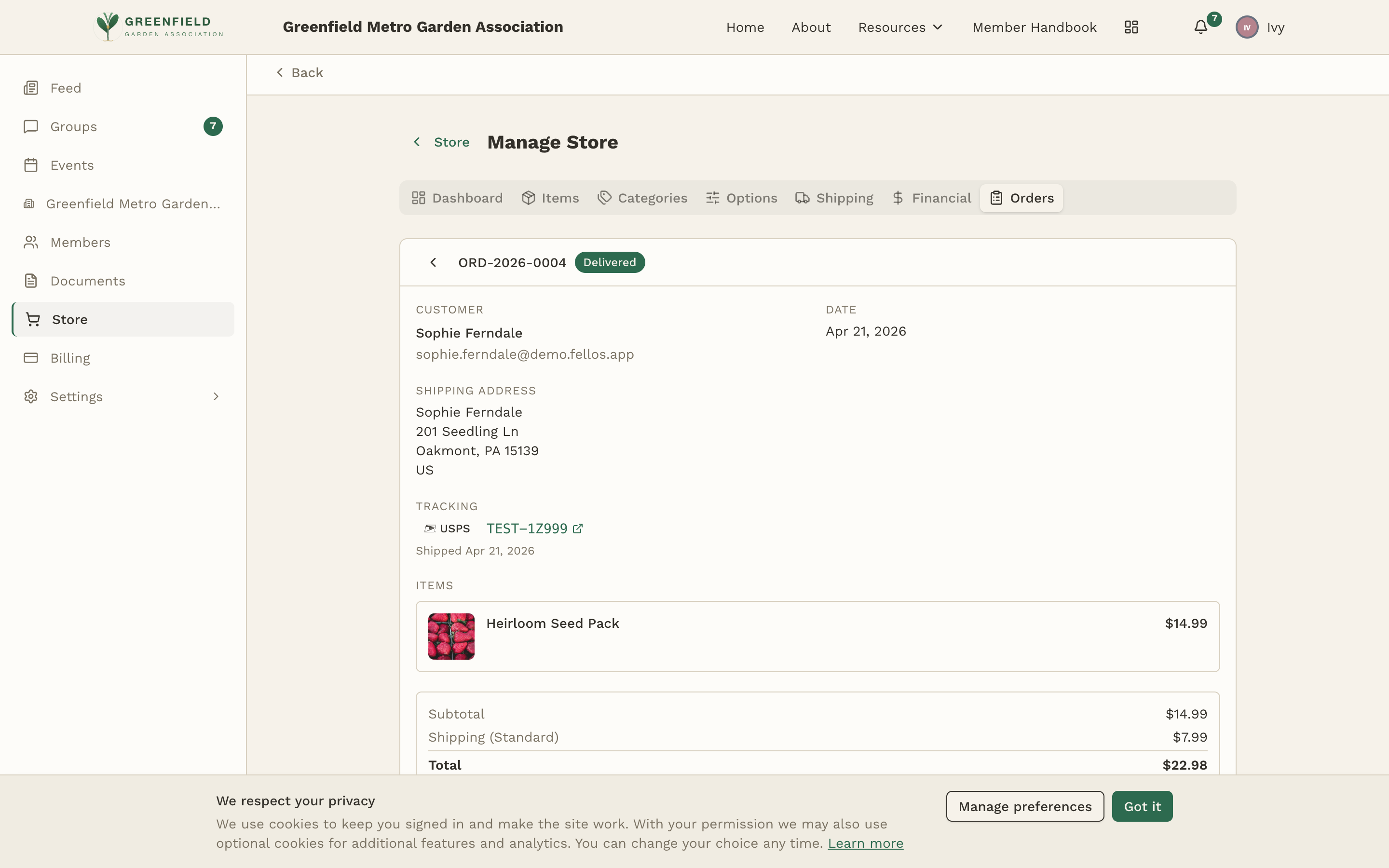
When you click an order from the list, the detail panel shows:
- The order number and a Pending / Processing / Backordered / Shipped / Delivered status pill.
- Stage-appropriate action buttons at the top (Mark Processing, Ship Order, Mark Delivered, Mark Backordered).
- CUSTOMER — buyer's name and email.
- DATE — when they placed the order.
- SHIPPING ADDRESS — full address as entered at checkout.
- TRACKING (once shipped) — carrier, tracking number, and ship date.
- ITEMS — each line with its price and any options selected.
- A totals block — Subtotal, Shipping (shows the method chosen), Total.
Members see their orders on Store → My Orders. Each row shows the current status and, once shipped, the tracking number and carrier inline. Clicking an order opens a step indicator (Pending → Processing → Shipped → Delivered) so they can see where their package is.
Refunds
Refunds happen in Stripe, not fellos. If a customer needs a refund, ask your Site Admin to process it from the Stripe dashboard. The fellos order record keeps its status — add a note by emailing the buyer directly if you want a paper trail.